Your Tech Story

Tech News

Microsoft Copilot vs Copilot Pro: Evaluating the Value of the Subscription Fee

Microsoft Copilot vs Copilot Pro: Evaluating the Value of the Subscription Fee

Microsoft has released Copilot Pro, a subscription-based enhancement to Microsoft Copilot, its AI buddy, which makes use of OpenAI’s high-end GPT-4 model. Copilot Pro adds more capabilities, personalised GPT support, and improved connection with Microsoft’s product suite; the free version is still accessible.

Improved Integration with Microsoft 365

Microsoft Copilot vs Copilot Pro: Evaluating the Value of the Subscription Fee

Image Source: phucanh.vn

With connectors for Word, Excel, PowerPoint, Outlook, and OneNote across several platforms, Copilot Pro extends the functionality of Copilot into Microsoft 365. The goal of this more thorough integration is to provide customers a consistent AI experience across many platforms, so they can become accustomed to it from a variety of software applications.

Earliest Access to the Newest GPT Models

Copilot Pro subscribers have first dibs on the newest GPT models. For example, the most recent version of OpenAI’s AI model, GPT-4 Turbo, is available to Copilot Pro customers. This guarantees that users will be able to access the newest developments in artificial intelligence technology as soon as they are made accessible.

Personalised Copilot GPTs for particular uses

The ability to design unique Copilot GPTs with specific goals in mind is one of Copilot Pro’s standout features. This feature increases the tool’s adaptability by enabling users to customise Copilot models to match their specific needs, much to OpenAI’s custom GPTs.

Value Proposition and Copilot Pro Cost

Copilot Pro may be accessed with a $20 monthly membership fee for each user. The cost structure is comparable to that of other AI models, such as Claude Pro and ChatGPT Plus. Copilot Pro’s added functionality, adaptability, and first dibs on the newest GPT model developments constitute its value proposition.

Free Features and Subscription Advantages are Balanced

Microsoft notes that although Copilot Pro adds more features, the free version of Copilot will still get feature upgrades and enhancements. Because of this, customers who choose the free version of Copilot may still take advantage of future improvements, making Copilot a useful tool even in the absence of the Pro upgrade.

User Input and the Final Decision

The choice to upgrade to Copilot Pro is based on the requirements of each user. Users who depend significantly on Microsoft 365 apps could find Copilot Pro’s improved integration and functionality useful. However, if you just use Copilot for simple tasks or online searches, the free edition can be more than enough for you.

In conclusion, Microsoft Copilot Pro offers consumers an option depending on their unique demands and usage patterns by introducing tighter integration into Microsoft’s ecosystem and advanced functionality for a $20 monthly membership cost.

Google Announces Subscription Requirement for Bard Advanced Access

Google Announces Subscription Requirement for Bard Advanced Access

Google’s latest move in the realm of AI subscription services is set to shake up the market once again. With the announcement of Bard Advanced, the tech giant is signaling a shift towards offering premium features through a subscription model. Here’s what you need to know about this latest development:

Google Announces Subscription Requirement for Bard Advanced Access

Image Source: ridelikesk.xyz

Alphabet, Google’s parent company, recently unveiled its fourth-quarter earnings for 2023, revealing a staggering $15 billion in annual subscription revenue. This surge underscores the growing importance of subscription-based services in Google’s revenue stream. With Bard Advanced, Google aims to capitalize further on this trend by offering enhanced AI capabilities through a subscription package.

Introducing Bard Advanced

Bard Advanced represents the pinnacle of Google’s conversational AI technology, powered by the cutting-edge Gemini Ultra architecture. This advanced AI assistant is equipped to handle complex tasks across various modalities, including text, images, audio, video, and even code. With Gemini Ultra at its core, Bard Advanced promises unparalleled understanding, summarization, reasoning, coding, and planning capabilities.

The Subscription Model

During Google’s Q4 earnings call, Alphabet CEO Sundar Pichai confirmed that Bard Advanced would be available exclusively through a subscription model. While details regarding pricing and release dates remain scarce, it’s evident that Google is doubling down on its subscription strategy to unlock the full potential of Bard Advanced. Early testers can expect to get their hands on this powerful AI assistant before a wider rollout ensues.

Pricing Speculations

As Bard Advanced gears up for its debut, speculation abounds regarding its pricing structure. Given Google’s existing subscription offerings, such as ChatGPT Plus priced at $20 per month, it’s reasonable to assume that Bard Advanced will fall within a similar range. However, until Google releases official pricing details, users can only speculate on the cost of unlocking the advanced features of Bard.

In conclusion, Google’s decision to require a subscription for Bard Advanced marks a significant shift in its AI strategy. By leveraging the Gemini Ultra architecture and embracing a subscription model, Google aims to deliver a sophisticated AI experience tailored to the evolving needs of users worldwide. As the tech landscape continues to evolve, Bard Advanced signifies Google’s commitment to pushing the boundaries of AI innovation while embracing new monetization avenues.

Neuralink Implant Successfully Installed in Human, Elon Musk Confirms

Neuralink Implant Successfully Installed in Human, Elon Musk Confirms

Elon Musk announced that the first human patient had gotten a brain implant from Neuralink, his brain-computer interface (BCI) technology business, on the social networking site X. The invention, called “Telepathy,” seeks to bridge the gap between artificial intelligence and the human brain.

Informing about the human trial via a post on X (formerly Twitter), Musk wrote, “The first human received an implant from @Neuralink yesterday and is recovering well. Initial results show promising neuron spike detection."

“Enables control of your phone or computer, and through them almost any device, just by thinking. Initial users will be those who have lost the use of their limbs. Imagine if Stephen Hawking could communicate faster than a speed typist or auctioneer. That is the goal." Musk followed up in another post.

livemint.com

Neuralink’s Sucess Story

Neuralink Implant Successfully Installed in Human, Elon Musk Confirms

Last autumn, Neuralink began patient recruitment for a clinical study following permission from the US Food and Drug Administration and a hospital ethics board. Participants in the study must be at least 22 years old and have quadriplegia as a result of either amyotrophic lateral sclerosis (ALS) or cervical spinal cord injury. The trial should last for six years.

The original intention of Neuralink was to allow paralysed people to use their brain impulses to control a keyboard or mouse. The business implants a coin-sized gadget into the part of the brain that controls movement intention using a surgical robot that it designed. Brain impulses are wirelessly recorded and sent by this gadget to an app that decodes them.

The patient is recovering properly, according to Elon Musk’s statement, and the initial findings show encouraging neuron spike detection. It will take some time for the patient to recuperate from surgery and complete a training phase, which usually lasts several weeks, before evaluating their ability to operate a computer or other device with the implant.

Despite being the first to investigate BCIs, Neuralink’s accomplishments represent a substantial step towards the eventual integration of artificial intelligence and humans. Academic labs have been working on brain-computer interfaces (BCIs) for years; early adopters took part in tests that allowed paralysed people to manipulate robotic limbs, play video games, and send emails with their thoughts.

With more than 1,000 electrodes spaced over 64 threads as thin as a human hair, Neuralink’s wireless BCI device is a significant improvement over conventional configurations. The company’s strategy tries to make BCIs more useful for at-home use.

Neuralink has encountered controversy despite its technological advancements, especially concerning how it handles study animals. A government probe was prompted after an examination in September found that several monkeys had died while undergoing brain implant testing. The business also had to pay fines for breaking hazardous material transportation regulations set out by the US Department of Transportation.

Neuralink is in competition with other businesses in the developing BCI market, but its new statement highlights how important it is to the advancement of neurotechnology. While there may be obstacles in the way of Musk’s goal of a seamless human-AI merger, Neuralink’s continued efforts mark a significant turning point in this exciting subject.

The Ultimate Guide to Fixing Wireless Mouse Issues in Windows 11

The Ultimate Guide to Fixing Wireless Mouse Issues in Windows 11

Wireless mice offer convenience and freedom of movement, but like any technology, they can encounter issues. If you’re facing the frustration of a non-responsive wireless mouse on your Windows 11 PC, don’t worry – we’ve got you covered. In this guide, we’ll walk you through troubleshooting steps to get your wireless mouse back in action.

Why Is Your Wireless Mouse Not Working?

Understanding the possible causes of your wireless mouse issues is the first step toward finding a solution:

1. Battery Problems

The Ultimate Guide to Fixing Wireless Mouse Issues in Windows 11

Image Source: alphr.com

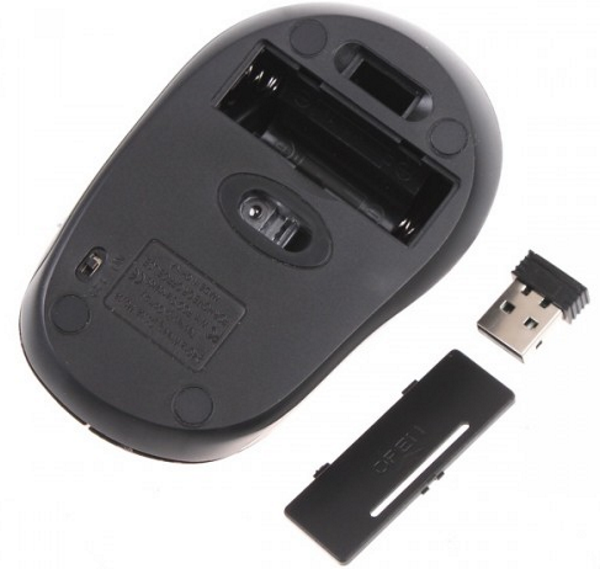
Battery problems often include rapid power depletion and poor contact points, leading to connectivity issues and inconsistent performance. Regularly checking and replacing batteries, and ensuring clean contact points, can resolve these common problems.

2. Connectivity Issues

Connectivity issues are commonly due to signal interference, weak batteries, or pairing glitches, leading to inconsistent cursor movements and response delays, necessitating troubleshooting for stable performance.

3. Driver Problems

Driver problems in wireless mice can cause unresponsiveness or erratic behavior, often due to outdated or corrupt software, requiring updates or reinstallation to ensure smooth and accurate cursor control.

4. Interference

Wireless mice may be affected by interference from other devices. Make sure there are no electronic devices nearby that could interfere with the signal.

5. Hardware Malfunction

If none of the above solutions work, it’s possible that your mouse has a hardware issue.

Step-by-Step Troubleshooting

Let’s address your wireless mouse issue with a step-by-step approach:

Check Batteries

  • Replace or recharge the batteries in your wireless mouse. Make sure they are inserted correctly.

Reconnect the Mouse

  • If your mouse has a USB receiver, unplug it and plug it back in. Make sure it is connected securely.

Restart Your PC

  • Restarting your PC can often resolve wireless mouse issues, as it refreshes system connections and resolves temporary software glitches that may be hindering mouse functionality.

Update Mouse Drivers

  • Updating mouse drivers is a key solution to fix issues with responsiveness and compatibility, ensuring smooth and efficient operation of your wireless mouse.

Test for Interference

  • Move any potential sources of interference away from your mouse and receiver.

Test with Another PC

  • To rule out hardware problems, test your wireless mouse on another computer. If it works there, the problem may be with your Windows 11 PC.

Check for Windows Updates

  • Make sure your Windows 11 operating system is up to date, as updates may include important fixes for hardware compatibility.

Conclusion

Your wireless mouse not working on Windows 11 can be frustrating, but most problems can be solved with a few simple troubleshooting steps. By checking the batteries, reconnecting the mouse, updating drivers, and addressing possible interference, you can probably get your mouse back to work.

FAQs

1. Why is my wireless mouse cursor moving irregularly?

Irregular cursor movement may be caused by interference or a dirty sensor. Make sure to have a clean and neat surface for your mouse.

2. Can I use a wired mouse as a temporary solution?

Yes, connecting a wired mouse can work as a temporary solution while you troubleshoot your wireless mouse.

3. How often should I replace wireless mouse batteries?

The frequency of battery replacement depends on usage. On average, wireless mouse batteries can last from several months to a year.

4. What should I do if my wireless mouse still doesn’t work after troubleshooting?

If your mouse remains unresponsive, consider contacting the manufacturer’s customer support or seeking professional help.

5. Are there any software tools for diagnosing wireless mouse issues on Windows 11?

Yes, some software tools can help diagnose and fix mouse-related problems on Windows 11. Check your mouse manufacturer’s website for such tools or consult online forums for recommendations.

How to Successfully Remove a Printer from Windows 10 and 11

How to Successfully Remove a Printer from Windows 10 and 11

How to Successfully Remove a Printer from Windows 10 and 11

Image Source: online-tech-tips.com

In the digital age, managing devices and peripherals like printers has become an essential part of our daily lives. However, there may come a time when you will need to remove a printer from your Windows 11 or Windows 10 PC. Whether you’re upgrading your printer, experiencing compatibility issues, or simply decluttering your device list, this guide will walk you through the steps to efficiently remove a printer from your Windows PC.

Why You Might Need to Remove a Printer

Before we get into the process, it’s important to understand why you want to remove the printer:

1. Upgrading or Replacing Your Printer

When you get a new printer or upgrade your existing printer, it is necessary to remove the old printer to avoid confusion and ensure proper installation of the new device.

2. Solving Compatibility Issues

If your printer isn’t working properly with your PC or if you’ve switched to a different model or brand, removing the old printer may resolve compatibility issues.

3. Decluttering Your Devices

Over time, your devices list may become cluttered with printers you no longer use. Deleting them can streamline your device management.

Step-by-Step Guide

Now, let’s move on to the process of removing a printer from your Windows 11 or Windows 10 PC:

  • Click the “Start” menu and select “Settings”.

  • In the Settings window, click the “Device” option.

  • On the left sidebar, select “Printers & Scanners.”

  • In the Printers and Scanners section, you will see a list of connected printers. Find the one you want to remove.

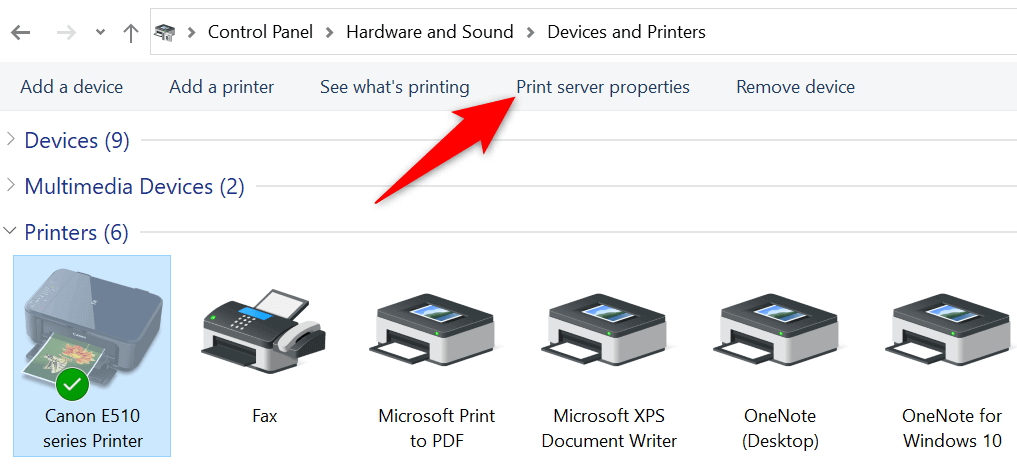
  • Click on the printer you want to remove and a “Remove Device” button will appear. Click it.

  • A confirmation dialog will appear, asking if you are sure you want to delete the printer. Confirm by clicking “Yes”.

  • The selected printer will be removed from your PC, and you will see it disappear from the list of printers and scanners.

Conclusion

Removing a printer from your Windows 11 or Windows 10 PC is a straightforward process that can help you maintain an organized and efficient device list. Whether you’re upgrading your printer, dealing with compatibility issues, or simply decluttering, following these steps will ensure a hassle-free experience.

FAQs

1. Can I remove multiple printers at once?

No, you will have to remove each printer individually by following the steps outlined in this guide.

2. Will removing a printer delete its drivers?

No, removing a printer will simply remove it from the list of connected devices on your PC. The printer drivers will remain intact unless you uninstall them separately.

3. Can I remove a printer if it’s offline?

Yes, you can remove the printer even when it is offline.

4. Is there a limit to how many printers I can connect to my Windows PC?

There is no strict limit to the number of printers you can connect, but it is recommended to keep your device list organized by removing printers you no longer use.

5. What should I do if I accidentally remove the wrong printer?

If you accidentally remove the wrong printer, you can easily reconnect it by following the printer setup process on your PC.

How does Apple's Vision Pro Improve Your Zoom Call Experience?

How does Apple’s Vision Pro Improve Your Zoom Call Experience?

Zoom, the renowned teleconferencing platform, is gearing up to revolutionize virtual meetings with its integration into Apple’s Vision Pro. Scheduled for launch on Feb. 2, this innovative collaboration promises to redefine the way we perceive and engage in video calls.

Overcoming Technical Challenges

How does Apple's Vision Pro Improve Your Zoom Call Experience?

Image Source: techcrunch.com

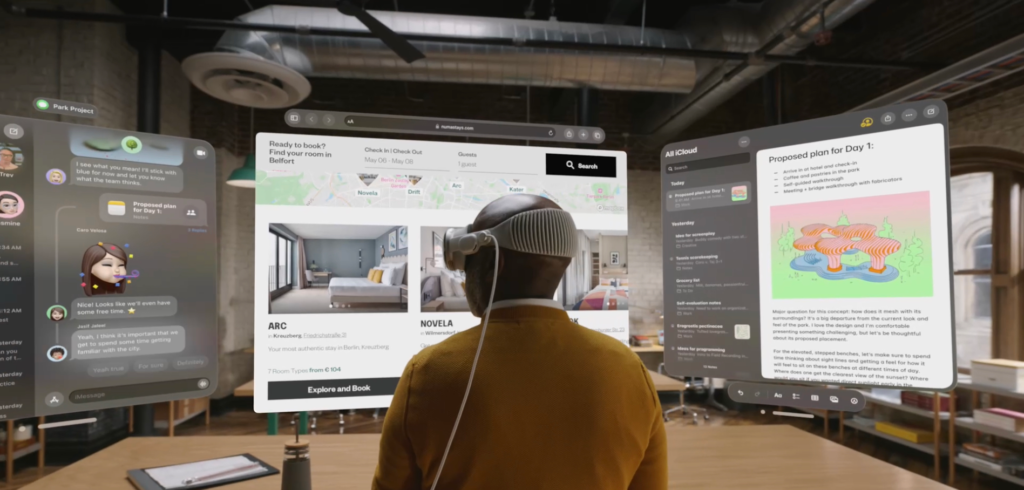
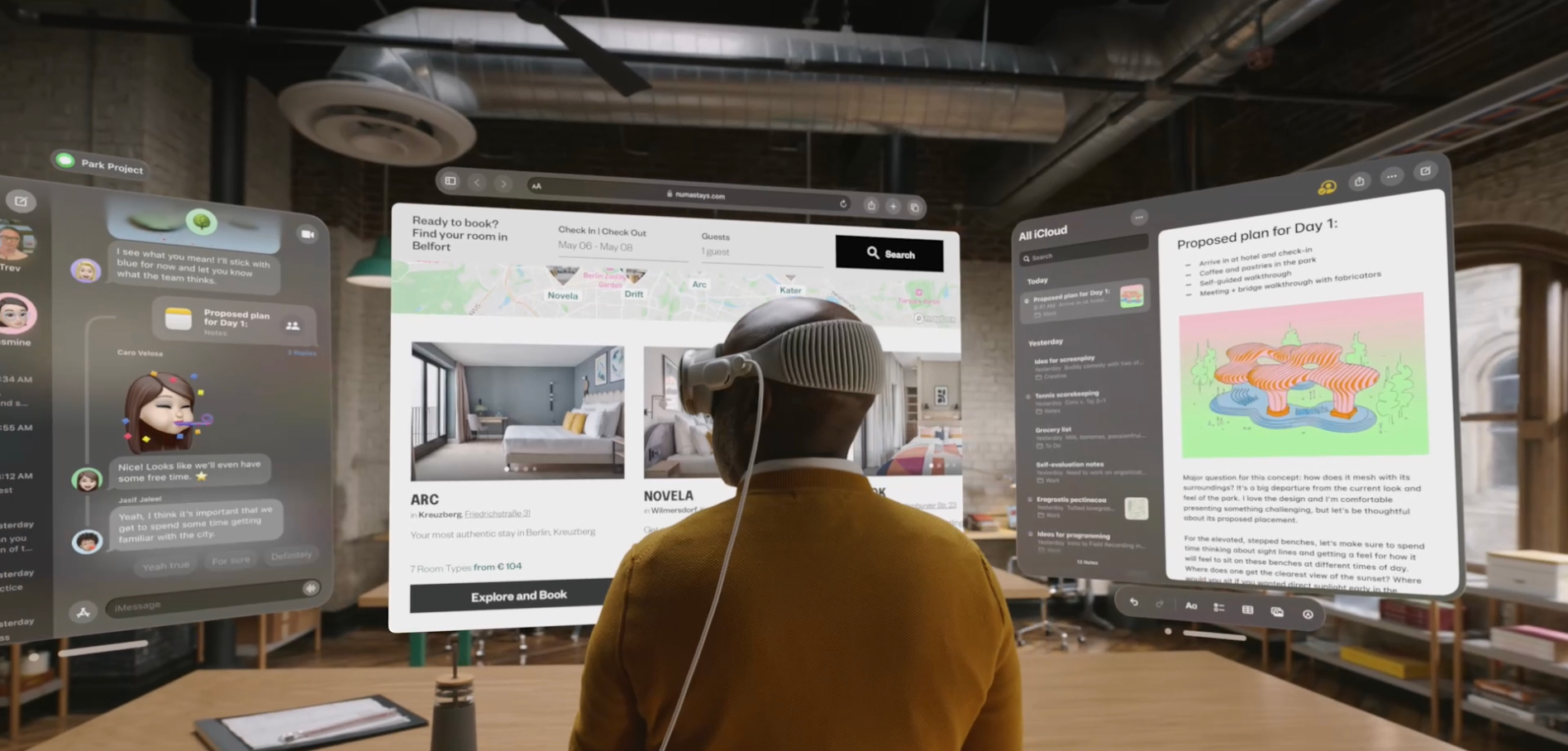
One of the primary challenges faced by Apple in incorporating video calls into an augmented reality headset was the absence of a traditional webcam setup. With your face covered by the headset, the conventional approach to video conferencing became obsolete. However, Apple ingeniously introduced “Personas” to address this issue. By scanning your face with the Vision Pro headset, users can create digital avatars that mimic their gestures and facial expressions, enhancing the naturalness of interactions during calls.

Zooming into the Features

Zoom’s adaptation to the Vision Pro environment marks a significant leap in telecommunication technology. Users will have access to familiar features such as starting, joining, and scheduling meetings directly from the Vision Pro app. Additionally, the integration of Persona support ensures seamless collaboration, while the inclusion of a chat box enables real-time communication during calls.

While the initial launch of Zoom on Vision Pro promises an immersive teleconferencing experience, the future holds even more exciting developments. Zoom has teased forthcoming features like 3D Object Sharing, Team Chat, and Real World Pinning. These additions capitalize on the Vision Pro’s augmented reality capabilities, offering users innovative ways to interact and collaborate within virtual environments.

Navigating the Landscape

Despite its promising features, the Vision Pro faces some limitations, notably the absence of native apps from streaming giants like Netflix, YouTube, and Spotify. While users can access these services through the Vision Pro’s browser, the lack of dedicated applications may deter some consumers. Moreover, with a starting price of $3,499, the accessibility of the Vision Pro remains a concern for budget-conscious individuals and businesses alike.

As Zoom prepares to make its mark on Apple’s Vision Pro, the landscape of virtual meetings is poised for a transformational shift. With its integration of Persona support and innovative features, Zoom on Vision Pro promises to deliver a truly immersive and engaging teleconferencing experience. However, challenges such as accessibility and comfort may influence the widespread adoption of this technology. Nevertheless, the convergence of Zoom and Vision Pro heralds a new era in telecommunication, one where virtual meetings transcend boundaries and redefine connectivity.