Your Tech Story

Tech News

How Will Generative AI Impact Our Devices in the Future?

How Will Generative AI Impact Our Devices in the Future?

Generative AI is set to revolutionize our interactions with devices, making them smarter, more intuitive, and incredibly efficient. This transformative technology will significantly enhance user experience, content creation, communications, security, and device performance, while also presenting new challenges and ethical considerations.

Enhancing User Experience

How Will Generative AI Impact Our Devices in the Future?

Image Source: cnbc.com

Generative AI will personalize the user experience to unprecedented levels. Devices will learn from user behavior to tailor interfaces, suggestions, and services. Improving accessibility will make technology more inclusive, using AI to adapt interfaces for disabled users.

Revolutionizing Content Creation

The field of content creation will see a big change with AI. From media production, offering tools for creating music, videos, and images, to assisting with creative writing, Generative AI will democratize content creation, making it more accessible.

Transforming Communication

Communication devices will become more efficient and barrier-free. Real-time translation and smart replies, powered by AI, will make conversations in different languages โ€‹โ€‹seamless and increase productivity.

Advancing Security Measures

Generative AI will strengthen security measures on devices. It will enhance fraud detection and privacy protection by using pattern recognition to more effectively identify and mitigate potential threats.

Optimizing Device Performance

AI will optimize device performance, and increase battery life and processing efficiency. Devices will manage their resources more intelligently, adapting usage patterns to save energy and process tasks more efficiently.

Future of Device Interfaces

The future will see more natural interactions with devices through voice-activated controls and gesture recognition. Generative AI will make interfaces more intuitive, reduce the learning process for users, and make technology more accessible.

Ethical Considerations and Challenges

Despite its benefits, generic AI raises ethical concerns, including bias and job displacement. It is important to address these challenges, ensuring that society as a whole benefits equally from AI.

Conclusion

Generative AI is set to transform our devices in ways we are just beginning to understand. By enhancing user experience, revolutionizing content creation, transforming communications, advancing security, and optimizing performance, AI will make our devices more intuitive, efficient, and secure. However, it will be important to pay attention to ethical considerations to responsibly harness the full potential of AI.

How to use Google Bard's new AI image generator?

A Step-by-Step Tutorial on Using Google Bard’s AI Image Generator

Google Bard, renowned for its prowess as an AI chatbot, has recently been equipped with a powerful new feature: an AI image generator. Dubbed Imagen 2, this innovative tool operates akin to the Gemini AI large language model (LLM) that fuels Bard’s linguistic capabilities. The best part? It’s both free and readily accessible, allowing users to delve into creative exploration effortlessly.

Getting Started: Simple Steps to Dive In

To embark on your journey with Bard’s AI image generator, follow these straightforward steps:

  1. Access Google Bard: Begin by opening Google Bard, your gateway to a realm of creatvity.
  2. Sign In or Create a Google Account: Ensure you’re logged into your Google account, or sign up for one if you haven’t already.
  3. Craft Your Prompt: Enter a concise yet descriptive prompt to guide the image generation process. Emphasize your desire for Bard to create an image to refine the output further.

Remember, specificity is key when formulating prompts for AI. The more precise your instructions, the more tailored and accurate the generated images are likely to be.

Exploring the Possibilities: Unleash Your Imagination

How to use Google Bard's new AI image generator?

While the potential of Bard’s image generator is vast, it’s essential to temper expectations, especially in comparison to dedicated graphic design software. While experimentation can yield delightful results, professional designers may find limitations within the free tier.

Overcoming Restrictions: Navigating Geographic Constraints

A notable caveat of Bard’s AI image generator is its limited availability, primarily restricted to the United States. However, a simple workaround exists in the form of a Virtual Private Network (VPN). By utilizing a VPN, users can mask their IP address and simulate their location, granting access to geo-restricted features such as Bard’s image generator.

Thankfully, employing a VPN is both legal and straightforward. By selecting a server located in the US, users can seamlessly access Bard’s image generation capabilities from anywhere in the world. Tested and proven effective, this method ensures that geographic barriers do not hinder creative exploration.

In conclusion, Google Bard’s integration of an AI image generator heralds a new era of creative expression. With its intuitive interface and expansive capabilities, it empowers users to transform their ideas into visual masterpieces. By following the outlined steps and leveraging available tools like VPNs, individuals can unlock the full potential of Bard’s innovative feature set, transcending geographical limitations to unleash their creativity on a global scale.

Apple CEO Tim Cook Reveals AI Enhancements for 2024 iPhones

Apple CEO Tim Cook Reveals AI Enhancements for 2024 iPhones

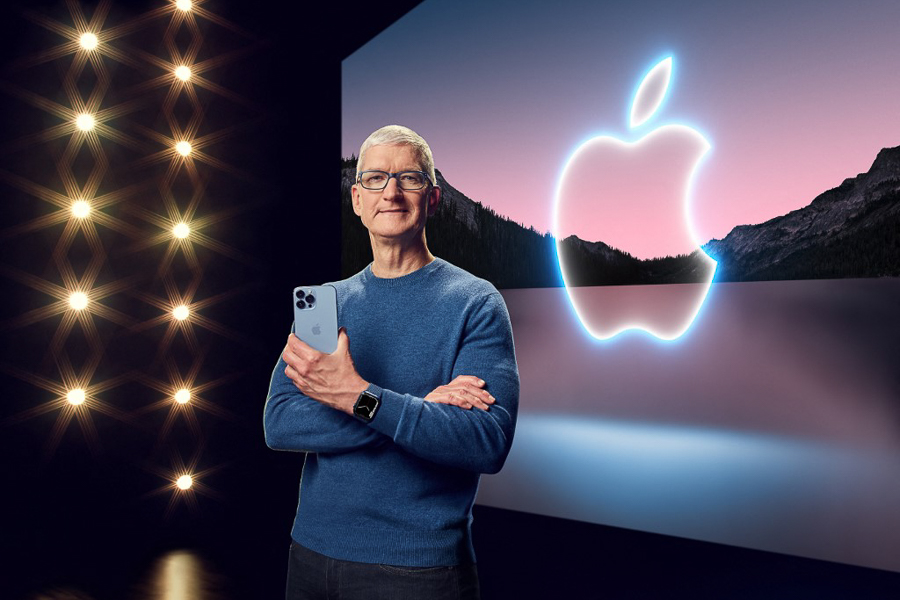
Apple fans have been excitedly anticipating the tech giant’s entry into AI features as the industry welcomes the age of artificial intelligence. The progress that competitor companies like Google and Samsung have achieved in this area has left supporters wondering when Apple would follow suit. By the end of 2024, generative AI will reportedly be available on iPhones, Macs, and other devices, according to plans revealed by Apple CEO Tim Cook.

Apple CEO Tim Cook said: โ€œIn terms of generative AI, which, Iโ€™d guess, is your focus, we have a lot of work going on internally as Iโ€™ve alluded to before. Our MO, if you will, has always been to do work and then talk about work and not to get out in front of ourselves. And so, weโ€™re going to hold that to this as well. But weโ€™ve got some things that we are incredibly excited about that weโ€™ll be talking about later this year.โ€

timesofindia.indiatimes.com

A Look Into Apple's Future with AI

Apple CEO Tim Cook Reveals AI Enhancements for 2024 iPhones

Image Source: forbesindia.com

Tim Cook updated attendees on Apple’s plans during the company’s most recent quarterly earnings conference. He said that generative AI software features are being developed and would be available to users “later this year.” Cook emphasised that the business would be making large investments in artificial intelligence and that further information about their current efforts in this area will be made public in the upcoming months.

The Fall Unveiling Countdown

Interestingly, Cook used the phrase “generative AI” several times without going into specifics. But he made a very tantalising suggestion about a big release this autumn. This is in line with recent rumours that suggest the iOS 18 upgrade is the biggest in the history of Apple’s operating system. Bloomberg’s Mark Gurman claims that AI will power Apple’s iOS 18, which should provide users of the iPhone with a revolutionary experience.

Anticipation of Fall Events

The company’s custom of unveiling the new iPhone series during this yearly extravaganza has added to the excitement surrounding Apple’s autumn event. Although Tim Cook declined to provide specifics, industry rumours indicate that Apple wants to include artificial intelligence (AI) into its operating systems, which include iOS, iPadOS, and macOS. This calculated action is similar to what tech behemoths like Microsoft, Google, and Samsung have done.

What's in store for Apple users?

The IT community is anxiously awaiting the big unveiling as Apple continues to play it close to the vest. Several rumours and speculations suggest a significant AI integration that may change how users interact with Apple products overall. Fans will have to consider the possibilities and be ready for what may be a game-changing event in Apple’s history for the time being. The internet giant’s history may undergo a significant change when the countdown to autumn begins.

How to Redeem Amazon Gift Card: Step-by-Step Guide

How to Redeem Amazon Gift Card: Step-by-Step Guide

Amazon gift cards are a well-liked option for online shoppers since they provide access to a huge selection of goods. However, for a flawless buying experience, it is essential to comprehend the mechanics of redeeming these cards. This is a thorough tutorial that will help you get the most out of your digital or tangible treasure by explaining how to redeem an Amazon gift card.

Comprehending the Redemption Process for Amazon Gift Cards

How to Redeem Amazon Gift Card: Step-by-Step Guide

The whole amount of an Amazon gift card is instantly applied to your Amazon account upon redemption. Then, you may use this credit to buy a variety of acceptable products that are listed on the site. It’s vital to be aware of the following restrictions: you cannot use your gift card balance to buy other Amazon gift cards, transfer money to other Amazon accounts, or swap money for cash.

If you need more than Amazon to suit your needs when it comes to buying, you might look into other options on third-party gift card marketplaces.

Two Ways to Redeem the Gift Card

Redeeming an Amazon gift card may be done in two main ways, both of which are equally efficient. The first method adds the gift card balance to your Amazon account, enabling you to hold onto the money until you’re prepared to make a purchase. The second approach incorporates redeeming gift cards straight into your shopping cart checkout procedure.

Easy Step-by-Step Instructions for Using Amazon Gift Cards

Step 1: Locate the claim code for an Amazon gift card. Find the claim code on your Amazon gift card, whether it’s digital or physical. This code is visible on the card and is necessary for the redemption procedure.

Step 2: Use the gift card from Amazon

Apply on a Desktop:

  • Launch your browser and go to the Amazon website.

  • Go to the “Account & Lists” option after signing into your account.

  • Click on “Account” and then “Gift Cards.”

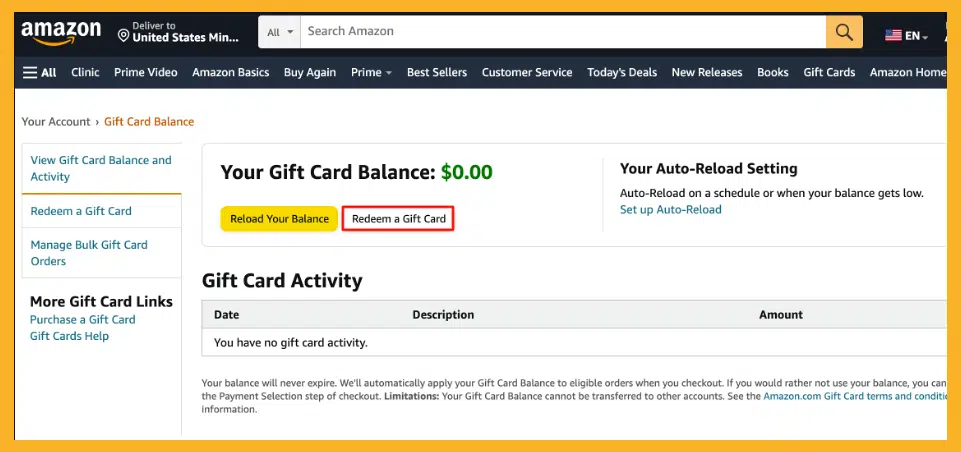
  • After entering your claim code, click “Redeem a Gift Card”.

  • To add the value of the gift card and authenticate it, click “Apply to Your Balance”.

Redeem on a Mobile Device:

  • On your Android, iPhone, or iPad, open the Amazon app.

  • In the bottom bar, tap the user symbol, then choose “Gift Card Balance.”

  • Select “Redeem Gift Card” and input the claim code manually or by scanning your card.

  • To quickly add the value of the gift card, tap “Apply to Your Balance”.

You’ve successfully redeemed your Amazon gift card by following these easy steps, opening up a world of options for your next online shopping binge. Cheers to your shopping!

How to Find, Download, and Change Wallpaper on Apple Watch

How to Reset the Apple Watch?

In the world of wearables, the Apple Watch stands out as the pinnacle of technology, blending style with functionality. Whether you’re upgrading, troubleshooting, or just starting fresh, resetting your Apple Watch can be an important step. This guide reveals the secrets of the process, ensuring you can reset your device with confidence.

Resetting your Apple Watch isn’t just about clearing glitches. This is a step taken for a variety of reasons, from preparing the device for a new owner to refreshing its settings for a cleaner, smoother experience.

Why Reset Your Apple Watch?

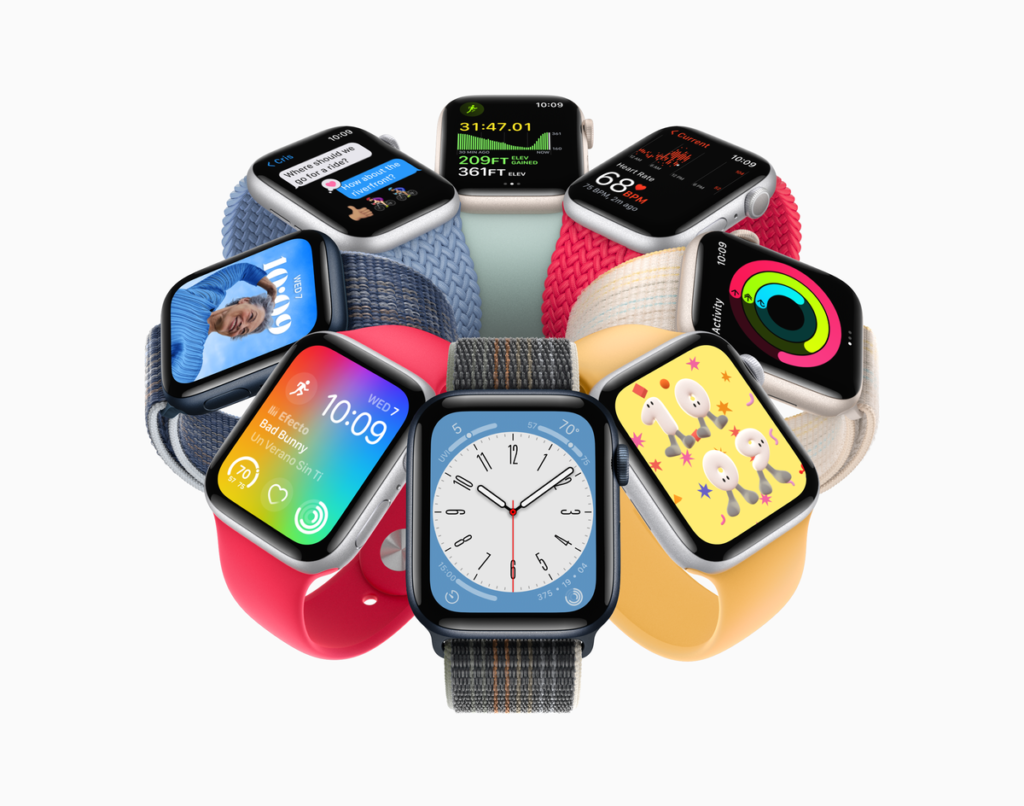
How to Find, Download, and Change Wallpaper on Apple Watch

Resetting can be a big relief for many common Apple Watch problems, from software issues to battery issues. This is also necessary if you are giving your watch to someone else and you need to securely erase your data.

Preparing to Reset

Backup Your Data

First things first: ensure the security of your data. Your Apple Watch automatically backs up your paired iPhone, so make sure this sync is recent enough to save your settings, messages, and health data.

Ensure WatchOS is Updated

Updating your Apple Watch to the latest version of watchOS can sometimes resolve issues without requiring a reset. Check for updates to the Apple Watch app on your iPhone.

Step-by-Step Guide to Resetting Your Apple Watch

Hard Reset

A hard reset, or force restart, does not erase any data. This is a quick fix for frozen screens or unresponsive apps.

  • Press and hold both side buttons for at least 10 seconds.

  • Release when the Apple logo coming.

Factory Reset

For a clean slate, a factory reset removes all data from your Apple Watch.

From the Apple Watch:

  • Go to Settings > General > Reset > Erase All Content and Settings.

  • Enter your passcode and confirm.

From the Paired iPhone:

  • Open the Apple Watch app.

  • Tap General > Reset > Erase Apple Watch Content and Settings.

  • Confirm and enter your Apple ID if prompted.

Post-Reset Steps

Restoring Data from Backup

After a factory reset, you can restore your Apple Watch from a backup during the re-pairing process with your iPhone. Select Restore from Backup and choose the latest backup.

Re-pairing with Your iPhone

Follow the on-screen instructions in the Apple Watch app on your iPhone to pair your watch again. This process also provides the option to restore from a backup.

Troubleshooting Common Issues

If your Apple Watch won’t reset or can’t pair after a reset, make sure it’s charged and within range of your iPhone. Consult Apple Support for persistent problems.

Conclusion

Resetting your Apple Watch can breathe new life into your device, whether you’re troubleshooting or preparing it for a new owner. Follow these steps for a smooth transition.

How to Pair an Xbox Controller with Your Xbox

How to Pair an Xbox Controller with Your Xbox

How to Pair an Xbox Controller with Your Xbox

Image Source: polygon.com

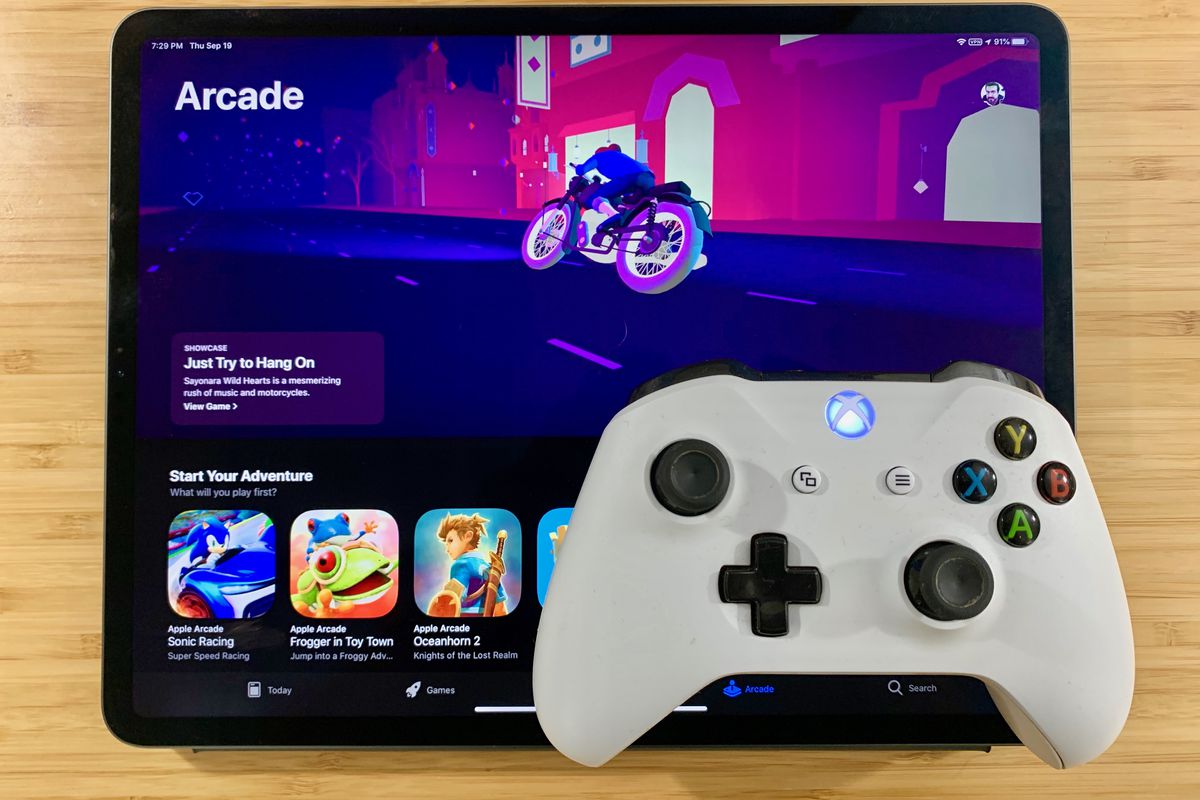
Connecting your Xbox controller to your Xbox console is a straightforward process that allows you to seamlessly dive into your favorite games with precision control. Whether you’re setting up a new controller or reconnecting an existing one, follow these simple steps to ensure a hassle-free gaming experience.

Wired Connection:

1. Gather Your Equipment: Ensure you have your Xbox controller and a micro-USB cable ready. The micro-USB cable is typically included with the Xbox controller or can be purchased separately.

2. Locate the USB Port: On your Xbox console, locate the USB port. Depending on the model of your Xbox, the USB port may be located on the front, back, or side of the console.

3. Connect the Controller: Plug one end of the micro-USB cable into the controller and the other end into the USB port on your Xbox console.

4. Power On Your Xbox: Press the Xbox button on your controller to power on the console. Your Xbox should recognize the controller automatically, and you’re ready to start gaming.

Wireless Connection:

1. Prepare Your Controller: If you haven’t already done so, insert batteries into your Xbox controller. Alternatively, you can use a rechargeable battery pack.

2. Turn on Your Xbox: Press the power button on your Xbox console to turn it on.

3. Activate Pairing Mode: Press and hold the Xbox button on your controller until the Xbox button begins to flash rapidly. This indicates that the controller is in pairing mode.

4. Sync with Xbox: On your Xbox console, press the pairing button. The location of the pairing button varies depending on the model of your Xbox. Refer to your Xbox’s user manual for specific instructions.

5. Wait for Connection: Allow a few moments for the controller and console to sync. Once synced, the Xbox button on the controller will remain lit, indicating a successful connection.

6. Test the Connection: Press buttons on the controller to ensure it’s responding correctly. You’re now ready to enjoy wireless gaming on your Xbox.

Additional Tips:

Firmware Updates: Occasionally, Microsoft releases firmware updates for Xbox controllers to improve performance and add features. Keep your controller up-to-date by connecting it to your Xbox console or PC and following the on-screen prompts to install any available updates.

Troubleshooting: If you encounter any issues during the connection process, such as the controller not syncing or responding properly, try restarting your Xbox console and repeating the steps. If problems persist, consult the Xbox support website or contact customer service for assistance.

By following these simple steps, you can easily connect your Xbox controller to your Xbox console, whether you prefer a wired or wireless connection. Now, immerse yourself in the world of gaming and enjoy countless hours of entertainment.