Your Tech Story

Team YTS

How to Troubleshoot an Epson Printer Not Printing After Refilling Ink

How to Troubleshoot an Epson Printer Not Printing After Refilling Ink?

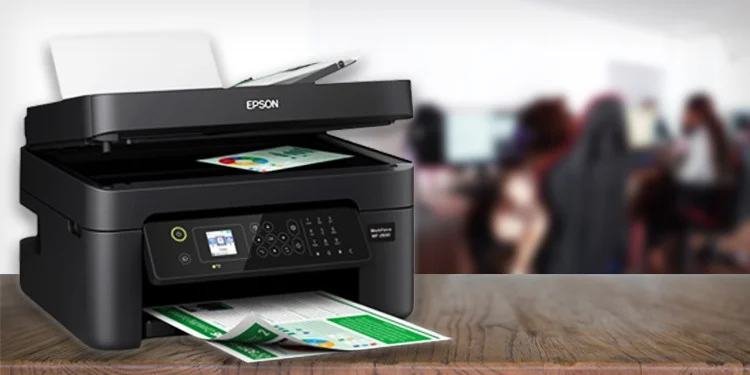
Encountering the challenge of an Epson printer not printing after an ink refill can be both perplexing and inconvenient. In this guide, we will delve into effective troubleshooting steps to identify and resolve the issue, ensuring a seamless printing experience with your Epson printer.

Image Source – technewstoday.com

Check Ink Levels

Begin your troubleshooting journey by verifying the ink levels in your Epson printer. Low ink levels could be a potential hindrance to printing. Check the ink status through the printer settings on your computer or the printer display panel.

Ensure Proper Ink Refill

Confirm that the ink cartridges were refilled correctly. Ensure each cartridge is securely in place without leaks or spills. Incorrectly refilled cartridges can disrupt the printing process and cause issues.

Run Printer Self-Test

Initiate a self-test on your printer to determine its operational status. Refer to your printer manual for specific instructions on how to run a self-test. This step aids in pinpointing whether the issue lies with the printer or the computer.

Check for Air Bubbles

Air bubbles in the ink cartridges can impede the printing process. Conduct a nozzle check and head cleaning through the printer software to eliminate air bubbles and ensure a smooth ink flow.

Update Printer Drivers

Outdated or incompatible printer drivers may contribute to the problem. Visit the official Epson website to download and install the latest printer drivers compatible with your operating system. This ensures optimal functionality.

Clean Print Heads

Unclean print heads can result in poor print quality or complete printing failure. Use the printer’s utility software to perform a thorough print head cleaning. Follow the on-screen instructions for a meticulous cleaning process.

Reset Printer Settings

Resetting the printer to default settings can resolve configuration issues. Access the printer settings through the control panel or computer and perform a factory reset. Note that this action may erase customized settings.

Inspect for Paper Jams

Paper jams are common culprits for disrupted printing. Open the printer and inspect for any stuck or crumpled paper. Carefully remove obstructions and ensure the paper path is clear for smooth printing.

Check for Error Messages

Keep an eye out for error messages on the printer display panel or computer. Error messages provide insights into the nature of the problem. Address the specific issues indicated in the messages for effective troubleshooting.

Perform a Test Print

Initiate a test print from your computer to assess whether the issue persists. opt for a simple document or image for testing purposes. This step helps identify whether the problem lies with the printer, computer, or specific files.

Also Read: How To Connect Your Phone to Smartwatch: A Comprehensive Guide

Conclusion

By systematically following these troubleshooting steps, you can effectively resolve the issue of your Epson printer not printing after an ink refill. For model-specific instructions, consult your printer manual, and if the problem persists, consider reaching out to Epson customer support for tailored assistance.

How to Connect Your Phone To Your Smartwatch

How To Connect Your Phone to Smartwatch: A Comprehensive Guide

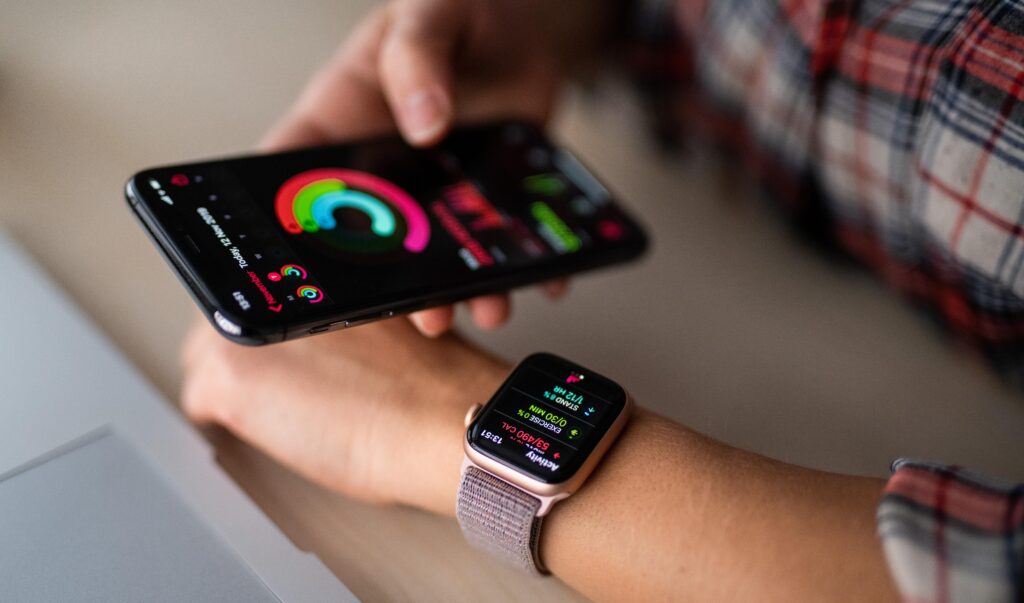
Connecting your phone to your smartwatch is a straightforward process, typically involving Bluetooth technology. This guide will walk you through the steps for both Android and iOS devices.

How to Connect Your Phone To Your Smartwatch
Image Source – currys.co.uk

For Android Devices:

Enable Bluetooth on Your Phone:

Click The “Settings” icon on your Android device.

Navigate to “Connections” or “Connected Devices.”

Turn on Bluetooth.

Enable Bluetooth on Your Smartwatch:

Access the settings menu on your smartwatch.

Look for “Bluetooth” or “Connectivity” and enable Bluetooth.

Pairing the Devices:

In your phone’s Bluetooth settings, find your smartwatch in the list of available devices.

Select your smartwatch and confirm any pairing prompts that appear on both devices.

Install Companion App (if required):

Some smartwatches may require a companion app. Visit the Google Play Store, download the app, and follow on-screen instructions.

Follow On-Screen Prompts:

Finish the setup process by adhering to any further on-screen instructions.

For iOS Devices (iPhone):

Enable Bluetooth on Your iPhone:

Open the “Settings” app on your iPhone.

Tap on “Bluetooth” and turn it on.

Enable Bluetooth on Your Smartwatch:

Access the settings menu on your smartwatch.

Look for “Bluetooth” or “Connectivity” and enable Bluetooth.

Pairing the Devices:

In your iPhone’s Bluetooth settings, find your smartwatch in the list of available devices.

Select your smartwatch and confirm any pairing prompts on both devices.

Install Companion App (if required):

Some smartwatches may need a companion app. Download it from the App Store and follow on-screen instructions.

Also Read: How to Connect 2 Monitors to One PC?

Follow On-Screen Prompts:

Finish the setup by following any additional on-screen instructions.

In conclusion, the key to successfully connecting your phone to your smartwatch is enabling Bluetooth, pairing the devices, and potentially installing a companion app. Always refer to the specific user manuals for your devices for accurate and detailed instructions. Enjoy the seamless integration of your smartwatch with your phone!

How to Connect 2 Monitors to One PC?

How to Connect 2 Monitors to One PC?

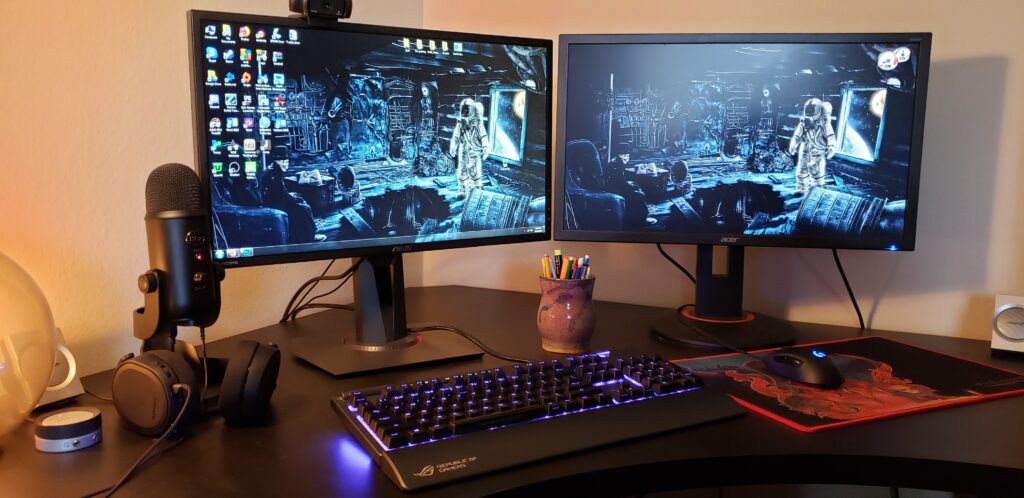
Have you ever felt cramped on your single monitor, struggling to juggle multiple applications? The solution is simpler than you think: connecting two monitors to your PC. This manual will guide you step by step, guaranteeing a smooth and effortless setup.

Image Source – pcgamer.com

Understanding Your PC’s Graphics Capabilities

First things first, let’s dive into your PC’s capabilities. Can it support dual monitors? Check your graphics card details and available ports – this will dictate what you can do.

Types of Monitor Connections

Monitor connectivity options encompass a range of ports, including HDMI, DisplayPort, VGA, DVI, and USB-C/Thunderbolt. HDMI is renowned for high-definition multimedia, while DisplayPort offers versatility. VGA and DVI, though older, remain viable for certain setups. USB-C/Thunderbolt is a modern, multifunctional choice, providing power and data transfer alongside video capabilities. Each port boasts unique strengths, catering to diverse user preferences and device compatibility.

Step-by-Step Guide to Connecting Two Monitors

Ready to set up? Here’s a step-by-step guide:

Prepare Your Monitors: Ensure they have compatible ports.

Make the Connections: Plug each monitor into your PC.

Configure Display Settings: Tailor the settings to your needs in your operating system.

Troubleshooting Common Issues

Ran into a snag? Below are a few typical challenges and their solutions:

Monitor Not Detected: Check connections and reboot.

Resolution Issues: Adjust settings in your operating system.

Performance Considerations: Ensure your PC can handle the extra load.

Maximizing Productivity with Dual Monitors

Dual monitors are about more than just extra screen space. They’re a gateway to enhanced productivity. Learn how to effectively use them for multitasking.

Also Read: How To Fix If Your Samsung Tablet Is Running Slow?

Advanced Setups

For those wanting more, explore advanced setups like docking stations and multi-graphics card configurations.

Conclusion

Embracing a dual monitor setup can revolutionize your computing experience. It’s not just about more screen space; it’s about transforming how you work and play.

How To Fix If Your Samsung Tablet Is Running Slow?

How To Fix If Your Samsung Tablet Is Running Slow?

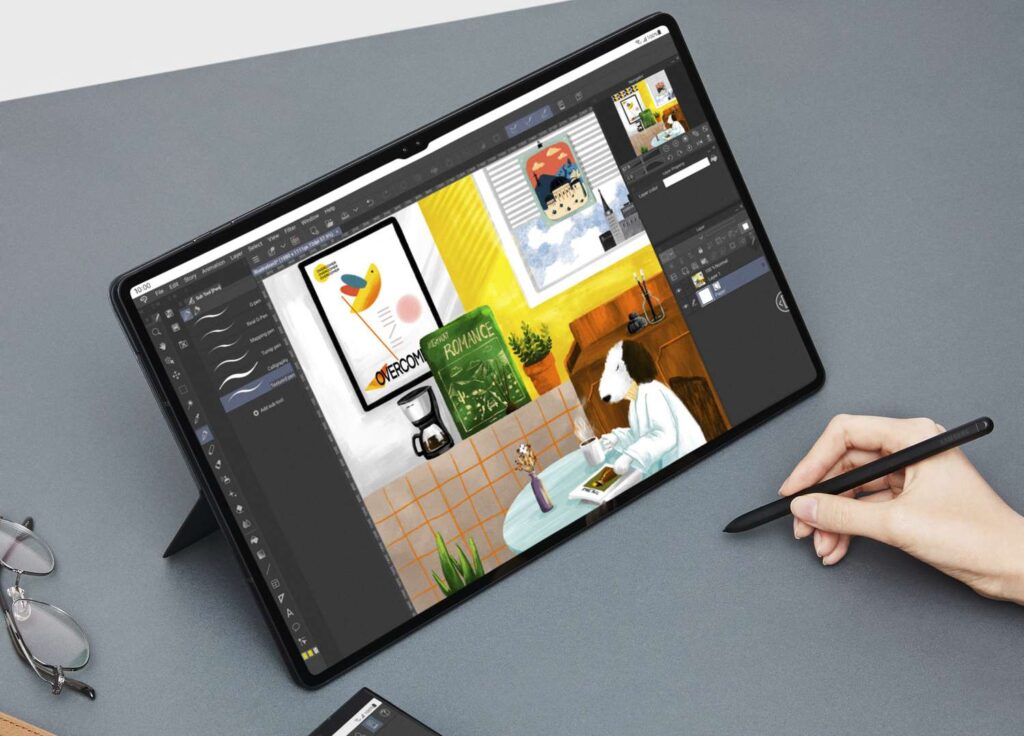
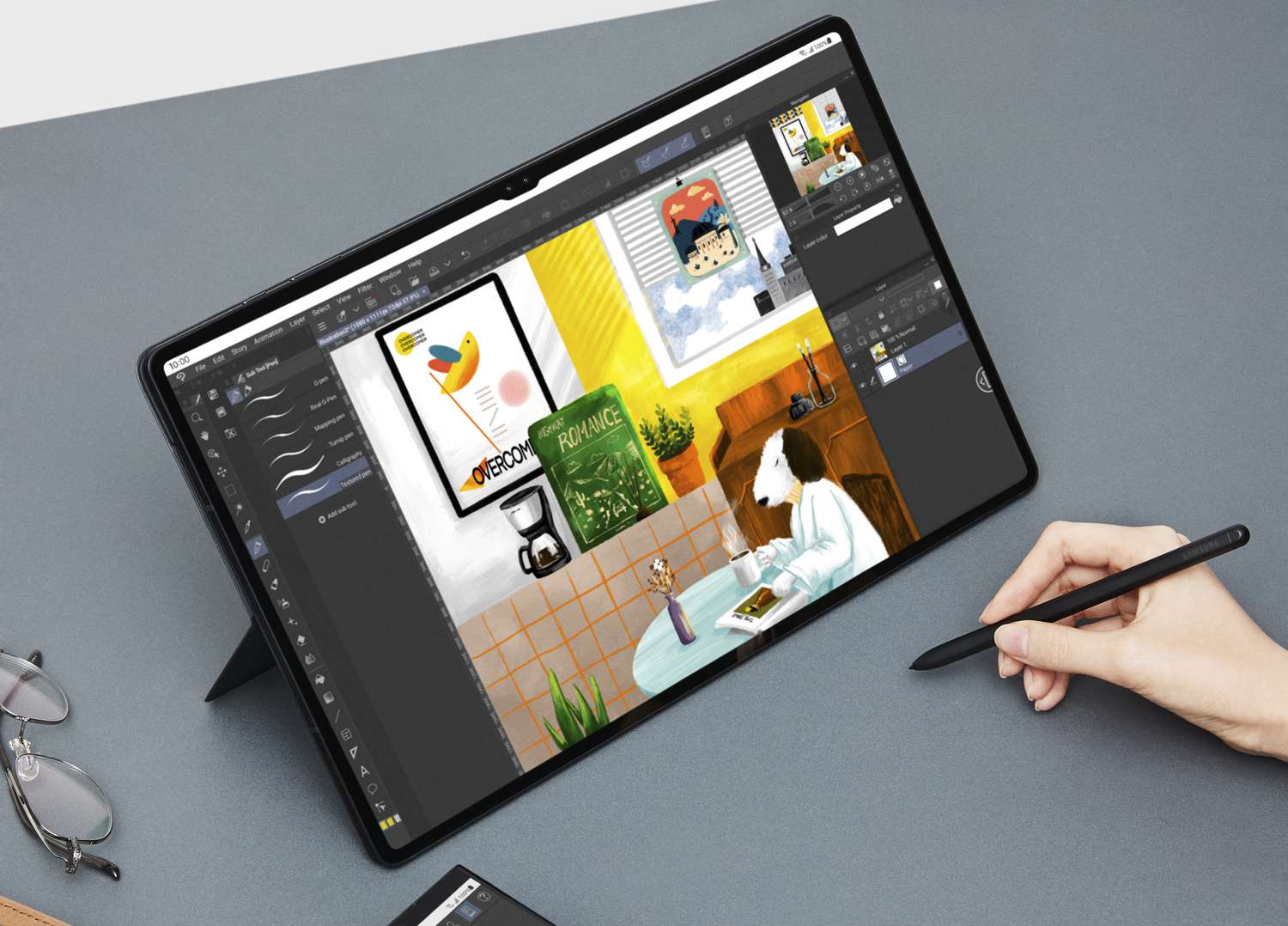
To fix a slow-running Samsung tablet, start by restarting the device to clear temporary files. Update the operating system and apps to their latest versions for optimal performance. Clear cache and delete unnecessary files to free up storage space. Finally, manage background apps to ensure they don’t consume excess resources. These steps can significantly improve the speed and efficiency of your Samsung tablet. This article provides practical solutions to increase the performance of your tablet.

Understanding the Causes

Many factors contribute to a slow Samsung tablet, including outdated software, overloaded storage, and background apps.

Restarting Your Tablet

A simple but effective solution is to restart your tablet. It can clear temporary files and refresh the system.

Clearing Cache and Unnecessary Data

How To Fix If Your Samsung Tablet Is Running Slow?

Image Source: lifewire.com

Clearing cache and unnecessary data is a simple yet effective way to enhance your device’s performance. It involves removing temporary files and data that accumulate over time, freeing up storage space, and improving overall speed and efficiency. Regularly clearing cache can also resolve potential glitches and keep your device running smoothly.

Updating the Operating System

Updating the tablet’s operating system is a crucial process that involves installing the latest software version on your device. This not only brings new features and enhancements but also patches security vulnerabilities, improves performance, and fixes known bugs.

Managing Applications

Regularly updating apps and uninstalling those that are not in use can prevent performance delays.

Optimizing Battery Settings

Optimizing battery settings involves adjusting your tablet’s power usage for enhanced battery life and tablet’s performance. This can include reducing screen brightness, disabling background apps, and activating power-saving modes.

Expanding Storage

Using external storage solutions like SD cards or cloud storage may free up internal memory.

Reducing Screen Brightness and Animations

Lowering screen brightness and reducing animations can speed up the tablet.

Factory Reset

In some cases, a factory reset may be necessary to speed up your tablet. Back up the data before proceeding with this option.

Latest Trends in Tablet Performance

The latest trends in tablet performance focus on enhancing processing speed, improving display quality, and extending battery life.

Conclusion

Regular maintenance and these troubleshooting steps can greatly improve the speed and efficiency of your Samsung tablet.

How to Install or Update the WiFi Driver on Windows 11

How to Install or Update the WiFi Driver on Windows 11

It is important to ensure that your WiFi driver is up to date in Windows 11 to maintain a stable and fast internet connection. This article will guide you through different ways to install or update your WiFi driver.

Understanding WiFi Drivers

WiFi driver is software that enables your operating system to communicate with your wireless network adapter. They play a vital role in ensuring optimal internet connectivity.

Method 1: Using Windows Update

How to Install or Update the WiFi Driver on Windows 11

Image Source: allthings.how

The easiest way to update your WiFi driver is through Windows Update. This section will guide you in accessing and using Windows Update for driver installation.

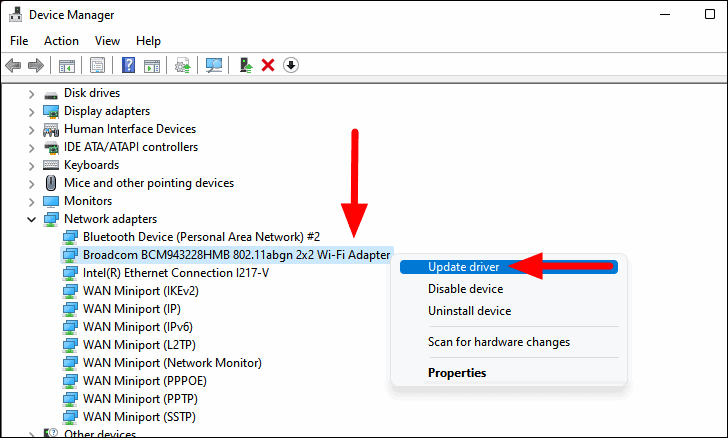
Method 2: Device Manager

Device Manager in Windows 11 allows you to manually update your WiFi driver. This method involves locating the network adapter and updating its driver.

Method 3: Manufacturer’s Website

For the latest driver versions, it is recommended to visit the manufacturer’s website. This section explains how to find and install drivers from official sources.

Method 4: Third-Party Software

Third-party software can automate the process of finding and installing the latest drivers. However, it is important to choose reliable software for system security.

Troubleshooting Driver Installation Issues

Common issues like installation failures or compatibility issues and their solutions will be discussed in this section.

Verifying Driver Installation

After installation, it is important to verify that the new driver is working correctly. This includes checking the driver version and testing the WiFi connection.

Optimizing WiFi Performance Post-Update

Tips to enhance your WiFi performance, such as adjusting network settings, will be provided after the driver update.

Preventive Measures for Future

Maintaining driver updates is essential for uninterrupted internet connectivity. This section suggests practices such as using reliable sources for regular checks and updates.

Future Updates and Features in Windows 11

Looking ahead, this section discusses what to expect from Windows 11 in terms of driver support and updates.

Conclusion

Concluding the article, the importance of keeping WiFi drivers updated in Windows 11 for optimal internet performance is emphasized.

How to Create and Personalize a Contact Poster in iOS 17

How to Create and Personalize a Contact Poster in iOS 17

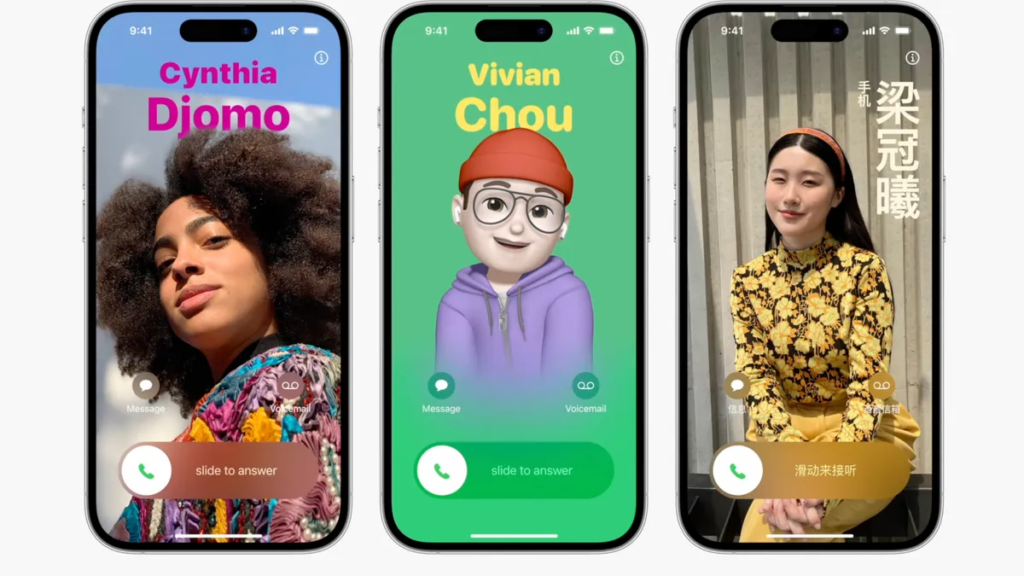
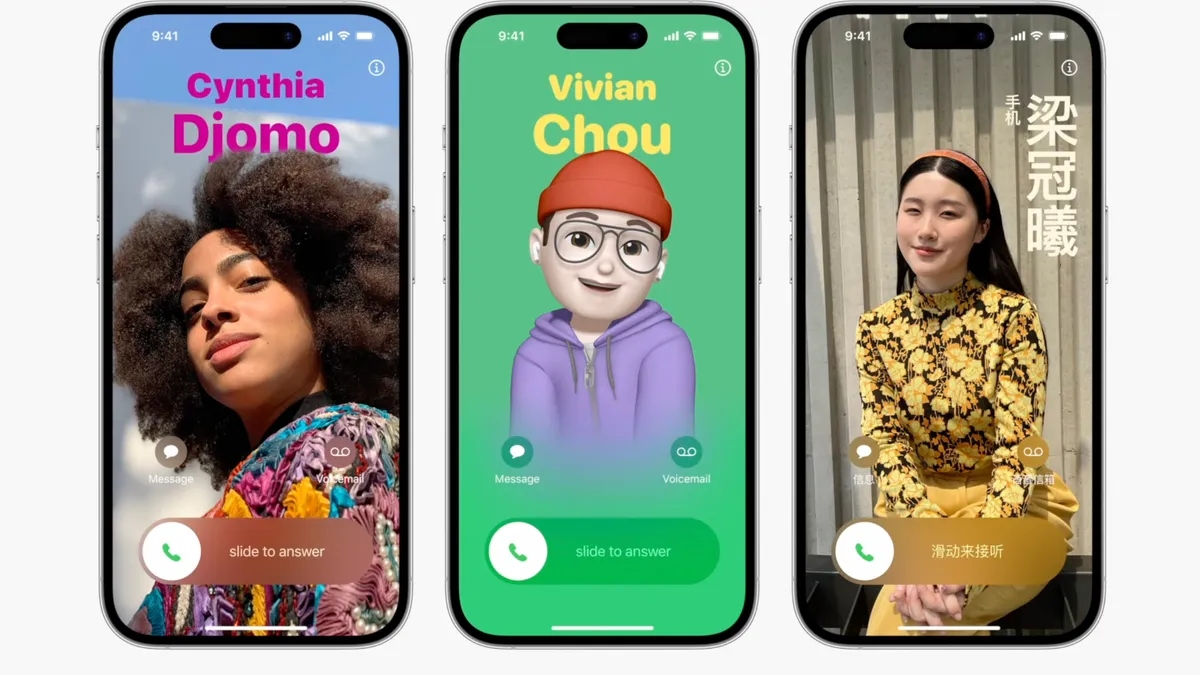
iOS 17 introduces an innovative way to share your contact details – Contact Posters. This feature allows users to create attractive and personalized digital posters with their contact information.

What is a Contact Poster?

A Contact Poster is a digital representation of your contact details, presented in a creative and interactive format unique to iOS 17.

Getting Started with Contact Poster

To get started, go to the Contacts app in iOS 17 and select the option to create a new contact poster.

Designing Your Contact Poster

Creating your contact poster involves several steps, from choosing a layout to customizing text and graphics.

Customization Options

iOS 17 offers a variety of customization options to personalize your poster, including color schemes, fonts, and layout designs.

Adding Personal Information

How to Create and Personalize a Contact Poster in iOS 17

Image Source: cnet.com

You can add your name, phone number, email, and other contact details. Be careful about the information you want to share publicly.

Choosing Visual Themes

Select from a range of themes that reflect your personality or brand identity. Each theme offers a unique visual style.

Incorporating Images and Icons

Enhance your contact poster with personalized images or icons that represent your hobbies, profession, or interests.

Sharing Your Contact Poster

Once your poster is ready, you can share it via email, messaging apps, or social media platforms directly from your iPhone.

Privacy Considerations

Always consider privacy when sharing personal information. iOS 17 offers options to control what data you include in your contact poster.

Creative Uses of Contact Posters

Beyond basic contact sharing, these posters can be used for business networking, event introductions, or as digital business cards.

Conclusion

Contact Posters in iOS 17 offer a creative and interactive way to share your contact details while showcasing your personal style.