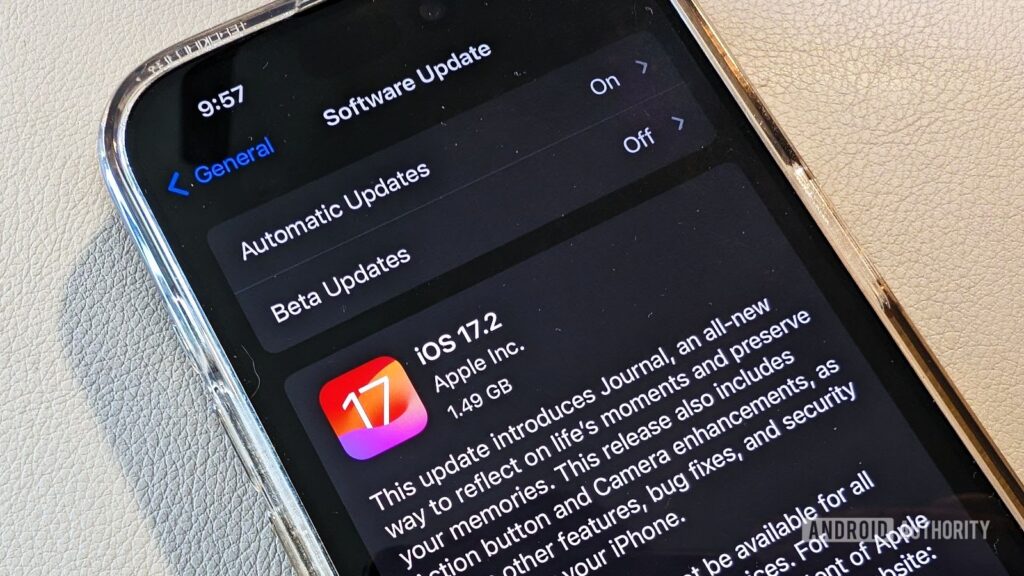
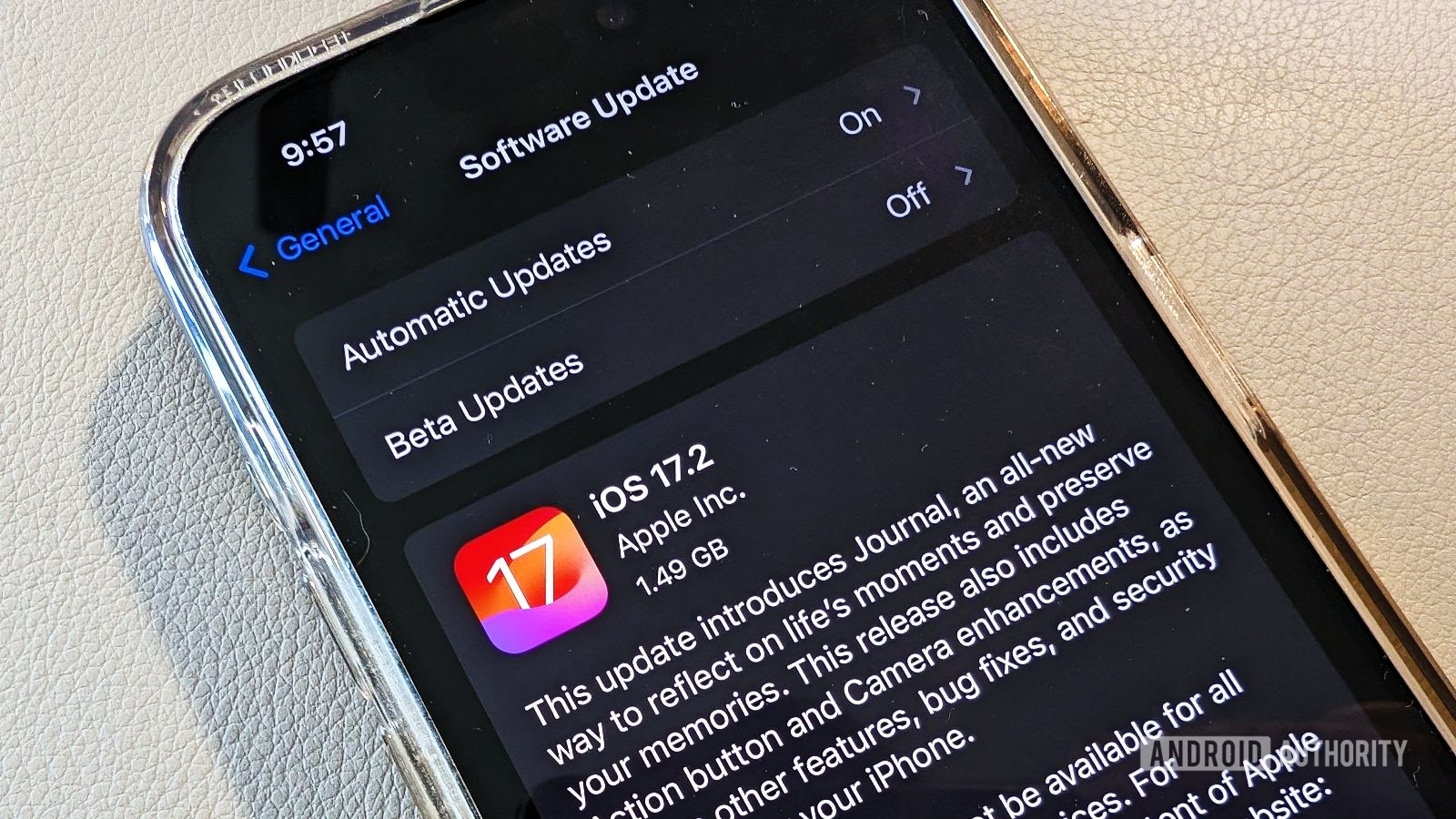
Apple has once again raised the bar with the release of iOS 17.2, introducing groundbreaking features like a new Journal app and spatial video recording. This update is a significant leap forward in improving the iPhone user experience.
Features of iOS 17.2
iOS 17.2 is packed with a range of new features and improvements designed to improve functionality and user engagement.
New Journal App
The Journal app is a standout feature in iOS 17.2. It is designed to help users organize and reflect on their daily experiences and memories.
Spatial Video Recording
Spatial video recording introduces a new dimension to video capture, providing immersive audio experiences aligned with visuals.
Installation and Compatibility
Image Source: androidauthority.com
iOS 17.2 is available for download on multiple iPhone models. This section guides users on how to install the update and lists compatible devices.
User Interface Enhancements
The update brings subtle but impactful changes to the iPhone’s user interface, enhancing usability and aesthetics.
Security and Privacy Updates
iOS 17.2 strengthens device security and user privacy with advanced features and tighter controls.
Performance Enhancements
The update promises performance improvements, offering a smoother and faster iPhone experience.
Tips for Optimizing iOS 17.2 Experience
This section provides tips and tricks for users to maximize the benefits of the new features in iOS 17.2.
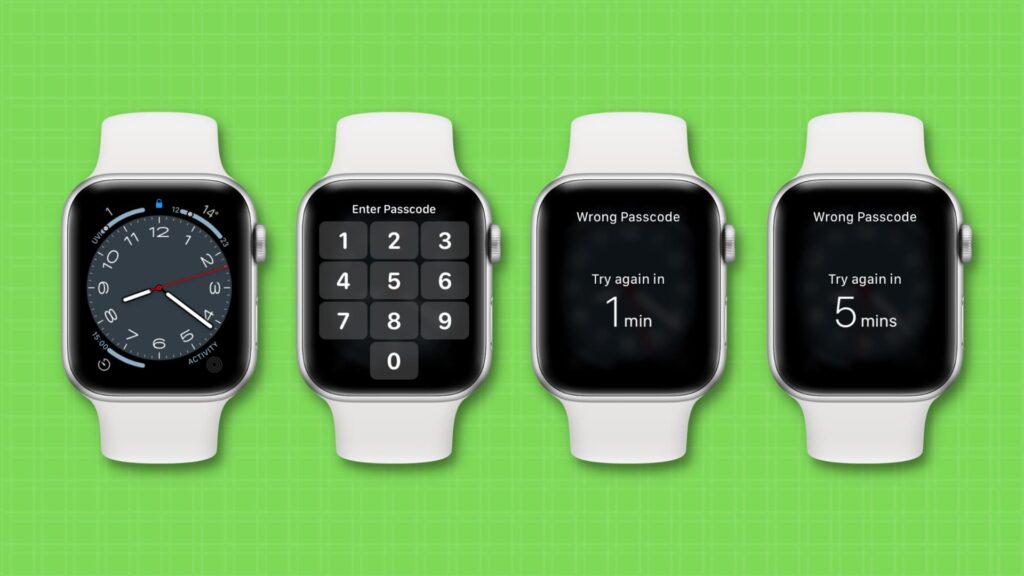
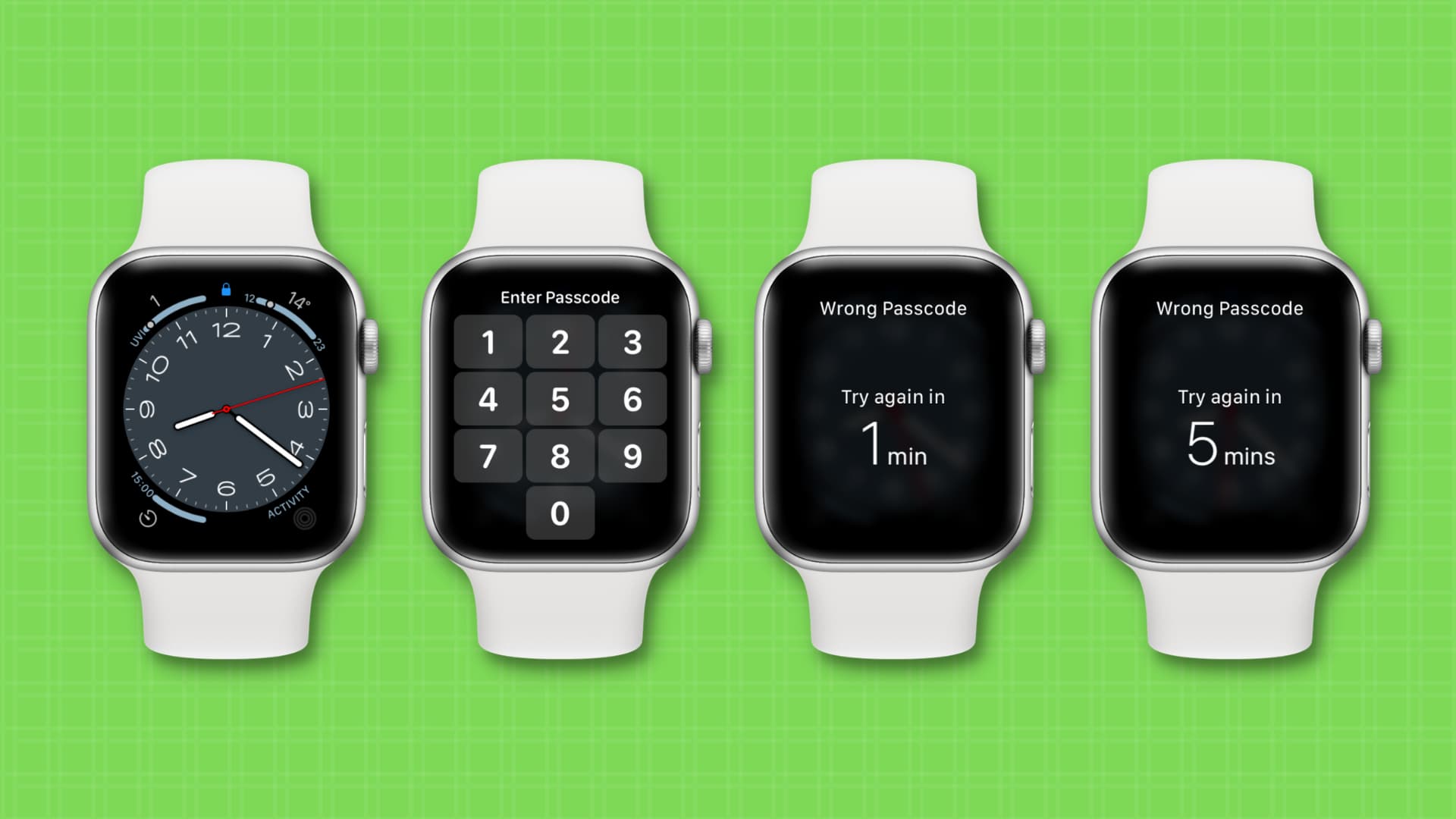
Forgetting your Apple Watch passcode can be troublesome, but don’t worry, resetting it is easier than you think. This article guides you about the top two methods to reset your forgotten Apple Watch passcode.
Understanding Apple Watch Passcode
The Apple Watch passcode is a security measure to protect your data. This is required for features like Apple Pay and unlocking your watch.
Method 1: Using Paired iPhone
Image Source: business-standard.com
The easiest way to reset your passcode is through your paired iPhone. Go to the Apple Watch app, select the ‘My Watch’ tab, and tap ‘General’ > ‘Reset’. Select ‘Erase Apple Watch Content and Settings’ to perform a reset.
Method 2: Without Paired iPhone
If you don’t have your iPhone, you can still reset your Apple Watch. Press and hold the Side button until you see the Power off slider. Press the Digital Crown, then select ‘Erase all content and settings’.
Preparation for Resetting Passcode
Before resetting, ensure your Apple Watch is charged and near your iPhone, if using Method 1.
Troubleshooting Common Issues
If you encounter any problems, restarting your Apple Watch and iPhone may help. Make sure Bluetooth is enabled on your iPhone for connectivity.
Data Backup Considerations
Resetting your Apple Watch will erase all data. Make sure your data is backed up on your iPhone or iCloud.
Restoring Apple Watch Post Reset
After the reset, pair your Apple Watch with your iPhone to restore data and settings from your backup.
Setting a New Passcode
Choose a passcode that is secure but easy to remember. Avoid common numbers like 1234 or 0000.
Apple Support and Assistance
If you are unable to reset your passcode, contact Apple Support for further assistance.
AirPods, Apple’s revolutionary wireless earbuds, have become a must-have accessory for many people. Keeping them clean not only extends their life but also ensures optimal audio quality. This guide provides the correct techniques to effectively clean your AirPods.
Understanding AirPods' Design
AirPods have a unique design with complex components that require careful handling during cleaning. It is important to understand their structure to avoid damage.
Gathering the Right Tools
Image Source: 9to5mac.com
Safe cleaning starts with the right equipment. Gather a soft, lint-free cloth, a soft-bristle brush, cotton swabs, and isopropyl alcohol.
Pre-Cleaning Precautions
Before cleaning, make sure your AirPods are disconnected from your device and turned off. Avoid using water or other liquids that may get into the earbuds.
Cleaning the Earbuds
Wipe the earbuds gently with a soft cloth. Use dry cotton swabs for the microphone and speaker mesh. Be careful to prevent debris from being pushed further in.
Cleaning the Charging Case
The case requires special attention. Clean the outer shell with a cloth dampened with isopropyl alcohol. Avoid getting moisture in the charging ports.
Drying Your AirPods
After cleaning, let your AirPods air dry completely before using or charging them.
Avoiding Common Cleaning Mistakes
Never use sharp objects or excessive moisture. These can damage the AirPods and impair their functionality.
Regular maintenance can prevent the buildup of dirt and earwax. Store your AirPods in their case when not in use to keep them clean.
Conclusion
Properly cleaning and maintaining your AirPods can significantly enhance their performance and lifespan. Follow these guidelines to keep your AirPods in top condition.
It’s a common and frustrating problem: You connect your external hard drive to your computer, but it doesn’t show up. This article provides a comprehensive guide on how to troubleshoot and resolve this issue.
Understanding External Hard Drives
External hard drives are portable storage devices used to back up data. They suffer from problems like not being recognized due to various reasons.
Common Reasons for Non-Detection
Drives not showing up can also be caused by hardware problems, outdated drivers, or software conflicts.
Initial Checks and Quick Fixes
Image Source: windowsreport.com
Start with basic troubleshooting: check the USB port, try a different cable, and restart your computer.
Checking Connection and Power Supply
Make sure the drive is properly connected and receiving power, especially for drives that require an external power source.
Updating and Installing Drivers
Detecting outdated or missing drivers can be prevented. Updating or reinstalling the drivers may solve the problem.
Using Disk Management Tool
Windows Disk Management tool helps locate and manage drives. This can be used to identify whether the system recognizes the drive or not.
Checking for Disk Errors
Using a tool like CHKDSK can help identify and repair disk errors that may be causing the problem.
Formatting the Drive
If the drive is detected but not accessible, formatting may be necessary. Note that this will erase all data on the drive.
Recovering Data from Unrecognized Drives
If the drive contains important data, it is recommended to use data recovery tools or services before formatting.
The iPhone is a significant investment in the smartphone world. Protecting this investment often leads users to consider AppleCare+, Apple’s extended warranty and support plan. But is it worth the extra cost?
What is AppleCare+?
AppleCare+ extends the standard warranty and support for your iPhone, covering accidental damage and adding additional services like 24/7 technical support.
Cost of AppleCare+
The price of AppleCare+ varies depending on the iPhone model. It can be paid in advance or in monthly installments.
Coverage Details
AppleCare+ covers damage to the iPhone’s screen, battery, and other components. It also includes a maximum of two occurrences of accidental damage protection every 12 months.
Comparison with Standard Warranty
While the standard warranty covers manufacturing defects, AppleCare+ goes further by covering accidental damage and offering lower repair costs.
Limitations of AppleCare+
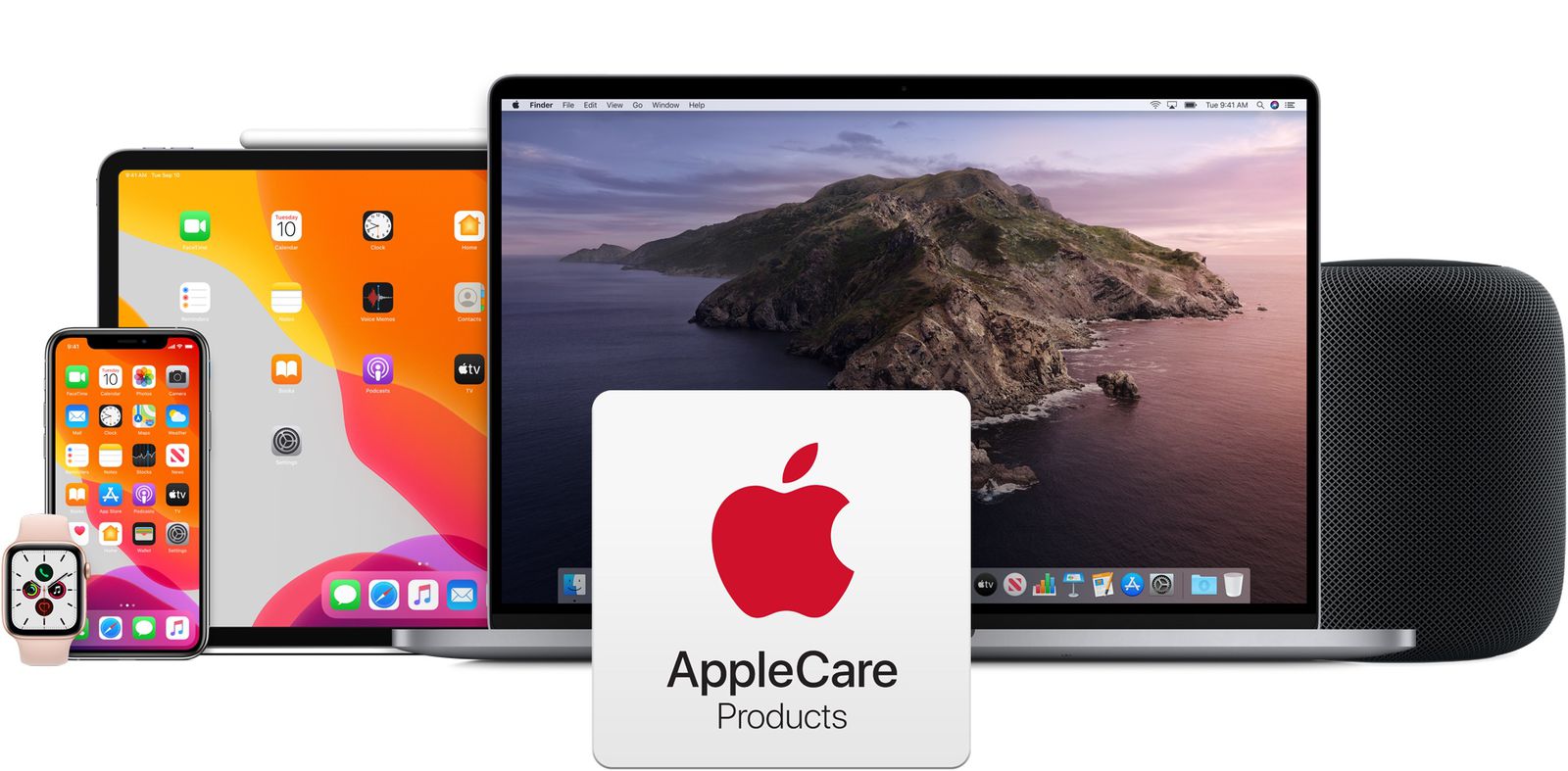
Image Source: macrumors.com
However, AppleCare+ doesn’t cover everything. Loss or theft of the iPhone is not covered, and there is a limit to how much accidental damage is covered.
User Experiences
Many users find peace of mind in AppleCare+, especially those who have to use it for repairs. Online forums and reviews provide countless evidence of its benefits.
Impact on Resale Value
Having AppleCare+ can also increase the resale value of your iPhone, as it assures potential buyers that the device is in good condition.
Alternatives to AppleCare+
For those who find AppleCare+ too expensive, there are options like carrier-provided insurance plans or third-party insurance.
How to Purchase and Activate
AppleCare+ can be purchased with your new iPhone or within 60 days of purchase. Activation is usually automatic when purchased with an iPhone.
Tech experts often recommend AppleCare+ to provide additional protection, especially considering the cost of iPhone repairs.
Conclusion
In conclusion, whether AppleCare+ is worth it depends on your circumstances and how you use your iPhone. If you’re prone to accidents or want the assurance of extended support, this is a valuable investment.
The tech world is excited by the arrival of Google’s ‘Gemini AI’, an innovative artificial intelligence platform. But the burning question is can it surpass the capabilities of the renowned ChatGPT 4? This article explores everything you need to know about Gemini AI.
Gemini AI
Google’s journey in developing Gemini AI was driven by the need to push the boundaries of AI technology. This section throws light on the purpose behind its creation.
Comparing Gemini AI with ChatGPT 4
Google’s latest AI venture, Gemini, has sparked a competitive buzz in the tech world, claiming it can outperform OpenAI’s ChatGPT. The focus of this claim centers around the “Ultra” version of Gemini, which is touted to surpass ChatGPT-4 in various aspects. However, this version is slated for release only in 2024, leaving the current Gemini Pro to face comparisons with the free version of ChatGPT, GPT-3.5.
Image Source: youtube.com
Early reports and user feedback indicate that the Ultra Gemini shows promise, but its current version, the Gemini Pro, is not living up to expectations. Users and technical reviewers have noted inconsistencies and inaccuracies in Gemini Pro’s responses compared to GPT-3.5.
Similarly, Matteo Wong of The Atlantic acknowledges that Gemini may surpass GPT-4 in some metrics, yet he describes its progress as “iterative progress” rather than a significant breakthrough. This perspective suggests that although Gemini may offer modest improvements over its predecessors, it falls short of a revolutionary leap forward in AI technology.
As things stand, anticipation is high for Google’s Gemini, especially the Ultra version. Nevertheless, Gemini Pro’s current performance, according to user experiences and expert reviews, suggests that there is still a way to go before it can definitively claim superiority over ChatGPT. The tech community is eagerly watching to see if Gemini’s full potential will be revealed in its future updates as promised.
Technological Innovations in Gemini AI
Gemini AI is built on cutting-edge algorithms and AI technology. We will analyze the technological backbone that powers this advanced AI system.
Privacy and Security Aspects
Data privacy and security are paramount in the digital age. We will see how Gemini AI handles user data and maintains privacy.
A strong community and developer support is essential for any AI platform. Here, we discuss the resources available for both.
Conclusion
In conclusion, Gemini AI represents a significant advancement in AI technology. It remains a matter of discussion whether it is beyond ChatGPT 4, but its potential impact is undeniable.