Your Tech Story

Team YTS

How to Start Streaming on Twitch: A Step-by-Step Guide

How to Start Streaming on Twitch: A Step-by-Step Guide

Are you ready to start your streaming journey on Twitch? Whether you’re a gaming enthusiast, a creative artist, or just someone with a story to tell, Twitch offers a platform to share your passions with the world. Let’s dive into how you can start streaming on Twitch with ease.

What is Twitch?

How to Start Streaming on Twitch: A Step-by-Step Guide

Image Source: dacast.com

Twitch is a popular live-streaming platform that has become the central hub of online entertainment, especially for gamers. It allows users to broadcast themselves playing video games, creating art, cooking, or engaging in various other activities while interacting with a live audience via chat. Originally focused on video game live streaming, Twitch has expanded to include streams dedicated to music, talk shows, and even TV series watch-alongs. The platform is known for its community-driven approach, enabling viewers to support their favorite streamers through subscriptions, donations, and interactive chat features. 

Create a Twitch Account

Creating a Twitch account is a straightforward process, allowing you to step into the world of live streaming and community interaction. Here’s how you can get started:

  • Go to Twitch.tv.

  • Click the “Sign Up” button, usually located at the top right corner of the page.

  • Fill in the required fields including username, password, date of birth, and email address.

  • Password: Use a strong password for security.

  • Check your email inbox and click the verification link to activate your account.

Essential Equipment for Streaming

To start streaming on Twitch, it is important to have the right equipment to ensure a smooth and engaging streaming experience. Here is a list of what you will need:

  1. Computer: A reliable and powerful computer is fundamental.

  2. High-Quality Webcam: A good webcam is important for visual interaction. This helps you personalize your stream and connect with your audience.

  3. Microphone: Audio clarity is essential. A high-quality microphone can significantly improve the audience experience.

  4. Headphones: Good headphones are important for monitoring audio and clear communication, especially in multiplayer games.

  5. Lighting: Proper lighting is important for visibility. Ring lights or softbox lights can help eliminate shadows and illuminate your face evenly.

  6. Internet Connection: A stable and fast internet connection is important for streaming. Wired connections (Ethernet) are generally more reliable than wireless connections.

  7. Streaming Software: Broadcasting your gameplay requires software like OBS Studio, Streamlabs OBS, or Xsplit.

  8. Green Screen (optional):Green screen can be used to overlay different backgrounds, making your stream more attractive.

Building Your Twitch Community

Building a Twitch community involves creating a welcoming and engaging environment where regular interactions and high-quality content encourage viewer participation and loyalty. Consistency in streaming, active engagement with the audience, and leveraging social media for promotion are key elements. Collaborating with other streamers and fostering a positive, inclusive environment also plays an important role in developing and maintaining a vibrant community on Twitch.

Monetizing Your Twitch Stream

Monetizing your Twitch stream involves taking advantage of various revenue streams such as viewer subscriptions, advertising, donations, and sponsorships. Twitch affiliates and partners can earn through subscriptions and Bits, while integrating external services like PayPal for direct donations. Engaging content and a dedicated audience base are key to attracting sponsorship and advertising revenue, with monetization becoming a mix of consistent streaming, community building, and strategic marketing.

Conclusion

In Conclusion, streaming on Twitch is an exciting venture that blends creativity, community engagement, and technical know-how. With the right equipment, a consistent streaming schedule, and a focus on creating engaging content, anyone can embark on this rewarding journey. Building a community and potentially monetizing your channel are achievable goals, making Twitch streaming a gratifying experience for both hobbyists and aspiring professionals.

Step-by-Step Guide to Sharing Instagram Posts, Reels, and Stories with Close Friends

Step-by-Step Guide to Sharing Instagram Posts, Reels, and Stories with Close Friends

Instagram’s close friends feature provides a unique way to share content with a select group of people, enhancing privacy and personalization. In this comprehensive guide, we’ll explore how to effectively use this feature for posts, reels, and stories.

The Concept of Close Friends on Instagram

Step-by-Step Guide to Sharing Instagram Posts, Reels, and Stories with Close Friends

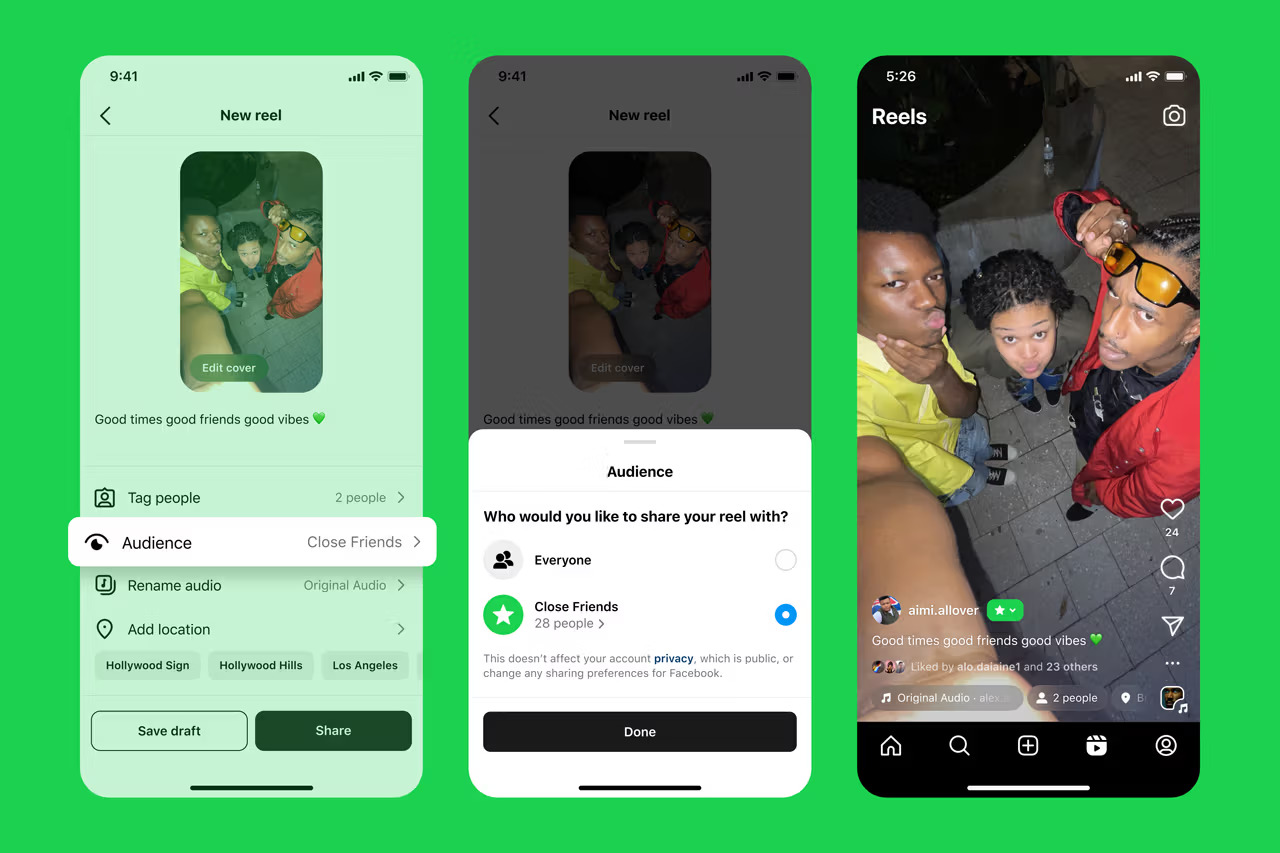
Image Source: hypebeast.com

Explore the concept of Close Friends on Instagram, a feature that allows you to create a private list for sharing exclusive content with a select group, enhancing both privacy and personal connections on the social platform.

How to Add or Remove People from 'Close Friends'

  • Go to your Profile.

  • Tap on the top right

  • After this click on Close Friends.

  • Click on ‘Empty Circle‘ next to the people you want to add to your Close Friends list.

  • To remove someone from your list, click on the ‘Filled Circle‘ next to their name.

  • Click Done to save your changes.

They won’t be notified when you add or remove people from your list. You can update your list at any time.

Sharing Posts and Reels with Close Friends

  • Create a post as usual.

  • Click Next when you are finished editing.

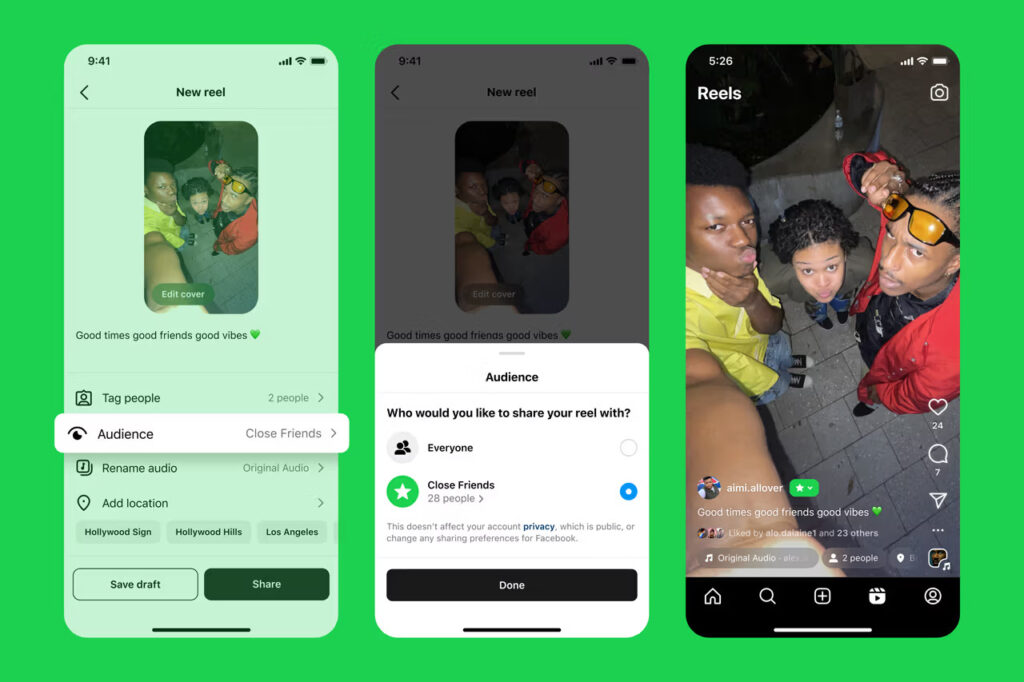
  • Click on Audience.

  • Select Close Friends, then click Done.

  • After this tap on Share.

If you’ve added someone to your list, they’ll see a close friend label when viewing your Reela and Posts.

Sharing Stories with Close Friends

  • Create a Story.

  • Select the Close Friends Green Star Icon when you are finished editing.

  • After this tap on Share.

Benefits of Using the Close Friends Feature

The benefits of Instagram’s Close Friends feature, which offers enhanced privacy and a more intimate sharing experience with a select group, fosters deeper, more personal connections.

Comparing Close Friends with Public Sharing

Close Friends provides a private, intimate sharing experience with a selected group, while Public Sharing exposes content to a broader audience, making privacy, engagement, and content strategy easier. She goes. Is affected.

Conclusion

The Close Friends feature on Instagram offers a unique way to share content with a select group of people. It is an excellent tool for maintaining privacy while staying connected with your closest connections on the platform.

How to Reset Any Amazon Alexa Device: A Quick and Easy Guide

How to Reset Any Amazon Alexa Device: A Quick and Easy Guide

Resetting an Alexa device may seem daunting, but it’s a straightforward process that can solve many problems. This guide will walk you through the steps to reset different Alexa models, including the Echo Dot, Echo Show, and Echo Studio.

Understanding Why You Might Need to Reset

How to Reset Any Amazon Alexa Device: A Quick and Easy Guide

Image Source: smarthomeperfected.com

There are many reasons to reset your Alexa device. It may be unresponsive, you may be planning to sell it, or you may just want a fresh start. Before resetting, make sure your device is plugged in and connected to the Internet.

Each model has its own reset procedure. We’ll cover the Echo Dot, Echo Show, and Echo Studio.

Step-by-Step Guide to Resetting Echo Dot

  • Locate the reset button.

  • Press and hold the button until the light turns orange.

  • Follow the prompts to complete the reset.

Instructions for Resetting Echo Show

  • Swipe down from the top of the screen.

  • Access the settings menu.

  • Select ‘Device Options’, then ‘Reset’.

How to Reset Echo Studio

  • Click and hold the microphone off and volume down buttons.

  • Wait for the light ring to turn off and then on again.

  • Release the buttons to initiate reset.

Reconfiguring Your Device After Reset

You need to set up your device as if it was new. This includes connecting to Wi-Fi and logging into your Amazon account.

Conclusion

Resetting your Amazon Alexa device is a straightforward process that can solve a variety of problems and refresh your device’s functionality. Whether you have an Echo Dot, Echo Show, or any other Alexa gadget. Remember, resetting your device will erase all custom settings and data, so it should be done carefully. With the steps outlined in this guide, you are now ready to confidently reset your Alexa device, ensuring that it will continue to be a valuable and efficient part of your smart home setup.

FAQs

  1. Will resetting my Alexa device delete all my data

    Yes, a reset will erase all your settings and data.

  2. Can I reset my Alexa device remotely?

    No, you need physical access to the device to reset it.

  3. How often should I reset my Alexa device?

    Only reset when necessary, such as when experiencing problems.

  4. Will resetting affect my smart home devices?

    Yes, you’ll need to reintegrate your smart home devices after a reset.

  5. Can I undo a reset?

    No, once a reset is done, it cannot be undone.

Apple Music Will Pay Artists an 10% Bonus For Spatial Audio Music

Apple Music Will Pay Artists an Additional 10% Incentive For Spatial Audio Music

In a significant move that is resonating across the music industry, Apple Music has recently announced that it will pay artists 10% higher royalties for tracks in spatial audio. This initiative marks a new chapter in Apple’s support for artists and enhancing music streaming experiences.

What is Spatial Audio in Apple Music?

Spatial Audio is the latest feature from Apple Music that delivers an immersive, multi-dimensional sound experience. This allows listeners to enjoy music with a sense of depth and space, simulating a live music environment.

Apple Music's Announcement: A Boost in Royalties

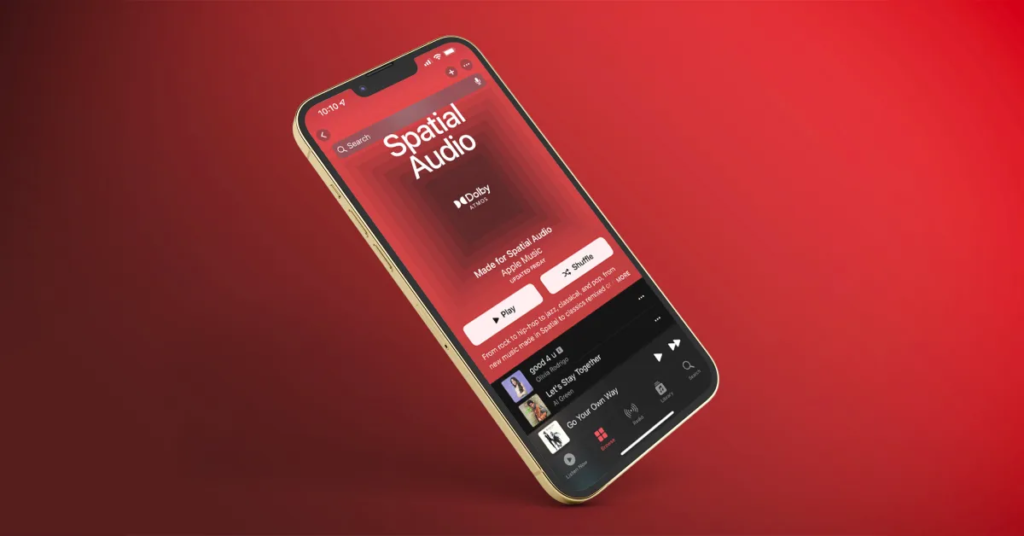
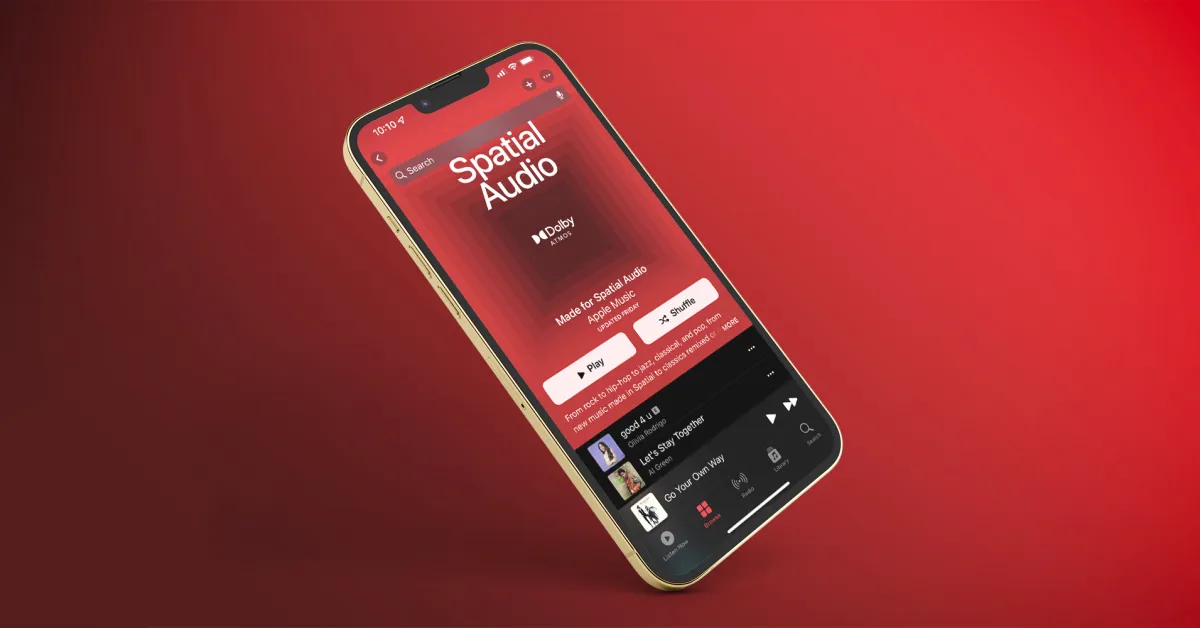
Apple Music Will Pay Artists an 10% Bonus For Spatial Audio Music

Apple Music’s decision to increase royalties for spatial audio tracks by 10% is a significant development, signaling the company’s commitment to encouraging high-quality content creation. This increase in royalties is expected to benefit artists, especially those who are experimenting with and adopting advanced audio formats like Spatial Audio.

How Artists are Responding to Apple Music's Move

Many artists have welcomed Apple Music’s decision, seeing it as a positive step towards adequately recognizing and compensating their creative efforts. Emerging artists in particular will benefit from this move, as it opens up new avenues of innovation and creativity in music production.

What Does This Mean for Apple Music Users?

For Apple Music users, this initiative not only promises a better listening experience but also supports the artists behind their favorite tracks. Listeners on Apple Music can now explore a growing library of tracks in spatial audio, experiencing music in a whole new way.

The Future of Music Streaming with Spatial Audio

The integration of spatial audio is expected to shape the future of music streaming, with the potential for more interactive and immersive listening experiences. The adoption of spatial audio also presents new challenges and opportunities for innovation in music production and distribution.

Embracing a New Era in Music Streaming

In conclusion, Apple Music’s decision to increase royalties for spatial audio music represents an important step toward supporting artistic innovation and enhancing the music streaming experience.

Guide to Activating LED Flash Notifications on Your iPhone 15, 14, and 13

Guide to Activating LED Flash Notifications on Your iPhone 15, 14, and 13

In the ever-evolving landscape of mobile technology, Apple’s iPhones have consistently led the way in terms of accessibility features. One such feature available in the iPhone 15, 14 and 13 models is LED flash notification. This tool could be a game-changer for users who need visual cues for incoming notifications.

What Are LED Flash Notifications on iPhone?

Guide to Activating LED Flash Notifications on Your iPhone 15, 14, and 13

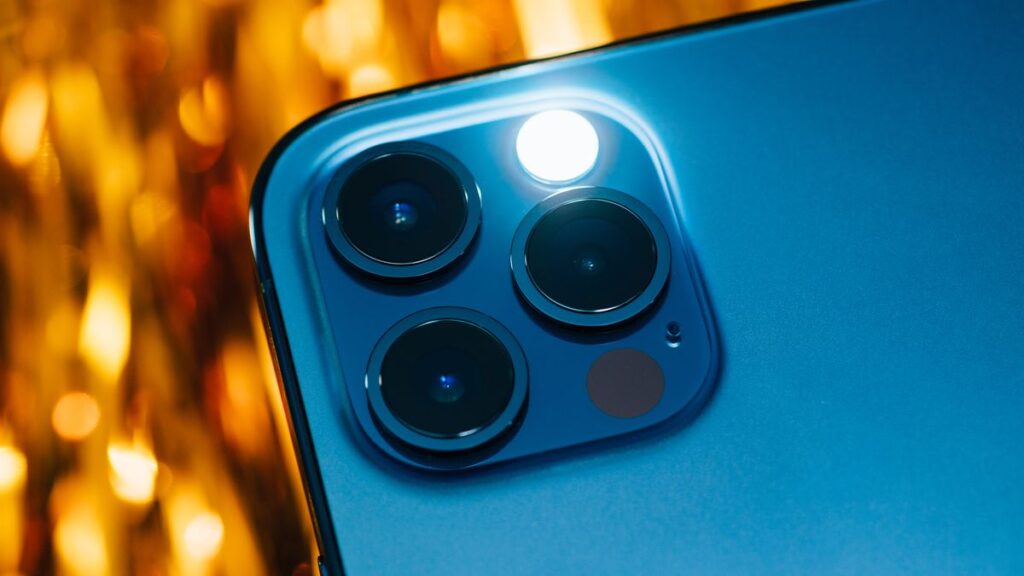
Image Source: tomsguide.com

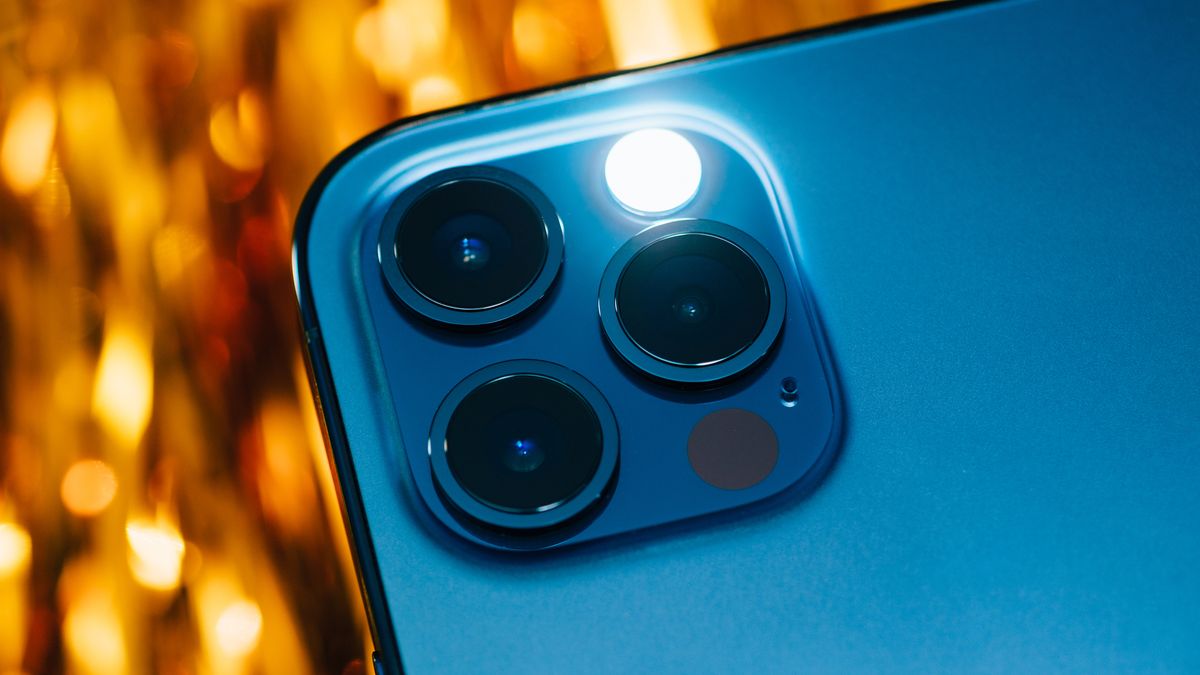
LED flash notifications use the iPhone’s camera flash to provide visual alerts for incoming calls, messages, and notifications. This feature is especially beneficial in noisy environments or for hearing impaired users.

Benefits of Using LED Flash Notifications

The primary benefit of LED flash notifications is that they provide a visual indicator of notifications, which is an excellent option for users who can’t always hear their phone’s ringtone or vibration.

Step-by-Step Guide to Turn On LED Flash Notifications

Turning on LED flash notifications is a simple process that can significantly enhance your experience with your iPhone, whether you have the latest iPhone 15 or older models like the 14 and 13.

  1. Open your phone ‘Settings’

  2. Scroll down and tap on ‘Accessibility.’

  3. Under the ‘Hearing’ section, find and tap on ‘Audio/Visual.’

  4. Toggle on ‘LED Flash for Alerts.’

Personalizing Your Notification Experience

Customization is important to get the most out of LED flash notifications. While the intensity of the LED flash cannot be changed, users can adjust the timing and frequency of the flash through the notification settings.

Understanding the Impact on Battery Life

While convenient, it’s important to note that using the LED flash for notifications can have a minor impact on your iPhone’s battery life.

Advanced Tips for Maximizing the Use of Flash Notifications

Combine flash notifications with other accessibility features like vibration alerts to make sure you never miss important notifications. Combining LED flash notifications with a screen flash or vibration can enhance the notification experience for all users, especially those with specific accessibility needs.

Troubleshooting Common Issues with Flash Notifications

Sometimes, users may face the issue of LED flash notifications not working as expected. Restarting the device or double-checking the settings can often solve these problems.

Integrating LED Flash Notifications into Daily iPhone Use

Incorporating LED flash notifications into your daily routine can ensure you stay connected and informed, no matter your surroundings or personal needs.

Google's Latest Feature 'Circle to Search' Launches on Samsung Galaxy S24

Google’s Latest Feature ‘Circle to Search’ Launches on Samsung Galaxy S24

Google recently introduced an innovative feature, Circle to Search, making its debut on the Samsung Galaxy S24. The collaboration marks a significant advancement in smartphone technology, blending Google’s search capabilities with Samsung’s cutting-edge hardware.

Unveiling Circle to Search: What Is It?

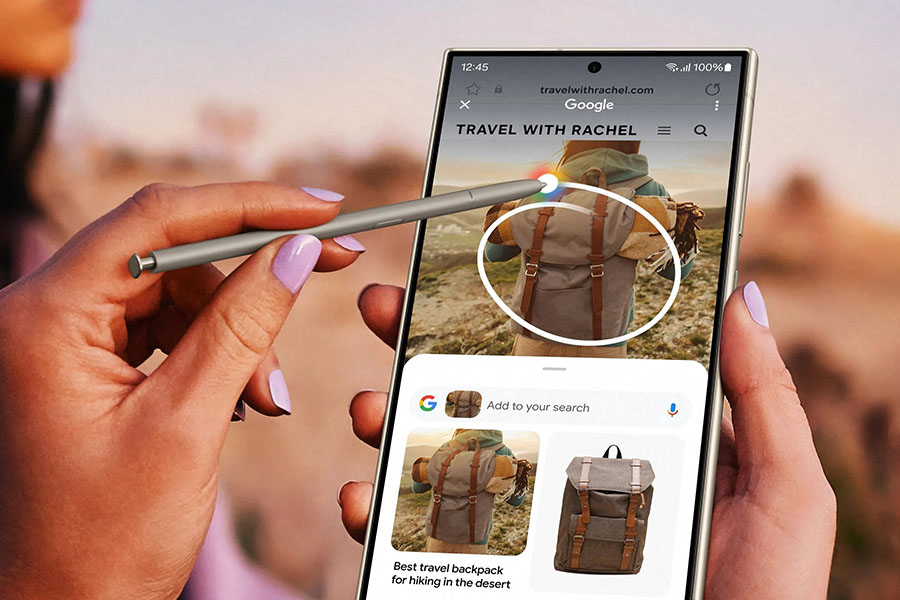
Circle to Search is a groundbreaking feature designed to improve the user’s search experience. It allows users to draw a circle around any content on their screen, prompting a Google search related to the circled information.

How Does Circle to Search Work?

Google's Latest Feature 'Circle to Search' Launches on Samsung Galaxy S24

Image Source: forbesindia.com

Circle to Search is an innovative feature designed to enhance the user’s search experience on digital devices. It works by allowing users to draw a circle around any content on their screen, whether it’s text or an image. Once content is captured, the feature uses advanced algorithms to immediately conduct a Google search related to the highlighted information. This seamless integration of user input with intelligent search technology provides a quick and intuitive way to access relevant information, making the search process more efficient and user-friendly.

The Collaboration: Circle to Search Meets Galaxy S24

The integration of Circle to Search in the Samsung Galaxy S24 exemplifies the synergy between Samsung’s hardware innovation and Google’s software expertise. The Galaxy S24 boasts exclusive customizations that enhance the Circle to Search experience, including an advanced touch screen and high-resolution display. Galaxy S24 users will find the Circle to Search feature a game-changer for how they interact with content on their devices. This feature streamlines the search process, providing quicker access to information and a more unified user experience.

Potential Limitations and Solutions

While innovative, Circle to Search may have limitations, such as accuracy in identifying circled content. However, ongoing updates and user feedback are expected to refine its functionality.

Circle Technology to Search

Circle to Search is more than just a user interface innovation; It is a technological marvel that combines many advanced technologies. At its core, Circle to Search uses AI and machine learning algorithms to understand and interpret a user’s circled content, making the search experience more intuitive and accurate.

Circle to Search’s Impact on the Smartphone Industry

This feature sets a new standard for smartphone functionality, potentially influencing future smartphone designs and features. For Samsung, integrating Circle to Search into the Galaxy S24 provides a unique selling point, making it stand out in the crowded smartphone market.

Future of Circle to Search

The introduction of Circle to Search on the Galaxy S24 is just the beginning. This feature has the potential to be further developed and integrated with other devices and platforms. In future expansion Circle to Search could be adopted by other smartphone manufacturers and even integrated into other types of devices. With the launch of Circle to Search on the Samsung Galaxy S24, we are seeing the beginning of a new era in smartphone functionality and user interaction.