Your Tech Story

Apple

Unlocking the Secrets of Apple's New Journal App in iOS 17

Unlocking the Secrets of Apple’s New Journal App in iOS 17
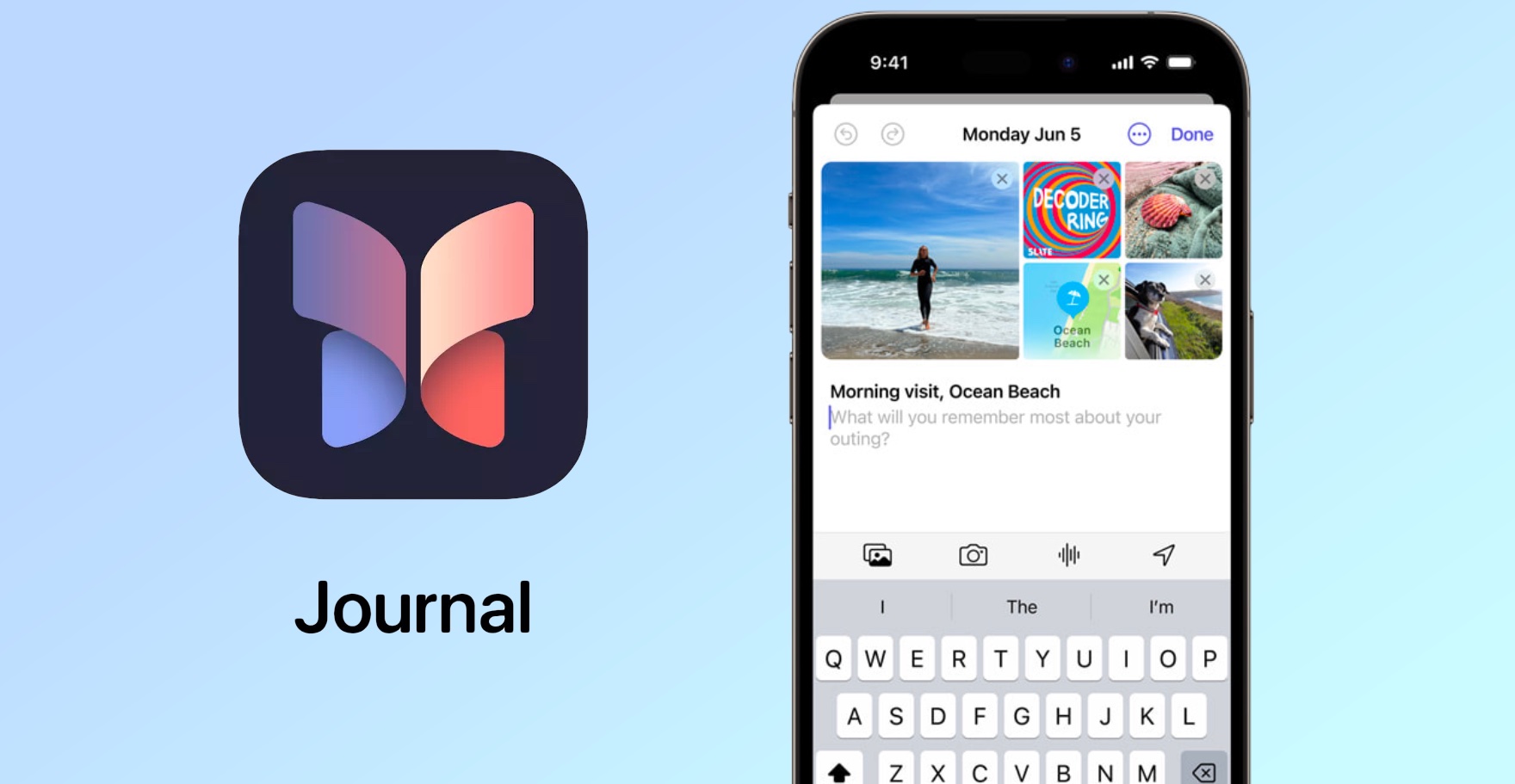
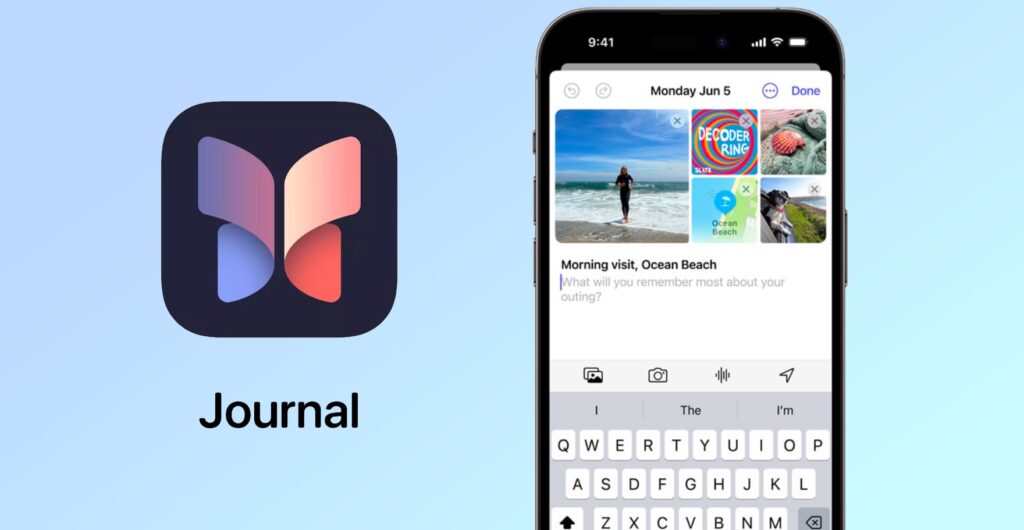
Apple’s Journal App in iOS 17 is a game-changer for anyone looking to document their thoughts, ideas, and daily experiences. This comprehensive guide will introduce you to the app’s intuitive interface, showing you how to create, personalize, and organize your journal entries. Learn to enhance your writing with advanced text features, add multimedia for a richer experience, and integrate seamlessly with other iOS apps. Whether you’re documenting memories, tracking goals, or seeking a mindful escape, the Journal App in iOS 17 is your perfect companion, blending functionality with creativity for an enriching journaling journey.

Navigating the Interface

Familiarize yourself with the user-friendly interface, which includes key features such as entry lists, search functions, and settings.

Creating Your First Journal Entry

Unlocking the Secrets of Apple's New Journal App in iOS 17

Image Source: tomsguide.com

Let’s create your first entry. I’ll guide you through a simple process to start your journaling journey. Discover how to effortlessly input your thoughts, emotions, or daily experiences, customizing each entry with text styles, colors, and multimedia enhancements. Whether you’re chronicling a special moment, jotting down ideas, or simply recording your day, Apple’s Journal App makes it intuitive and enjoyable, setting the stage for a rich, personalized journaling experience on your iOS device.

Utilizing Advanced Text Features

Apple’s Journal app goes beyond basic journaling with its range of advanced text features, allowing you to create entries that are as unique as your experiences. Dive deeper into a variety of text customization options, including diverse fonts, styles, and colors to creatively express your ideas and stories.

Adding Media to Your Entries

This feature allows you to bring your stories to life with vivid visuals and sounds. Whether it’s a memorable photo, an inspirational video clip, or a piece of audio that captures the essence of your day, embedding media in your journal entries enriches your storytelling, making each page not only It becomes a record of your life, but also a living tapestry of memories.

Using Tags and Categories

Learn to efficiently organize your entries using tags and categories for easy retrieval and reference.

Integrating with Other iOS Apps

Maximize your journaling experience by syncing your entries with other iOS apps like Calendar and Reminders.

Customizing Your Journal Experience

Customize your journal with theme, font, and layout options to match your personal style.

Privacy and Security in the Journal App

Understand the privacy and security features of the app to keep your personal entries safe and secure.

Using the Journal App for Productivity and Mindfulness

Explore how the Journal App can be a tool for increasing productivity and mindfulness in your daily life.

Conclusion

Apple’s Journal App in iOS 17 offers a fantastic platform for capturing your life’s moments. Dive in and start exploring its vast potential!

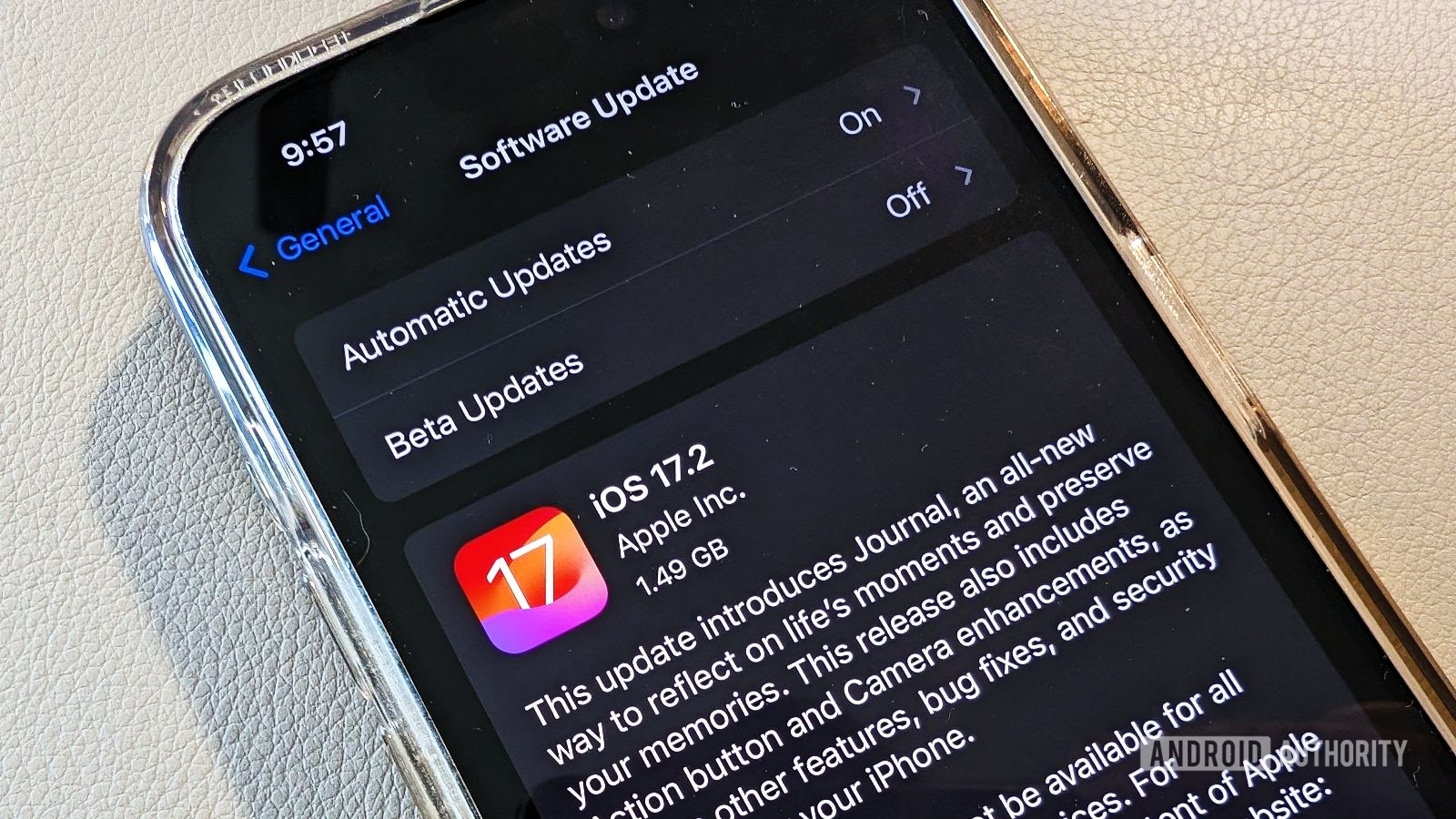
iPhone Update! Apple Rolls Out iOS 17.2 With Support for New Journal App, Spatial Video Recording

iPhone Update! Apple Rolls Out iOS 17.2 With Support for New Journal App, Spatial Video Recording

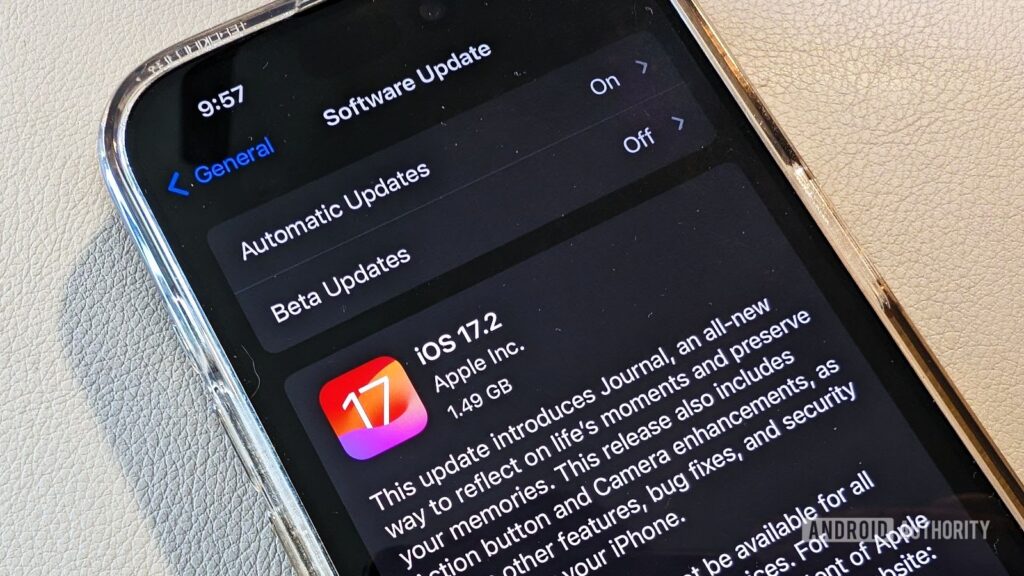
Apple has once again raised the bar with the release of iOS 17.2, introducing groundbreaking features like a new Journal app and spatial video recording. This update is a significant leap forward in improving the iPhone user experience.

Features of iOS 17.2

iOS 17.2 is packed with a range of new features and improvements designed to improve functionality and user engagement.

New Journal App

The Journal app is a standout feature in iOS 17.2. It is designed to help users organize and reflect on their daily experiences and memories.

Spatial Video Recording

Spatial video recording introduces a new dimension to video capture, providing immersive audio experiences aligned with visuals.

Installation and Compatibility

iPhone Update! Apple Rolls Out iOS 17.2 With Support for New Journal App, Spatial Video Recording

Image Source: androidauthority.com

iOS 17.2 is available for download on multiple iPhone models. This section guides users on how to install the update and lists compatible devices.

User Interface Enhancements

The update brings subtle but impactful changes to the iPhone’s user interface, enhancing usability and aesthetics.

Security and Privacy Updates

iOS 17.2 strengthens device security and user privacy with advanced features and tighter controls.

Performance Enhancements

The update promises performance improvements, offering a smoother and faster iPhone experience.

Tips for Optimizing iOS 17.2 Experience

This section provides tips and tricks for users to maximize the benefits of the new features in iOS 17.2.

Potential Issues and Solutions

Addressing and providing solutions to common issues users encounter with new updates.

Integration with Other Apple Services

iOS 17.2 integrates seamlessly with other Apple services, enriching the overall ecosystem experience for users.

Conclusion

iOS 17.2 is more than just an update; This is a testament to Apple’s commitment to innovation and user satisfaction.

Two Ways to Reset Your Forgotten Apple Watch Passcode

Two Ways to Reset Your Forgotten Apple Watch Passcode

Forgetting your Apple Watch passcode can be troublesome, but don’t worry, resetting it is easier than you think. This article guides you about the top two methods to reset your forgotten Apple Watch passcode.

Understanding Apple Watch Passcode

The Apple Watch passcode is a security measure to protect your data. This is required for features like Apple Pay and unlocking your watch.

Method 1: Using Paired iPhone

Two Ways to Reset Your Forgotten Apple Watch Passcode

Image Source: business-standard.com

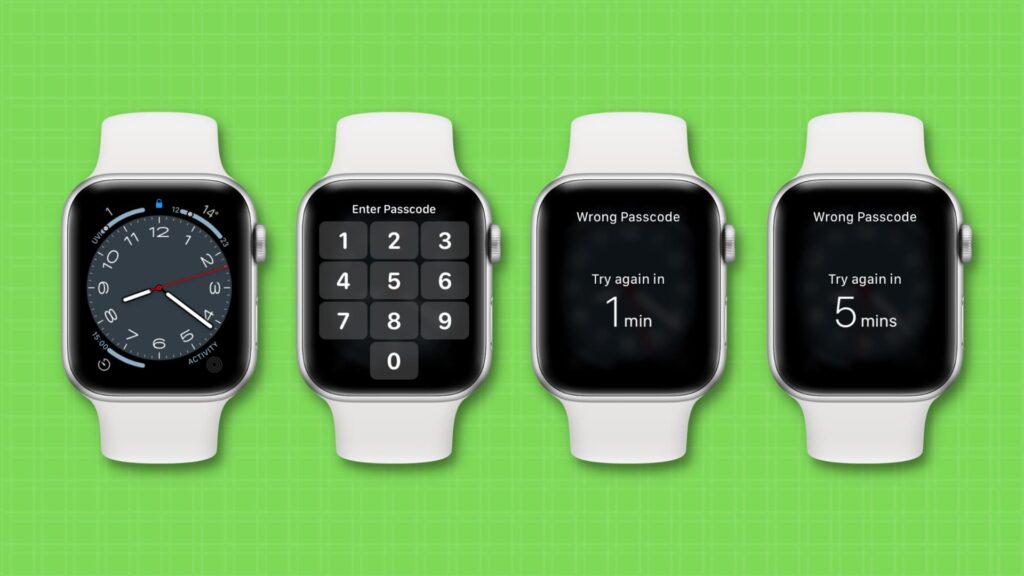
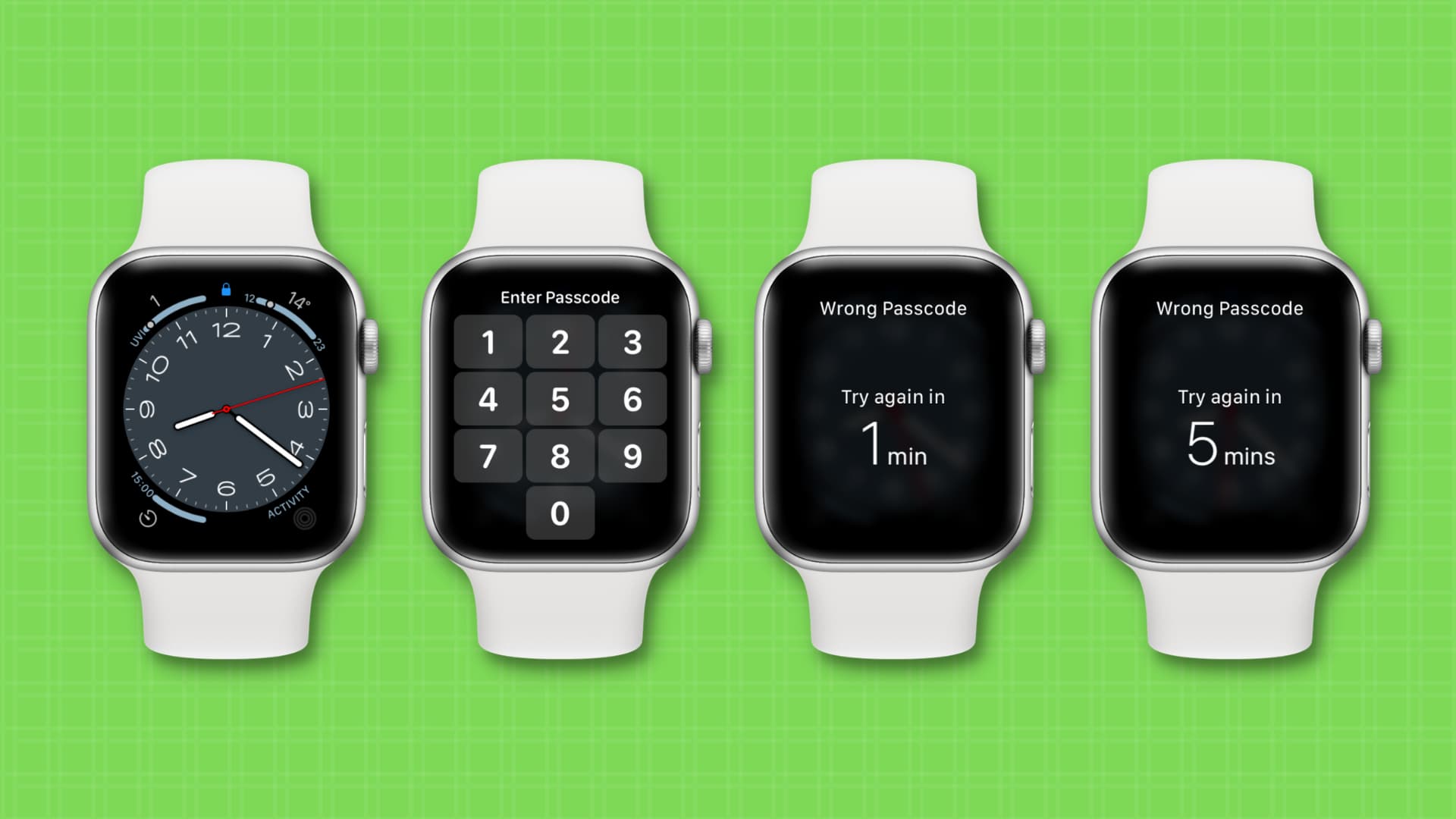
The easiest way to reset your passcode is through your paired iPhone. Go to the Apple Watch app, select the ‘My Watch’ tab, and tap ‘General’ > ‘Reset’. Select ‘Erase Apple Watch Content and Settings’ to perform a reset.

Method 2: Without Paired iPhone

If you don’t have your iPhone, you can still reset your Apple Watch. Press and hold the Side button until you see the Power off slider. Press the Digital Crown, then select ‘Erase all content and settings’.

Preparation for Resetting Passcode

Before resetting, ensure your Apple Watch is charged and near your iPhone, if using Method 1.

Troubleshooting Common Issues

If you encounter any problems, restarting your Apple Watch and iPhone may help. Make sure Bluetooth is enabled on your iPhone for connectivity.

Data Backup Considerations

Resetting your Apple Watch will erase all data. Make sure your data is backed up on your iPhone or iCloud.

Restoring Apple Watch Post Reset

After the reset, pair your Apple Watch with your iPhone to restore data and settings from your backup.

Setting a New Passcode

Choose a passcode that is secure but easy to remember. Avoid common numbers like 1234 or 0000.

Apple Support and Assistance

If you are unable to reset your passcode, contact Apple Support for further assistance.

Security Implications of Resetting Passcode

Resetting your passcode ensures that your data will remain safe, especially if your watch is lost or stolen.

Conclusion

Resetting your forgotten Apple Watch passcode is easy. Follow these steps to regain access to your device and maintain its security.

How to Clean Your AirPods the Right Way?

How to Clean Your AirPods the Right Way?

AirPods, Apple’s revolutionary wireless earbuds, have become a must-have accessory for many people. Keeping them clean not only extends their life but also ensures optimal audio quality. This guide provides the correct techniques to effectively clean your AirPods.

Understanding AirPods' Design

AirPods have a unique design with complex components that require careful handling during cleaning. It is important to understand their structure to avoid damage.

Gathering the Right Tools

How to Clean Your AirPods the Right Way?

Image Source: 9to5mac.com

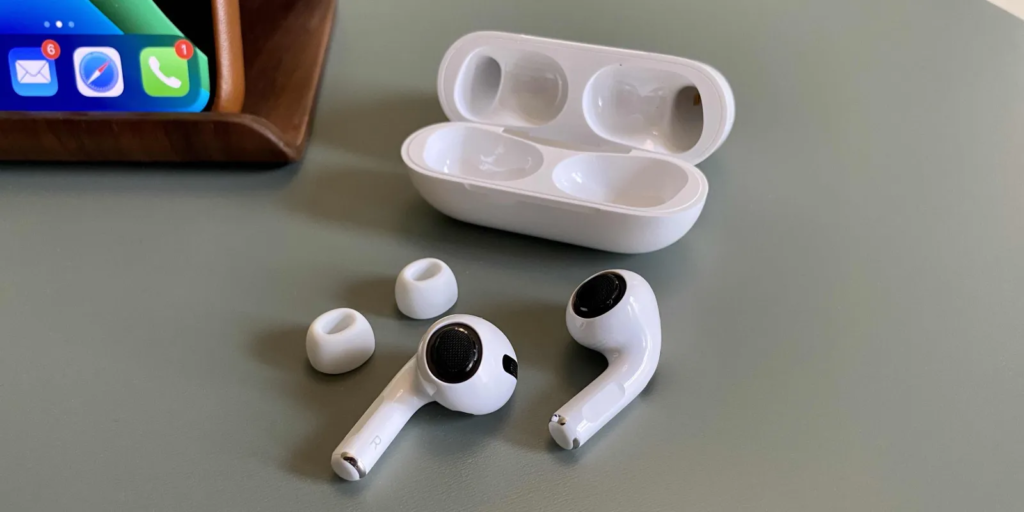
Safe cleaning starts with the right equipment. Gather a soft, lint-free cloth, a soft-bristle brush, cotton swabs, and isopropyl alcohol.

Pre-Cleaning Precautions

Before cleaning, make sure your AirPods are disconnected from your device and turned off. Avoid using water or other liquids that may get into the earbuds.

Cleaning the Earbuds

Wipe the earbuds gently with a soft cloth. Use dry cotton swabs for the microphone and speaker mesh. Be careful to prevent debris from being pushed further in.

Cleaning the Charging Case

The case requires special attention. Clean the outer shell with a cloth dampened with isopropyl alcohol. Avoid getting moisture in the charging ports.

Drying Your AirPods

After cleaning, let your AirPods air dry completely before using or charging them.

Avoiding Common Cleaning Mistakes

Never use sharp objects or excessive moisture. These can damage the AirPods and impair their functionality.

Maintaining AirPods After Cleaning

Regular maintenance can prevent the buildup of dirt and earwax. Store your AirPods in their case when not in use to keep them clean.

Conclusion

Properly cleaning and maintaining your AirPods can significantly enhance their performance and lifespan. Follow these guidelines to keep your AirPods in top condition.

Apple Unveils App Store Award Winners, The Best Apps, and Games of 2023

Apple Unveils App Store Award Winners, The Best Apps, and Games of 2023

The winners of this year’s App Store Awards include fourteen games and applications from developers worldwide whose creations promote cultural transformation and provide customers with worthwhile experiences.

"It’s inspiring to see the ways developers continue to build incredible apps and games that are redefining the world around us," said Tim Cook, Apple’s CEO. "This year’s winners represent the limitless potential of developers to bring their visions to life, creating apps and games with remarkable ingenuity, exceptional quality, and purpose-driven missions."

finance.yahoo.com

The winners this year demonstrate the breadth of artistic expression, technological ingenuity, and design potential found within Apple’s ecosystem as well as the App Store. AllTrails fosters community by providing thorough trail guides and opportunities for outdoor adventure to all users. Prêt-à-cosmetics promotes inclusion and individual creativity while providing skilled artists and non-professional users with an iPad® cosmetics sketchpad that is accurate to reality. The machine learning-powered tools in Photomator simplify and streamline complex editing operations. Featuring a human touch, MUBI selects outstanding independent and foreign documentaries, while SmartGym excels on Apple Watch® thanks to its extensive collection of workouts, routines, and thorough fitness tracking.

Apple Unveils App Store Award Winners, The Best Apps, and Games of 2023

Image Source: apple.com

In the game genre, Lost in Play allows players to access their delightful, childlike creativity throughout a thrilling point-and-click journey, while Honkai: Star Rail immerses gamers in a story full of nuanced characters and strategically intricate battles on the iPhone®. The beautifully designed dark fantasy realm of Lies of P and the immersive game world of Apple Arcade®’s Hello Kitty Island Adventure, each offer players the delightful objective of forming friendships.

Apps That Won Awards at the 2023 App Store

  • AllTrails, from AllTrails, Inc., which is an iPhone app, won iPhone App of the Year.
  • The Prêt-à-Makeup iPad app from Prêt-à-Template is the app of the year.
  • The UAB Pixelmator Team’s Photomator is the Mac App of the Year.
  • MUBI, developed by MUBI, Inc., is the Apple TV App of the Year.
  • The Apple Watch App of the Year is SmartGym by Mateus Abras.

Games

  • Honkai: Star Rail by COGNOSPHERE PTE LTD., is the iPhone Game of the Year.
  • Snapbreak Games’ “Lost in Play” is the iPad Game of the Year.
  • NEOWIZ’s Mac Game of the Year is Lies of P.
  • The Apple Arcade Game of the Year is Sunblink’s Hello Kitty Island Adventure.
Apple Plans to End Credit Card Partnership with Goldman Sachs

Apple Plans to End Credit Card Partnership with Goldman Sachs

In a surprising move, tech giant Apple (AAPL) has reportedly informed Goldman Sachs (GS) of its intention to dissolve their consumer credit card partnership within the coming 12 to 15 months. This decision could have implications for cardholders and potentially reshape the landscape of Apple’s financial services strategy.

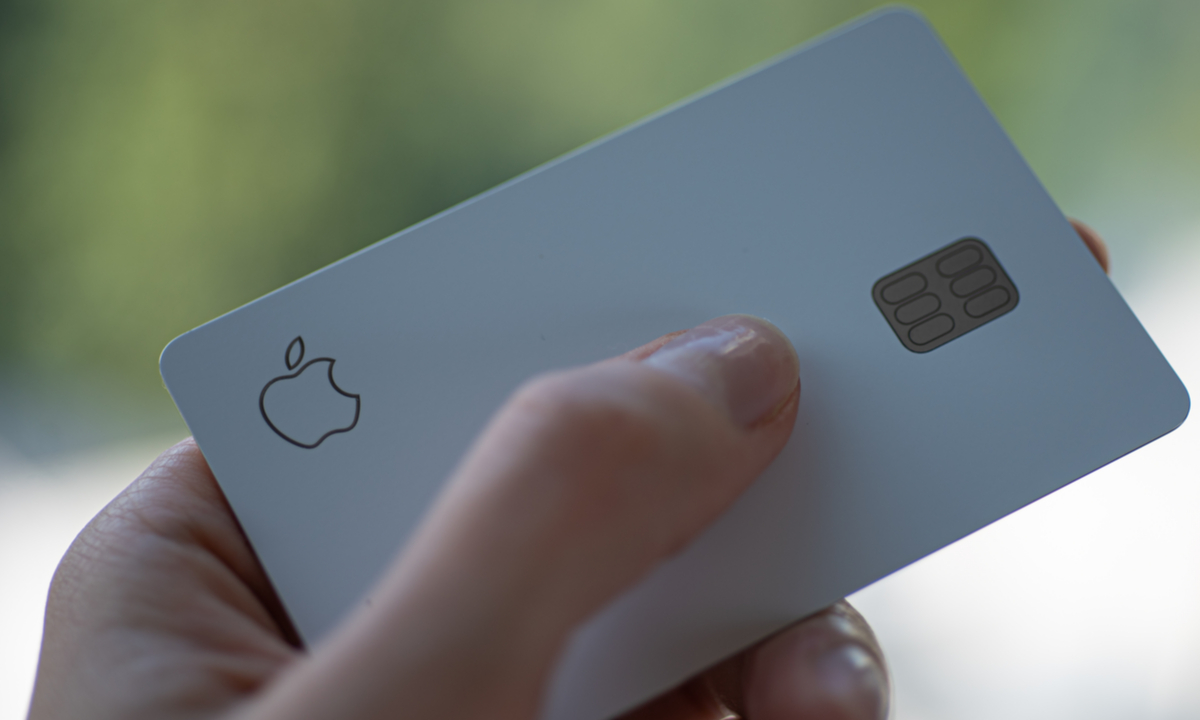
The collaboration between Apple and Goldman Sachs led to the creation of the Apple Card and savings accounts. Despite being a part of Apple’s services revenue, Tech Editor Dan Howley from Yahoo Finance points out that these financial offerings might not be pivotal in Apple’s revenue stream. Howley suggests that while these services might not significantly bolster earnings, they serve a different purpose – creating a “lock-in” effect.

Lock-In Strategy: Anchoring Users to the Apple Ecosystem

The concept of ‘lock-in’ revolves around linking a user’s credit card and savings account to their Apple devices. Howley explains that this strategy aims to enhance customer loyalty by making it inconvenient to switch to competitor products. With the integration of financial services into the Apple ecosystem, users are less likely to shift to rival platforms, ensuring a long-term commitment to Apple’s products and services.

Apple Plans to End Credit Card Partnership with Goldman Sachs

Image Source: pymnts.com

Speculations arise regarding Apple’s potential collaboration with different banks to continue their foray into financial services. While Apple maintains its brand presence in these services, the banking infrastructure is supported by partners like Goldman Sachs. Any transition to a new financial institution might involve reissuing cards, but the core strategy of ‘locking in’ users is expected to persist.

Apple's Dual Role: Innovator in Tech, Cautious in Finance

Apple’s dominant position in technological innovation contrasts with its cautious approach to highly regulated financial services. Howley underscores that Apple’s separation from the banking infrastructure allows it to maintain a positive sentiment among consumers, steering clear of potential apprehensions associated with being deeply involved in finance.

Amidst reports of dissolving the partnership, concerns arise regarding the continuity of user-centric features. The unique attributes of the Apple Card, including its color-coded spending indicators and flexible payment options, have garnered praise. Howley points out the importance for Apple to preserve these aspects while potentially switching banking partners, ensuring a seamless transition without compromising user experience.

Apple’s move to unwind its partnership with Goldman Sachs signifies a strategic shift in its financial services landscape. While the decision might not heavily impact revenue, it solidifies Apple’s intent to maintain a strong grip on its user base by integrating financial services within its ecosystem. As the tech giant navigates this transition, preserving user-centricity will be crucial in retaining customer trust and loyalty.