Your Tech Story

Apple

Apple Watch Series 8 Clearance Lands on Amazon Starting from $289 (Save $110)
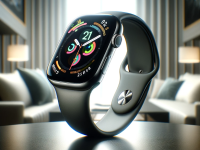
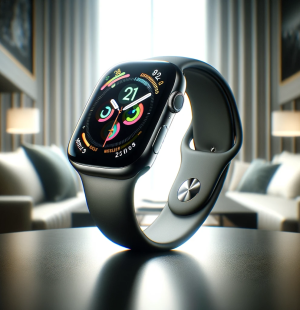
Apple Watch Series 8 Clearance Lands on Amazon Starting from $289 (Save $110)

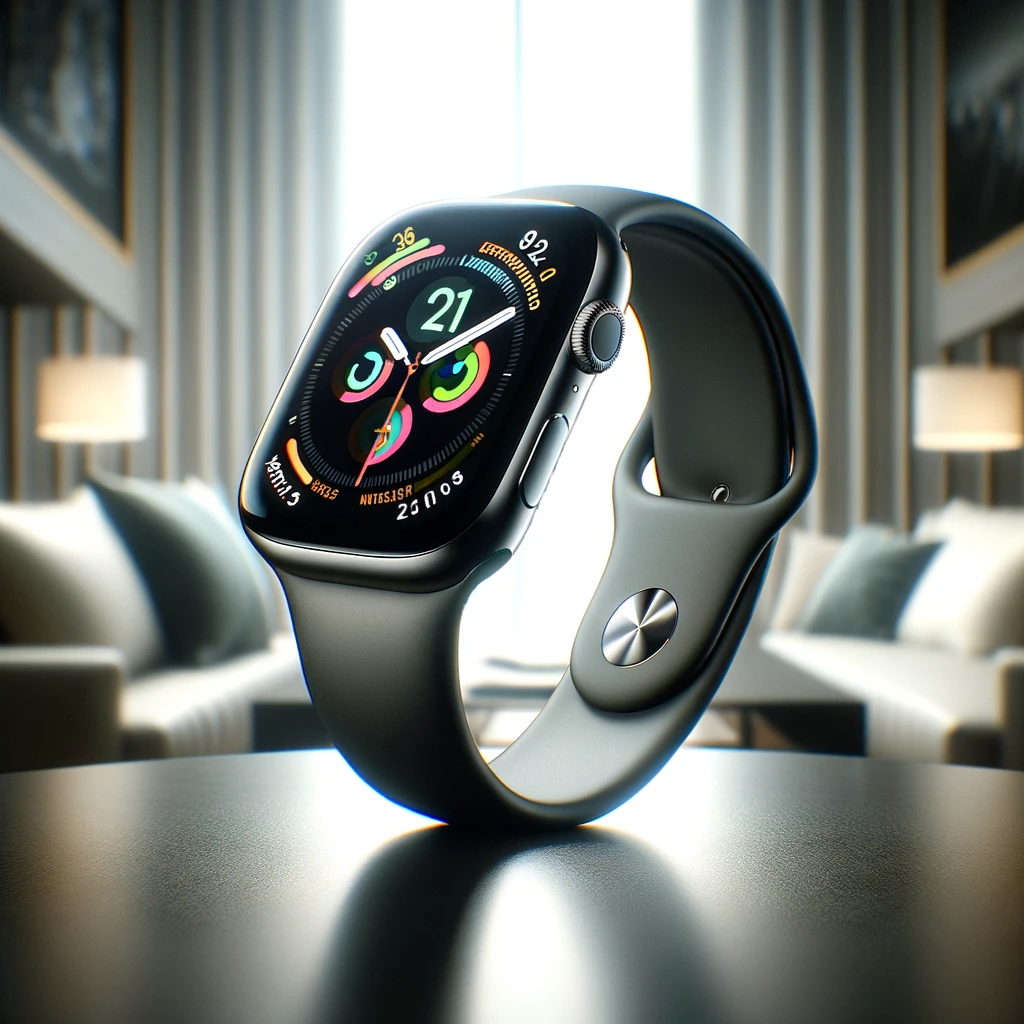
Amazon is currently offering an incredible deal on the Apple Watch Series 8, with discounts of up to $110 on select models. The 41mm GPS variant, originally priced at $399, is now available for just $289 – marking the second-best discount ever seen, with the previous record set during a one-day sale over a month ago. Additionally, the 45mm GPS Series 8, usually retailing at $429, is now priced at $319, representing the third-best discount to date.

Why Choose the Series 8?

Apple Watch Series 8 Clearance Lands on Amazon Starting from $289 (Save $110)

While the spotlight may be on the newer Series 9, the Apple Watch Series 8 continues to stand out with features that make it a compelling upgrade and an excellent starting point for fitness enthusiasts. The current 50% discount enhances its appeal, considering the minimal upgrades in the latest iteration. Key highlights of the Series 8 include a vibrant 2,000-nit screen, pinch gestures, and the powerful S9 chip.

Impressive Features for a Healthy Lifestyle

The Apple Watch Series 8 is not just a timepiece; it’s an essential companion for a healthier life. Equipped with advanced sensors, it provides insights to help users better understand their health. The Always-On Retina display ensures information is easily accessible, and the S8 chip enables improved gyroscope and accelerometer technology for features like crash detection. Beyond fitness tracking, the watch monitors overnight sleep, features an onboard temperature sensor, and offers ECG capabilities and blood oxygen monitoring.

Versatility in Style

The Amazon clearance sale includes various case styles, allowing users to personalize their Apple Watch Series 8. If the included bands don’t suit your style, there’s an option to explore other accessories. Whether you prefer leather bands, metal link straps, or fitness-ready solutions, there’s an array of curated options available.

The Series 8 also introduces Family Setup, allowing users to manage Apple Watches for family members who don’t own an iPhone. Additionally, the watch enables users to send texts, make calls, and stream music without their iPhones, even when traveling internationally.

In conclusion, the Apple Watch Series 8 clearance on Amazon offers unbeatable discounts on a feature-rich wearable, making it an attractive choice for those looking to upgrade or enter the world of smartwatches. With its advanced health monitoring capabilities and stylish design, the Series 8 continues to be a reliable companion for a healthier and connected lifestyle.

Apple TV Remote Not Working? Here Are 9 Ways to Fix It

Apple TV Remote Not Working? Here Are 9 Ways to Fix It

Apple TV Remote Not Working? Here Are 9 Ways to Fix It

The Apple TV remote is a sleek and indispensable companion to the Apple TV experience. However, there are times when it refuses to cooperate, leaving you frustrated in the midst of your favorite shows or movies. If you’ve found yourself in the predicament of the Apple TV remote not working, fear not. We’ve compiled a list of 9 practical solutions to get your remote back in action and your entertainment uninterrupted.

1. Check Batteries

Often overlooked, the simplest explanation could be the culprit. Ensure your remote has fresh batteries, as a weakened power source may result in intermittent functionality. A quick battery swap might be all it takes to revive your Apple TV remote.

2. Re-Pair the Remote

Sometimes, the connection between the Apple TV and its remote can be disrupted. Head to the Settings menu on your Apple TV, select “Remotes and Devices,” and then choose “Bluetooth.” Locate your remote and select “Forget Device.” Afterward, pair the remote again by holding down the Menu and Volume Up buttons simultaneously.

3. Restart Apple TV

Sometimes, the connection between the Apple TV and its remote can be disrupted. Head to the Settings menu on your Apple TV, select “Remotes and Devices,” and then choose “Bluetooth.” Locate your remote and select “Forget Device.” Afterward, pair the remote again by holding down the Menu and Volume Up buttons simultaneously.

3. Restart Apple TV

Sometimes, the connection between the Apple TV and its remote can be disrupted. Head to the Settings menu on your Apple TV, select “Remotes and Devices,” and then choose “Bluetooth.” Locate your remote and select “Forget Device.” Afterward, pair the remote again by holding down the Menu and Volume Up buttons simultaneously.

4. Update Apple TV Software

Ensure that your Apple TV is running the latest software version. Outdated software can lead to compatibility issues, impacting the performance of your remote. Navigate to “Settings,” select “System,” and then “Software Updates” to check for and install any available updates.

5. Use the Apple TV Remote App

If your physical remote remains unresponsive, try using the Apple TV Remote app on your iOS device. Download the app from the App Store, connect it to your Apple TV, and use it as an alternative until you resolve the issues with your physical remote.

6. Clean the Remote

Over time, dust and debris can accumulate on the remote’s sensors, affecting its responsiveness. Gently clean the remote with a soft, lint-free cloth to ensure there are no obstacles hindering its functionality.

7. Check for Interference

Wireless interference can disrupt the communication between your Apple TV and its remote.  Ensure there are no obstructions or electronic devices nearby that may be causing interference. Additionally, try moving closer to the Apple TV to see if that resolves the issue.

8. Reset Apple TV Settings

If all else fails, you can reset your Apple TV to its factory settings. This should be a last resort, as it erases all your preferences and accounts. To do this, navigate to “Settings,” select “System,” and then “Reset.” Choose “Reset All Settings” and follow the on-screen prompts.

9. Contact Apple Support

If none of the above solutions work, it’s time to seek professional help. Contact Apple Support for personalized assistance and guidance on resolving the issue with your Apple TV remote.

Facing issues with your Apple TV remote can be frustrating, but with these 9 solutions, you have a comprehensive toolkit to troubleshoot and fix the problem. Whether it’s a simple battery replacement or a more complex software update, these steps should help you get back to enjoying seamless entertainment with your Apple TV.

Apple's Vision Pro Headset Launching Soon - Here's What You Need to Know About Price and Availability

Apple’s Vision Pro Headset Launching Soon – Here’s What You Need to Know About Price and Availability

Officially, Apple has revealed that the much-awaited mixed reality headset, the Apple Vision Pro, will go on sale in the US on February 2. Starting on January 19 at 5:00 am PST, pre-orders for the innovative headgear will be accepted at all US Apple shop locations as well as on Apple’s online shop.

The Apple Vision Pro, which deftly combines augmented reality (AR) and virtual reality (VR) technology, is the tech giant’s first venture into the mixed reality space. It was unveiled at the Worldwide Developers Conference (WWDC) in June 2023. Utilising the customised visionOS operating system, the headset is ready to provide a cutting-edge and engaging user experience.

The initial price of the Apple Vision Pro for the 256GB storage option is $3,499 (about 2,90,000 INR).

There are two Light Seal Cushions and a Light Seal along with a Solo Knit Band and Dual Loop Band in the bundle. A cleaning cloth, a battery, a USB Type-C cable, a USB Type-C adaptor, and an Apple Vision Pro front cover are among the extra accessories.

ZEISS Optical Inserts are offered with a prescription or as readers that snap onto the Vision Pro magnetically for customers who need vision correction. Prescription lenses are available for $149 (about Rs. 12,000), while readers are priced at $99 (about Rs. 8,000).

At Apple's Retail Outlets, Those Who are Eager to see the Apple Vision Pro's Capabilities, Schedule a Trial.

Apple's Vision Pro Headset Launching Soon - Here's What You Need to Know About Price and Availability

Image Source: economictimes.indiatimes.com

The headset has two high-resolution micro-OLED screens and an R1 chip that processes information from a variety of sensors, cameras, and microphones. It is powered by Apple’s M2 chips. With its three-dimensional user interface and input mechanism that can be operated by the user’s hands, eyes, and voice, the spatial computing device is impressive. Users may adjust the degree of immersion in various settings by twisting the Digital Crown.

More than a million iOS and iPadOS apps, according to Apple, are compatible with cutting-edge input technology. The ability to link with a Magic Keyboard and Trackpad improves productivity. There are many entertainment alternatives available, enabling users to stream media from websites and apps like Disney+ Max, Apple TV+, and more.

With the Vision Pro, players may access a library of more than 250 Apple Arcade games.

Although the US launch details are known, the Apple Vision Pro‘s worldwide pricing and release schedule are still unknown. Globally, Apple devotees are excited for this ground-breaking mixed reality headset to become available.

How to Add Multiple Facebook Accounts on iPhone – Step-by-Step Guide

How to Add Multiple Facebook Accounts on iPhone – Step-by-Step Guide

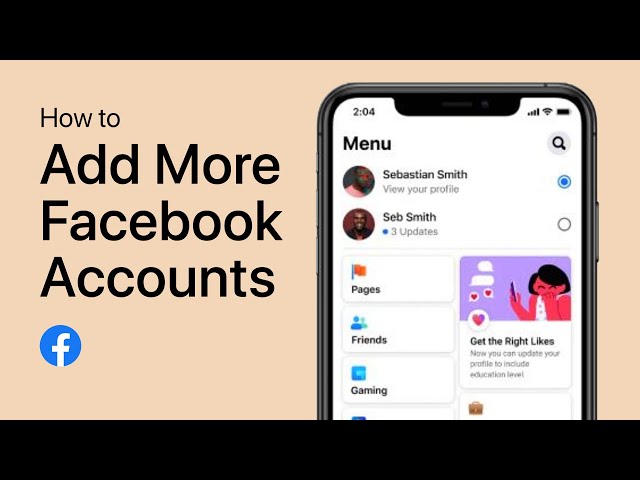
Navigating the world of social media often requires the juggling of multiple individuals, especially on platforms like Facebook. For iPhone users, managing multiple Facebook accounts is not a hassle. Whether for personal use, business, or a combination of both, this guide will help you efficiently add multiple Facebook accounts to your iPhone.

How to Add Multiple Facebook Accounts on iPhone – Step-by-Step Guide

Image Source: youtube.com

Before adding multiple accounts, make sure you have the latest version of the Facebook app installed on your iPhone. It can be checked and updated through the App Store. Having an updated app ensures a smoother process and access to the latest features.

Step 1: Accessing Your Primary Facebook Account

Start by logging into your primary Facebook account. Open the app and enter the login credentials. Once logged in, familiarize yourself with the Facebook interface, which is the key to navigating through the subsequent steps.

Step 2: Navigating to Account Settings

To add a second account, you’ll need to access the Settings menu. Tap on the three horizontal lines at the bottom right corner of the screen, and scroll down to find ‘Settings & Privacy’. Click on this section to view more information.

Step 3: Enabling the Account Switcher Feature

In the Settings menu, find the ‘Account Switcher’ feature under the ‘Security’ section. If not already enabled, you’ll see an option to turn it on. This feature is important for managing multiple accounts.

Step 4: Adding a New Facebook Account

Once the account switcher is activated, select ‘Add account’. Enter the login details of the secondary account you want to add. You’ll need to confirm this new account to link it to your device.

Step 5: Switching Between Accounts

To switch between your accounts, simply go back to the account switcher. Here, you can easily choose which account you want access to, making the transition between profiles smooth and quick.

Step 6: Managing Account Notifications

For each account, you can customize the notifications to suit your needs. This step is important to maintain balance and avoid notification overload, especially when managing multiple profiles.

Step 7: Logging Out of Accounts

To log out of any account, go to the account switcher again. This ensures that you maintain privacy and security, especially when accessing Facebook on shared devices.

Tips for Efficient Account Management

Organization is required to manage multiple accounts efficiently. Check each account regularly for updates and notifications. Also, consider setting specific times to connect with each profile to avoid excessive screen time.

Troubleshooting Common Issues

If you encounter issues like difficulty switching accounts or login issues, a simple restart of the app or your iPhone can often resolve these glitches. Also, make sure that your internet connection is good.

Security Considerations

Security should be a top priority when managing multiple accounts. Use strong and unique passwords for each account, and consider enabling two-factor authentication for security.

Conclusion

This step-by-step guide will simplify the process of managing multiple Facebook accounts on your iPhone. Adopt these features to improve your social media experience, but always use them responsibly.

How to Connect Your AirPods to Your Mac?

How to Connect Your AirPods to Your Mac?

Learn the quick and easy steps to seamlessly connect your AirPods to your Mac! This brief guide provides a straightforward method of pairing your AirPods with your Mac, ensuring a hassle-free setup. Whether it’s for music, meetings, or movies, improve your listening experience on your Mac with this simple, user-friendly process. Perfect for both first-time AirPod users and seasoned Apple enthusiasts, this guide ensures that your AirPods and Mac work together in perfect harmony.

What You Need Before You Start

Before diving into the connection process, ensure your Mac is updated to the latest macOS version and your AirPods are charged. Also, make sure Bluetooth is enabled on your Mac.

Step-by-Step Guide to Connecting AirPods to Mac

  1. Open the lid of your AirPods case, with the AirPods inside, and hold it next to your Mac.

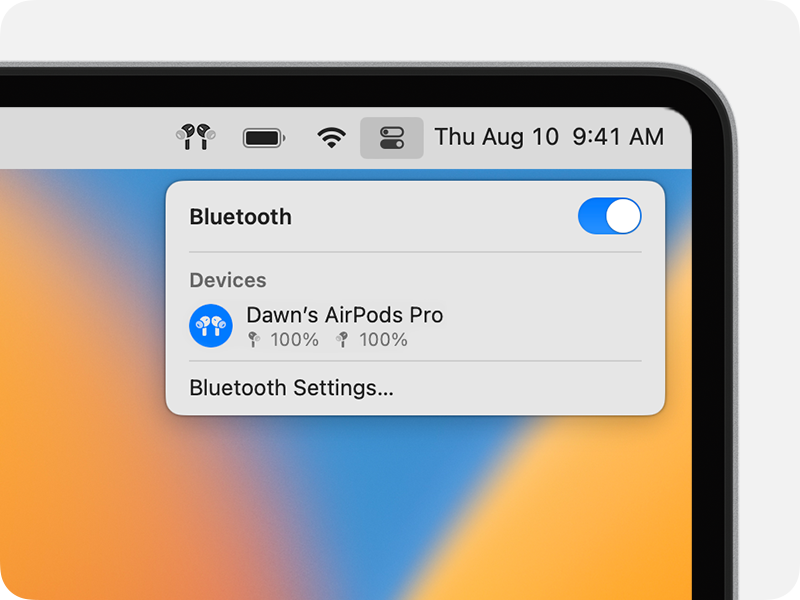
  2. On your Mac, click on the Bluetooth icon in the menu bar and select ‘Open Bluetooth Preferences.’

  3. Your AirPods appear in the list of devices. Click ‘Connect’ to establish the connection.

Troubleshooting Common Connection Issues

How to Connect Your AirPods to Your Mac?

Image Source: support.apple.com

If you are facing issues like your AirPods not appearing in the Bluetooth list or the connection is unstable, here are some solutions:

1. Restart both your Mac and AirPods.

2. Reset your AirPods by pressing the Setup button on the case.

Optimizing Your AirPods Experience on Mac

To improve your experience, customize the sound settings on your Mac to suit your preferences. You can adjust volume, and balance, and even set an equalizer for a more personalized audio experience.

Using AirPods with Multiple Apple Devices

One of the great features of AirPods is the ability to seamlessly switch between your Apple devices. Make sure all your devices are signed in to the same iCloud account for seamless switching.

Customizing AirPod Settings on Your Mac

Personalize your AirPods experience by changing the double-tap functionality through Bluetooth settings on your Mac. You can set it to activate Siri, play/pause music, or skip tracks.

The Role of iCloud in Connecting AirPods to Mac

iCloud plays a vital role in syncing your AirPods across all your Apple devices. This ensures that your AirPods automatically connect to whatever device you’re using.

Benefits of Connecting AirPods to Mac

Connecting your AirPods to your Mac offers many benefits like high-quality audio for music and calls, convenience, and the ability to use Siri hands-free.

Upcoming Features for AirPods and Mac

Apple is constantly updating AirPods and Mac with new features. Stay tuned for updates like better battery life, improved connectivity, and new sound features.

How to Find or Track Your iPhone Even When It’s Switched Off

How to Find or Track Your iPhone Even When It’s Switched Off

Losing your iPhone can be nerve-wracking, especially when it’s switched off. However, Apple’s innovative technologies and features can still help you locate your device, even in such circumstances. Here’s a comprehensive guide on how to find or track your iPhone even when it’s switched off.

1. Use 'Find My' App

Apple’s ‘Find My’ app is a lifesaver when it comes to locating a missing or switched-off iPhone. The app utilizes the device’s last known location, allowing you to view it on a map. Follow these steps:

  • Open the ‘Find My’ app on another Apple device or access it via iCloud.com.
  • Choose the missing device from the list.
  • Check the last known location. Even if the phone is switched off, the app might display its last location before it powered down.

2. Activate 'Lost Mode'

How to Find or Track Your iPhone Even When It’s Switched Off

Image Source: cnet.com

Activate ‘Lost Mode’ via the ‘Find My’ app or iCloud. This feature allows you to remotely lock your device with a passcode, display a custom message on the screen (such as a contact number), and track the device’s movement when it’s turned on again.

3. Enable 'Notify When Found'

This feature, available in the ‘Find My’ app, alerts you when your device connects to the internet. Once the iPhone is turned on, it sends a notification, allowing you to track it in real-time.

4. Contact Your Service Provider

Your service provider might assist in locating your iPhone, even when it’s switched off. They can track the phone’s last known cellular signal to narrow down its location.

5. File a Police Report

If your iPhone is stolen, filing a police report with the device’s serial number might help track it down. Law enforcement can collaborate with Apple to locate it, even if it’s switched off.

6. Preventive Measures

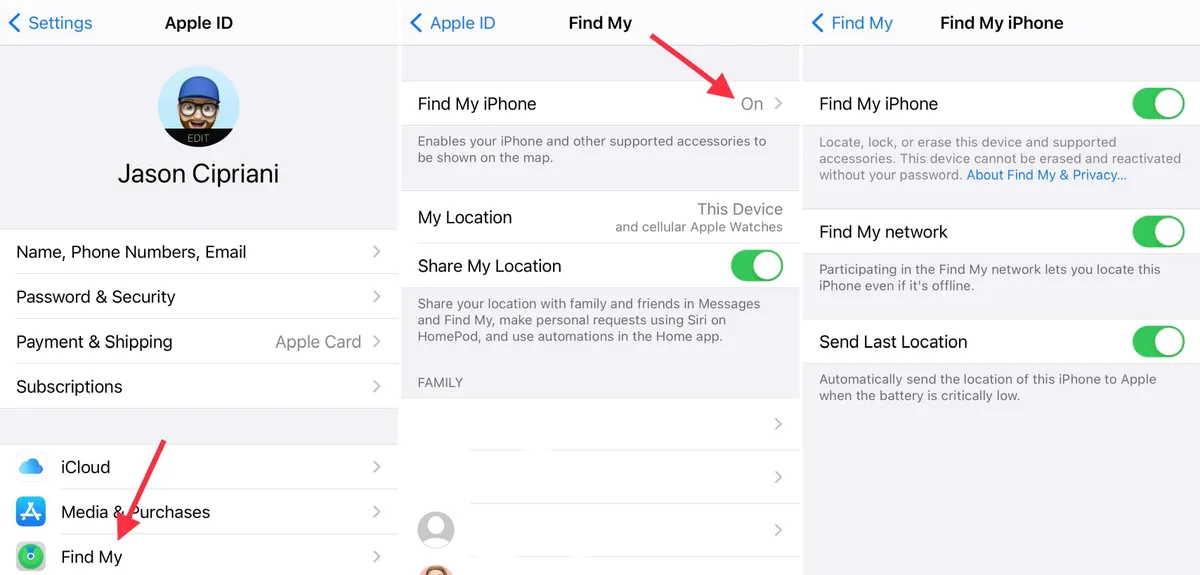
  • Activation Lock: Ensure ‘Find My iPhone’ and ‘Activation Lock’ are activated in settings. These features prevent others from turning off ‘Find My’ and erasing your device without your Apple ID and password.
  • Regular Backups: Regularly back up your iPhone data on iCloud or a computer. This ensures that even if the device is lost or stolen, your data remains safe.

7. Third-Party Tracking Apps

There are several third-party apps available that claim to track iPhones even when switched off. Research and choose reputable apps with good user reviews before installing them.

8. Be Cautious with Personal Information

Avoid sharing sensitive personal information on your device or any apps that might compromise your privacy if the phone falls into the wrong hands.

9. Check Local Laws

Always be mindful of local laws and regulations regarding tracking devices. Some actions might infringe upon privacy laws, so it’s essential to stay within legal boundaries.

Losing a switched-off iPhone can be stressful, but Apple’s ‘Find My’ app and associated features offer substantial hope for its recovery. By taking proactive measures and utilizing available resources, you increase the chances of locating your device even when it’s powered down. Remember, swift action and proper utilization of these features are crucial in retrieving your lost or stolen iPhone.