Your Tech Story

Tech News

How to Troubleshoot an Epson Printer Not Printing After Refilling Ink

How to Troubleshoot an Epson Printer Not Printing After Refilling Ink?

Encountering the challenge of an Epson printer not printing after an ink refill can be both perplexing and inconvenient. In this guide, we will delve into effective troubleshooting steps to identify and resolve the issue, ensuring a seamless printing experience with your Epson printer.

Image Source – technewstoday.com

Check Ink Levels

Begin your troubleshooting journey by verifying the ink levels in your Epson printer. Low ink levels could be a potential hindrance to printing. Check the ink status through the printer settings on your computer or the printer display panel.

Ensure Proper Ink Refill

Confirm that the ink cartridges were refilled correctly. Ensure each cartridge is securely in place without leaks or spills. Incorrectly refilled cartridges can disrupt the printing process and cause issues.

Run Printer Self-Test

Initiate a self-test on your printer to determine its operational status. Refer to your printer manual for specific instructions on how to run a self-test. This step aids in pinpointing whether the issue lies with the printer or the computer.

Check for Air Bubbles

Air bubbles in the ink cartridges can impede the printing process. Conduct a nozzle check and head cleaning through the printer software to eliminate air bubbles and ensure a smooth ink flow.

Update Printer Drivers

Outdated or incompatible printer drivers may contribute to the problem. Visit the official Epson website to download and install the latest printer drivers compatible with your operating system. This ensures optimal functionality.

Clean Print Heads

Unclean print heads can result in poor print quality or complete printing failure. Use the printer’s utility software to perform a thorough print head cleaning. Follow the on-screen instructions for a meticulous cleaning process.

Reset Printer Settings

Resetting the printer to default settings can resolve configuration issues. Access the printer settings through the control panel or computer and perform a factory reset. Note that this action may erase customized settings.

Inspect for Paper Jams

Paper jams are common culprits for disrupted printing. Open the printer and inspect for any stuck or crumpled paper. Carefully remove obstructions and ensure the paper path is clear for smooth printing.

Check for Error Messages

Keep an eye out for error messages on the printer display panel or computer. Error messages provide insights into the nature of the problem. Address the specific issues indicated in the messages for effective troubleshooting.

Perform a Test Print

Initiate a test print from your computer to assess whether the issue persists. opt for a simple document or image for testing purposes. This step helps identify whether the problem lies with the printer, computer, or specific files.

Also Read: How To Connect Your Phone to Smartwatch: A Comprehensive Guide

Conclusion

By systematically following these troubleshooting steps, you can effectively resolve the issue of your Epson printer not printing after an ink refill. For model-specific instructions, consult your printer manual, and if the problem persists, consider reaching out to Epson customer support for tailored assistance.


Former Pakistan PM Imran Khan Has Used AI Voice Clone to Campaign From Jail

Former Pakistan PM Imran Khan Has Used AI Voice Clone to Campaign From Jail

Pakistan’s political landscape witnessed a groundbreaking event as former Prime Minister Imran Khan employed artificial intelligence to deliver a compelling speech to his supporters while incarcerated. This innovative move, leveraging AI to transcend physical constraints, has set a precedent in political campaigning.

Former Pakistan PM Imran Khan Has Used AI Voice Clone to Campaign From Jail

Image Source: insaf.pk

Imran Khan’s voice, replicated by AI, resonated across social media platforms during a virtual event, captivating over a million viewers with a meticulously crafted four-minute address. Despite Khan’s limited public access due to imprisonment, this technological breakthrough allowed him to communicate his message effectively, potentially influencing the political dynamics leading up to the forthcoming elections.

The utilization of AI to project Khan’s voice highlights the technologically progressive stance of his political party, PTI. This move not only underscores Khan’s enduring popularity but also positions PTI as an innovative force, distinguishing it from traditional political entities.

Implications for Pakistan's Political Future

While PTI confirmed the AI-generated nature of the speech, questions loom regarding its adherence to legal norms. Khan’s confinement and legal battles cast uncertainty on his ability to participate directly in the imminent parliamentary polls. Despite his lawyer’s mention of the potential submission of nomination papers pending a court decision, the legality of AI-delivered political addresses remains a point of contention.

Analysts speculate on the impact of this AI-driven approach. While acknowledging its potential to galvanize PTI’s support base, concerns persist over potential legal violations barring any direct or indirect public addresses by an incarcerated individual.

Legal Implications and Political Ramifications

The overwhelming response to Khan’s AI-mediated speech signals a pivotal shift in political campaigning, leveraging technological advancements to circumvent physical constraints. However, the government’s silence on this issue raises questions about the official response to such novel campaigning methods.

As the nation prepares for elections, the intersection of technology and politics introduces both excitement and legal ambiguity. The sheer scale of social media viewership juxtaposed against the broader voter base underscores the evolving landscape where technological outreach might significantly impact political outcomes.

Imran Khan’s AI-powered address has not only captivated the public but also sparked debates on the permissible extent of political engagement for incarcerated individuals. Whether this technological leap becomes a catalyst for change or raises legal hurdles remains to be seen, yet it undeniably heralds a new era in Pakistan’s political narrative.

How to Connect Your Phone To Your Smartwatch

How To Connect Your Phone to Smartwatch: A Comprehensive Guide

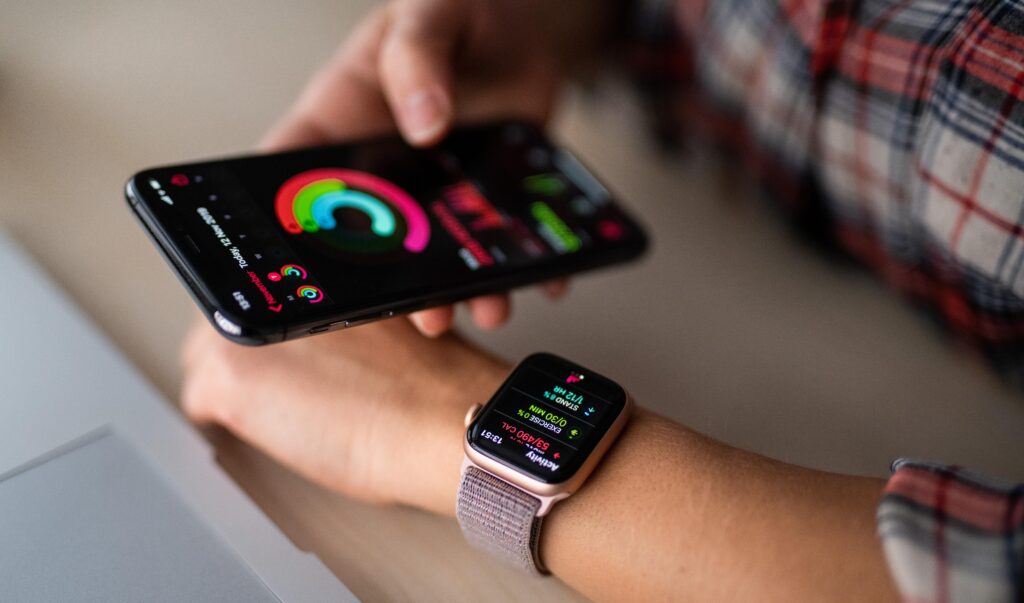
Connecting your phone to your smartwatch is a straightforward process, typically involving Bluetooth technology. This guide will walk you through the steps for both Android and iOS devices.

How to Connect Your Phone To Your Smartwatch
Image Source – currys.co.uk

For Android Devices:

Enable Bluetooth on Your Phone:

Click The “Settings” icon on your Android device.

Navigate to “Connections” or “Connected Devices.”

Turn on Bluetooth.

Enable Bluetooth on Your Smartwatch:

Access the settings menu on your smartwatch.

Look for “Bluetooth” or “Connectivity” and enable Bluetooth.

Pairing the Devices:

In your phone’s Bluetooth settings, find your smartwatch in the list of available devices.

Select your smartwatch and confirm any pairing prompts that appear on both devices.

Install Companion App (if required):

Some smartwatches may require a companion app. Visit the Google Play Store, download the app, and follow on-screen instructions.

Follow On-Screen Prompts:

Finish the setup process by adhering to any further on-screen instructions.

For iOS Devices (iPhone):

Enable Bluetooth on Your iPhone:

Open the “Settings” app on your iPhone.

Tap on “Bluetooth” and turn it on.

Enable Bluetooth on Your Smartwatch:

Access the settings menu on your smartwatch.

Look for “Bluetooth” or “Connectivity” and enable Bluetooth.

Pairing the Devices:

In your iPhone’s Bluetooth settings, find your smartwatch in the list of available devices.

Select your smartwatch and confirm any pairing prompts on both devices.

Install Companion App (if required):

Some smartwatches may need a companion app. Download it from the App Store and follow on-screen instructions.

Also Read: How to Connect 2 Monitors to One PC?

Follow On-Screen Prompts:

Finish the setup by following any additional on-screen instructions.

In conclusion, the key to successfully connecting your phone to your smartwatch is enabling Bluetooth, pairing the devices, and potentially installing a companion app. Always refer to the specific user manuals for your devices for accurate and detailed instructions. Enjoy the seamless integration of your smartwatch with your phone!

How to Connect 2 Monitors to One PC?

How to Connect 2 Monitors to One PC?

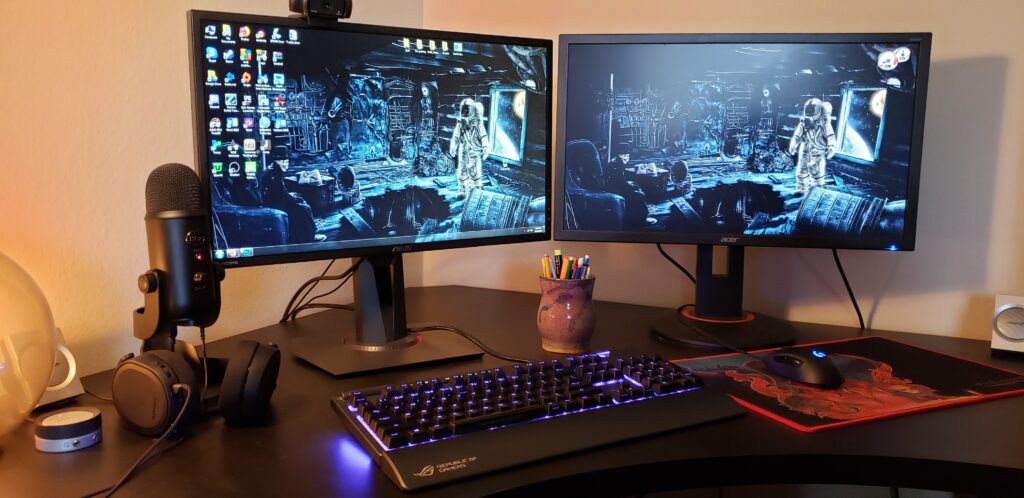
Have you ever felt cramped on your single monitor, struggling to juggle multiple applications? The solution is simpler than you think: connecting two monitors to your PC. This manual will guide you step by step, guaranteeing a smooth and effortless setup.

Image Source – pcgamer.com

Understanding Your PC’s Graphics Capabilities

First things first, let’s dive into your PC’s capabilities. Can it support dual monitors? Check your graphics card details and available ports – this will dictate what you can do.

Types of Monitor Connections

Monitor connectivity options encompass a range of ports, including HDMI, DisplayPort, VGA, DVI, and USB-C/Thunderbolt. HDMI is renowned for high-definition multimedia, while DisplayPort offers versatility. VGA and DVI, though older, remain viable for certain setups. USB-C/Thunderbolt is a modern, multifunctional choice, providing power and data transfer alongside video capabilities. Each port boasts unique strengths, catering to diverse user preferences and device compatibility.

Step-by-Step Guide to Connecting Two Monitors

Ready to set up? Here’s a step-by-step guide:

Prepare Your Monitors: Ensure they have compatible ports.

Make the Connections: Plug each monitor into your PC.

Configure Display Settings: Tailor the settings to your needs in your operating system.

Troubleshooting Common Issues

Ran into a snag? Below are a few typical challenges and their solutions:

Monitor Not Detected: Check connections and reboot.

Resolution Issues: Adjust settings in your operating system.

Performance Considerations: Ensure your PC can handle the extra load.

Maximizing Productivity with Dual Monitors

Dual monitors are about more than just extra screen space. They’re a gateway to enhanced productivity. Learn how to effectively use them for multitasking.

Also Read: How To Fix If Your Samsung Tablet Is Running Slow?

Advanced Setups

For those wanting more, explore advanced setups like docking stations and multi-graphics card configurations.

Conclusion

Embracing a dual monitor setup can revolutionize your computing experience. It’s not just about more screen space; it’s about transforming how you work and play.

How To Fix If Your Samsung Tablet Is Running Slow?

How To Fix If Your Samsung Tablet Is Running Slow?

To fix a slow-running Samsung tablet, start by restarting the device to clear temporary files. Update the operating system and apps to their latest versions for optimal performance. Clear cache and delete unnecessary files to free up storage space. Finally, manage background apps to ensure they don’t consume excess resources. These steps can significantly improve the speed and efficiency of your Samsung tablet. This article provides practical solutions to increase the performance of your tablet.

Understanding the Causes

Many factors contribute to a slow Samsung tablet, including outdated software, overloaded storage, and background apps.

Restarting Your Tablet

A simple but effective solution is to restart your tablet. It can clear temporary files and refresh the system.

Clearing Cache and Unnecessary Data

How To Fix If Your Samsung Tablet Is Running Slow?

Image Source: lifewire.com

Clearing cache and unnecessary data is a simple yet effective way to enhance your device’s performance. It involves removing temporary files and data that accumulate over time, freeing up storage space, and improving overall speed and efficiency. Regularly clearing cache can also resolve potential glitches and keep your device running smoothly.

Updating the Operating System

Updating the tablet’s operating system is a crucial process that involves installing the latest software version on your device. This not only brings new features and enhancements but also patches security vulnerabilities, improves performance, and fixes known bugs.

Managing Applications

Regularly updating apps and uninstalling those that are not in use can prevent performance delays.

Optimizing Battery Settings

Optimizing battery settings involves adjusting your tablet’s power usage for enhanced battery life and tablet’s performance. This can include reducing screen brightness, disabling background apps, and activating power-saving modes.

Expanding Storage

Using external storage solutions like SD cards or cloud storage may free up internal memory.

Reducing Screen Brightness and Animations

Lowering screen brightness and reducing animations can speed up the tablet.

Factory Reset

In some cases, a factory reset may be necessary to speed up your tablet. Back up the data before proceeding with this option.

Latest Trends in Tablet Performance

The latest trends in tablet performance focus on enhancing processing speed, improving display quality, and extending battery life.

Conclusion

Regular maintenance and these troubleshooting steps can greatly improve the speed and efficiency of your Samsung tablet.

Inside Amazon’s Effort to Challenge Musk’s Starlink Internet Business

Inside Amazon’s Effort to Challenge Musk’s Starlink Internet Business

In the ever-evolving space race for global internet domination, Amazon’s Project Kuiper emerges as a potent contender challenging Elon Musk’s Starlink. Following a rollercoaster launch and a nerve-racking episode of temporarily losing contact with a satellite, Amazon’s ambitions to reshape internet connectivity hang in the balance.

The initial setback post-launch marked a crucial moment for Amazon’s satellite endeavor. The stakes were high as the team raced against time to salvage the situation, revealing the immense efforts invested in creating a satellite infrastructure from scratch. Amid celebrations and challenges, Amazon’s resolve to revolutionize global internet access was put to the test.

A Philanthropic Vision Meets Commercial Ambition

Project Kuiper, touted as a philanthropic venture to bridge the digital divide, doubles as Amazon’s pivotal entry into the competitive telecommunications arena. With plans to sell rooftop antennas, provide cloud services, and collaborate with wireless carriers, Amazon aims to establish itself as a global telecommunications giant by 2025.

Inside Amazon’s Effort to Challenge Musk’s Starlink Internet Business

Image Source: tech.hindustantimes.com

The rivalry between Bezos and Musk finds new ground in the satellite internet sphere. Amazon’s bet on Project Kuiper extends beyond technological advancement, aiming to counterbalance Starlink’s dominance. Amidst regulatory obligations and technological innovations, the competition heats up as both giants vie for market share and influence.

Innovation at Scale: Challenges and Triumphs

The journey of Project Kuiper’s satellites—from conception to assembly—underscores Amazon’s relentless pursuit of innovation. The project’s scale presents unprecedented challenges, mandating the development and launch of two satellites daily until 2026. Balancing technological breakthroughs with mass production remains a monumental task.

Amazon’s approach differs from SpaceX’s in design philosophy and business strategy. Project Kuiper engineers combine cutting-edge technology with proven components, aiming for fewer, more powerful satellites. Their aim? To deliver high-speed internet via ground-breaking optical links and simplified yet efficient satellite infrastructure.

The Road Ahead: Challenges and Promises

Despite setbacks in launch schedules and unexpected hurdles, Amazon maintains confidence in meeting FCC licensing requirements. Scaling up manufacturing, securing reliable launch providers, and navigating geopolitical complexities remain pivotal for Project Kuiper’s success.

In the quest to redefine global internet access, Amazon’s Project Kuiper stands as a testament to technological innovation, perseverance, and a determination to revolutionize how the world connects. As the rivalry with Starlink intensifies, the next chapter in satellite internet’s evolution promises an intriguing battle for supremacy.