WhatsApp has always been at the forefront of instant messaging, continually enhancing user experience with innovative features. The latest addition to their repertoire is the in-app Custom Sticker Maker, a tool designed to add a personal touch to your conversations.
Exploring the In-App Custom Sticker Maker
WhatsApp’s Custom Sticker Maker allows users to create unique stickers directly within the app. This feature opens up new avenues for expression, letting you convert your photos and designs into fun, shareable stickers.
How to Access the Sticker Maker in WhatsApp
The sticker maker is easy to access. Simply tap on the sticker icon in any chat window and select the ‘Create’ option. This launches the sticker maker interface, where your creativity can run wild.
Designing Your First Sticker
Step-by-Step Guide
Choose an image from your gallery or take a new photo.
Use the in-app tools to crop, add text, or decorate your sticker.
Save and add it to your sticker collection.
Tips for Creating Engaging Stickers
Use high-contrast images for better visibility.
Keep text short and punchy.
Experiment with different styles and colors.
Sharing Your Custom Stickers
Once you’ve created your sticker, sharing it is as simple as tapping on it in your sticker collection and sending it in a chat.
React to messages with personalized expressions.
Celebrate special occasions with custom-made stickers.
Use stickers for group chat inside jokes.
Custom Sticker Maker's Impact on User Experience
This feature significantly enhances the personalization aspect of WhatsApp, allowing users to express themselves in unique ways. It also encourages creativity, giving users a platform to showcase their artistic skills.
Comparing WhatsApp's Sticker Maker with Other Platforms
What sets WhatsApp’s sticker maker apart is its seamless integration within the app and its user-friendly interface. The tool is designed for ease of use, making sticker creation accessible to everyone, regardless of their technical skill level.
Conclusion
WhatsApp’s in-app Custom Sticker Maker marks another step in the app’s evolution, offering users a unique way to personalize their messaging experience. As users and businesses alike explore this new feature, it stands as a testament to WhatsApp’s ongoing dedication to user satisfaction and innovation.
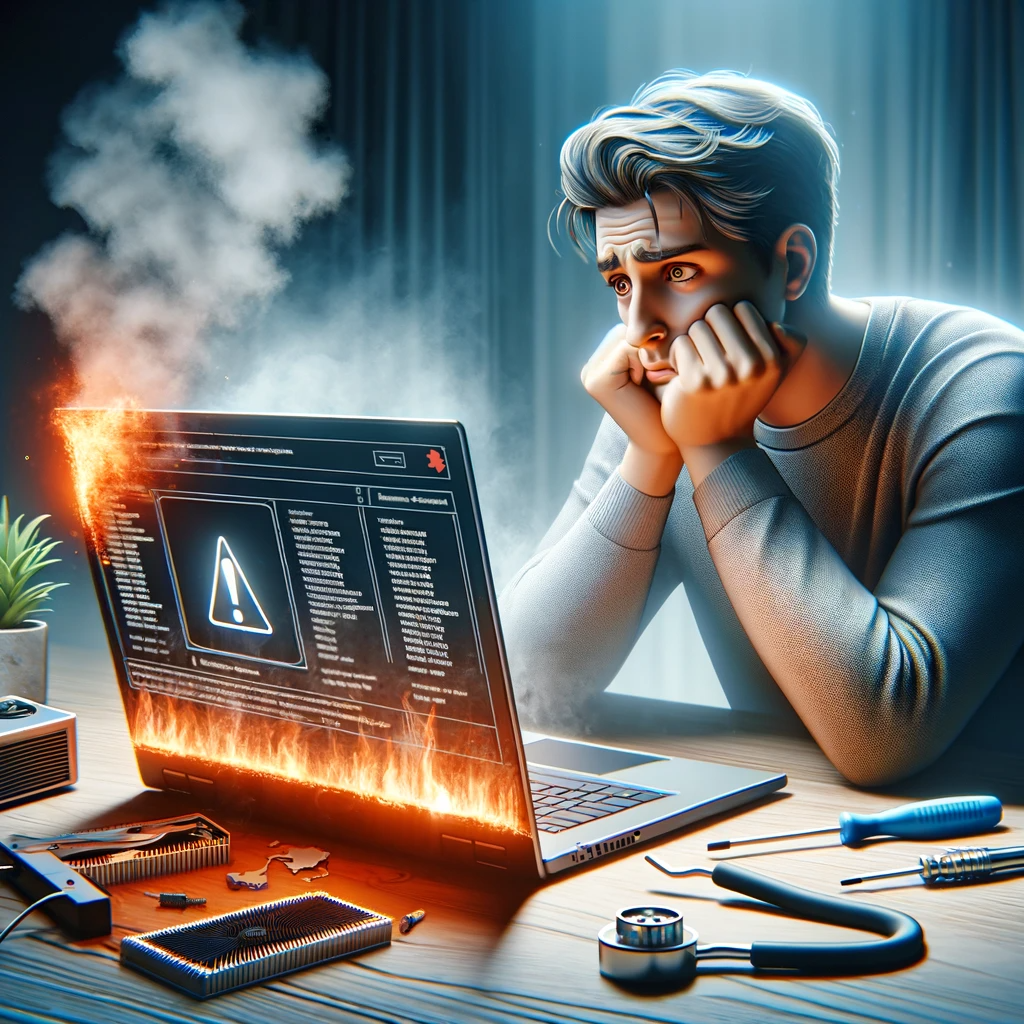
In our digitally-driven world, laptops have become essential tools for work, education, and entertainment. From Slow Performance to Overheating” is an insightful guide aimed at empowering users to identify and resolve some of the most common laptop challenges. Whether you’re dealing with frustratingly slow performance, overheating, unexpected battery drain, or connectivity issues, this guide offers practical and easy-to-follow solutions. By understanding the root causes and implementing effective fixes, you can enhance your laptop’s efficiency and extend its lifespan.
Identifying Common Laptop Problems
This includes recognizing issues like slow performance, overheating, battery drain issues, Wi-Fi connectivity challenges; and problems with the keyboard, touchpad, or screen display. Understanding these common issues is crucial for laptop users, as it helps in diagnosing the problem accurately and applying the right solutions. Awareness of these frequent laptop problems ensures you’re well-equipped to handle any disruptions in your laptop’s performance, keeping it running smoothly.
Slow Performance and Its Solutions
Slow laptop performance can be a significant hindrance to productivity and efficiency. Common causes include a cluttered hard drive, outdated software, insufficient RAM, or background programs consuming too much processing power. To address this, start by cleaning up your hard drive and removing unnecessary files and applications. Updating your operating system and all software can also improve performance, as newer versions often include optimizations. Consider upgrading your RAM or switching to an SSD for a more substantial performance boost.
Dealing with Overheating
Overheating often occurs due to blocked air vents, excessive dust buildup inside the laptop, or an overworked CPU. To combat this, start by ensuring your laptop is on a hard, flat surface that allows for proper ventilation. Regularly clean the air vents and consider using compressed air to remove dust from internal components. Updating your system’s BIOS and managing resource-intensive applications can also help reduce CPU strain. Additionally, using a cooling pad can significantly aid in dissipating heat. By taking these steps, you can keep your laptop cool and functioning efficiently.
Battery Drain Concerns
Several factors can contribute to rapid battery depletion, including aging batteries, numerous background applications, high screen brightness, and power-intensive tasks. To extend your laptop’s battery life, start by adjusting the energy-saving settings, reducing screen brightness, and closing unnecessary applications. Consider updating your operating system and drivers, as newer software versions often include battery optimization features. If the battery is significantly degraded, replacing it might be the most effective solution.
Wi-Fi Connectivity Troubles
Wi-Fi connectivity troubles on laptops can range from intermittent disconnections to complete inability to connect to a network. Common causes include outdated Wi-Fi drivers, incorrect network settings, signal interference, or hardware issues. To resolve these problems, start by restarting both your laptop and wireless router, which can often re-establish a stable connection. Ensure your laptop’s Wi-Fi drivers are up-to-date, as outdated drivers can lead to connectivity issues. If the problem persists, try forgetting the Wi-Fi network on your laptop and reconnecting as a new connection.
Keyboard and Touchpad Issues
These problems might manifest as unresponsive keys, erratic touchpad behavior, or complete failure to work. Common causes include driver conflicts, hardware malfunctions, dirt and debris, or software glitches. To troubleshoot, start by cleaning your keyboard and touchpad to remove any dust or debris. Updating or reinstalling drivers can often resolve software-related issues. Adjusting touchpad settings for sensitivity can also improve its responsiveness. If the problems persist, an external keyboard or mouse can be a temporary workaround.
Screen Display Problems
Laptop screen display problems can manifest in various forms, such as flickering, blank screens, distorted images, or incorrect color representation. These issues can stem from software glitches, outdated graphics drivers, loose display connections, or hardware faults. To address these problems, start by restarting your laptop. Ensure your graphics drivers are up to date. Check the screen resolution settings and adjust them if necessary. If the problem involves flickering or unstable images, inspect the display cables and connections for any looseness or damage. In the case of severe issues like broken screens or persistent hardware faults, professional repair may be required.
These issues can be caused by outdated or corrupted audio drivers, incorrect audio settings, software conflicts, or hardware malfunctions. To troubleshoot, start by checking and updating your audio drivers. Adjust your laptop’s audio settings and ensure the correct playback device is selected. Restarting the laptop can also resolve temporary software conflicts that might be affecting the audio. If you’re using external speakers or headphones, check their connection and try different audio jacks or USB ports. For persistent hardware issues, such as internal speaker damage, professional repair may be necessary.
Conclusion
In conclusion, troubleshooting common laptop problems, from slow performance to overheating, is an essential skill in today’s tech-reliant world. Understanding the root causes of these issues and knowing how to effectively address them can significantly enhance your laptop’s functionality and extend its lifespan.
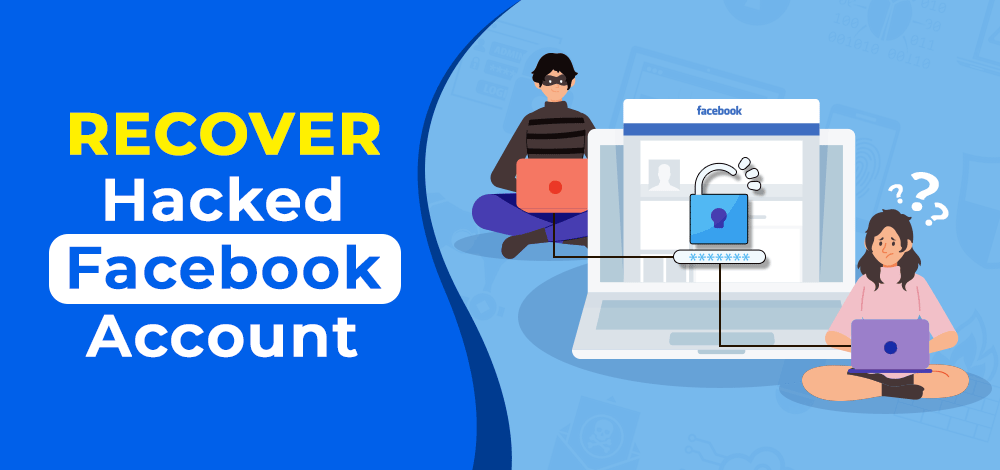
Discovering your Facebook account has been hacked can be distressing and unsettling. However, regaining control of your account is not only possible but essential for protecting your personal information and online presence. This guide provides easy-to-follow steps to quickly secure and recover your account, from changing your password to alerting friends about the breach. This guide is designed to help you efficiently restore the security of your Facebook account and prevent future unauthorized access.
Recognizing a Hacked Account
Recognizing a hacked Facebook account is crucial in taking timely steps to secure your digital identity. Signs of a compromised account include unexpected changes to your profile information, unauthorized posts or messages sent from your account, friend requests sent to people you don’t know, and login alerts from unfamiliar locations. You might also find that your password no longer works, indicating someone else may have changed it.
Immediate Actions to Take
Image Source: geeksforgeeks.org
When you suspect your Facebook account has been hacked, immediate action is crucial to protect your information and prevent further unauthorized access. First, try to log into your account and change your password. If you can’t access your account, use the ‘Forgot Password’ feature to reset your password using your email or phone number. Additionally, review and remove any suspicious third-party app permissions on your Facebook settings.
Using Facebook’s Hacked Account Page
Facebook’s Hacked Account Page is a dedicated resource for users who believe their account has been Hacked. This specialized tool is designed to guide you through the recovery process. Upon visiting the page, you’ll be prompted to enter your account information and follow a series of steps tailored to your specific situation. The page offers various recovery options, such as identifying recent changes to your account, securing it with a new password, and reviewing recent login activity. It also provides additional security features, like setting up two-factor authentication for enhanced protection.
Changing Your Password
Changing your Facebook password is a fundamental step in securing your account, especially if you suspect it has been Hacked. It’s crucial to choose a strong and unique password that is difficult to guess. A good password typically includes a mix of upper and lower-case letters, numbers, and special characters. Avoid using easily password like your name, birthday, or common words. Once you’ve updated your password, ensure that you log out of Facebook on other devices for added security.
Checking for Malicious Apps
Often hackers gain access through third-party apps. Learn how to review and remove any suspicious apps connected to your Facebook account.
Enabling Two-Factor Authentication
Adding two-factor authentication significantly enhances your account’s security.
Reviewing Account Activity
Reviewing your Facebook account activity is an essential step in ensuring your account’s security, especially if you suspect unauthorized access. Look out for any activity that seems unfamiliar or suspicious, such as logins from unknown locations or devices. This section also allows you to log out from devices you no longer use or recognize.
Recovering your Facebook account through friends is a unique feature offered by Facebook, known as ‘Trusted Contacts.’ Your friends will receive a security code. You then need to contact them to collect the codes and enter them into Facebook’s recovery page. This method is particularly useful if your account has been compromised and other recovery options are unavailable.
Conclusion
In conclusion, recovering a hacked Facebook account requires a calm and methodical approach. By following the steps outlined – recognizing the signs of a hacked account, taking immediate action, changing your password, reviewing account activity, and possibly enlisting the help of trusted friends – you can effectively regain control of your account. Remember, regular maintenance, such as updating passwords and monitoring account activity, goes a long way in safeguarding your online presence. Facebook’s resources, including the Hacked Account Page and Trusted Contacts, are valuable tools in this recovery process. With these strategies, you can ensure that your Facebook account remains secure.
Dealing with an HP printer that consistently shows an ‘offline’ status and requires frequent reboots can be a significant hindrance to your productivity and workflow. This common issue, often rooted in connectivity or software glitches, can disrupt your daily printing tasks. Whether you’re facing problems with physical connections, network settings, outdated drivers, or system errors, there are several troubleshooting steps you can undertake. This guide aims to provide clear, practical solutions to bring your HP printer back online and reduce the need for constant reboots. From checking cables and connections to updating drivers and adjusting settings, we’ll explore various methods to resolve this frustrating issue and ensure your printer operates smoothly, enhancing your overall printing experience.
Understanding the 'Offline' Status
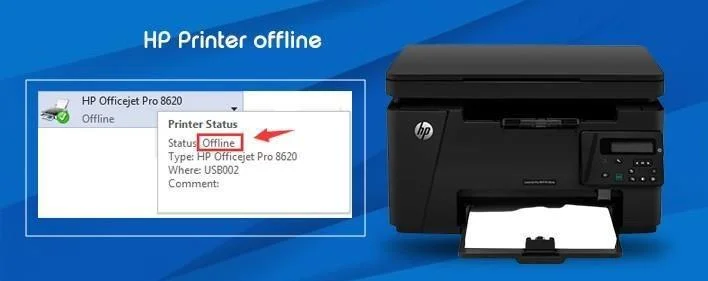
When your printer status shows ‘offline,’ it’s not communicating with your computer. This could be due to several reasons, such as connection issues or outdated drivers.
Initial Checks and Quick Fixes
Image Source: issuu.com
Start with basic troubleshooting: check if the printer is on, ensure it’s set as the default printer, and try a preliminary reboot of both your printer and computer.
Checking Printer Connections
Make sure all physical connections (USB or Ethernet) are secure. If you’re using a wireless printer, verify your Wi-Fi connection and printer’s network settings.
Updating Printer Drivers
Outdated or corrupt drivers can cause connectivity problems. Visit HP’s website to download and install the latest drivers for your printer model.
Configuring Printer Settings in Windows
On your PC, navigate to ‘Devices and Printers’ and ensure your HP printer is set as the default. Also, check the printer queue for stuck print jobs.
Dealing with Network Issues
Network inconsistencies can cause your printer to go offline. Restart your router and reconnect your printer to the network.
Restarting the Print Spooler Service
On Windows, the print spooler service can be restarted by going to ‘Services.msc,’ locating ‘Print Spooler,’ and clicking ‘Restart.’
Setting as Default Printer
Ensuring your HP printer is set as the default printer in your computer’s settings can often resolve the offline issue.
Using HP Print and Scan Doctor
HP provides a free tool, HP Print and Scan Doctor, which can diagnose and resolve printing and scanning problems.
Factory Resetting Your Printer
As a last resort, perform a factory reset of your printer. This can clear any errors causing the offline status but will erase all settings.
The rise of artificial intelligence (AI) in mobile technology is nothing short of revolutionary, and the latest buzz in this area is the potential ease of using ChatGPT on Android devices. This development raises the question: could ChatGPT become a viable alternative to the well-established Google Assistant? Let’s look at this interesting possibility.
ChatGPT
ChatGPT, developed by OpenAI, is an AI-powered chatbot known for its conversational capabilities. It has evolved rapidly, demonstrating the ability to understand and answer complex questions with remarkable accuracy.
ChatGPT on Android: A New Era
Recent efforts to extend the usability of ChatGPT on Android mark a significant step forward. These improvements aim to make AI more accessible and user-friendly for the vast Android user base.
Google Assistant
Google Assistant has been the go-to AI companion for Android users, deeply integrated into the ecosystem. It offers voice commands, smart home control, and personalized assistance.
Comparative Analysis: ChatGPT vs. Google Assistant
When it comes to features, both platforms have their strengths. ChatGPT excels in conversation depth and nuanced responses, while Google Assistant provides seamless integration with Android services.
Voice Assistance and AI Interaction
Voice command proficiency is critical for AI assistants. ChatGPT and Google Assistant both respond well to voice input, but their accuracy and speed can vary depending on the complexity of requests.
Personalization and Learning Curve
Personalization is important in AI technology. ChatGPT and Google Assistant both learn from user interactions, but their approaches are different. ChatGPT can provide a more customized conversation experience, while Google Assistant focuses on personalized service based on user data.
Integrating with the Android Ecosystem
ChatGPT’s compatibility with existing Android apps and services is critical to its success. Google Assistant, already integrated, provides a seamless user experience across various Android devices.
Offline Capabilities
Offline functionality is an important aspect of AI assistants. Currently, Google Assistant has the lead in this area, but ChatGPT’s advancements may close the gap in the future.
Privacy and Security Concerns
Data privacy is a major concern in AI. Both ChatGPT and Google Assistant take measures to protect user data, but their policies and implementation differ.
Potential Future Developments
The AI assistant market is growing rapidly. Predictions for ChatGPT and Google Assistant point to more intuitive, human-like interactions and broader functionalities.
The Impact on Android Users
The integration of ChatGPT into Android has implications for users, ranging from adopting new AI assistants to experiencing enhanced conversational interactions.
Technical experts and analysts have different opinions on this development. Some see ChatGPT as a strong contender, while others believe that Google Assistant will maintain its dominance due to its deeper integration with Android.
Conclusion
The capabilities of ChatGPT on Android devices are immense, offering a new perspective on AI interactions. It remains to be seen whether it can replace Google Assistant, but the future of AI in mobile technology is undoubtedly exciting.
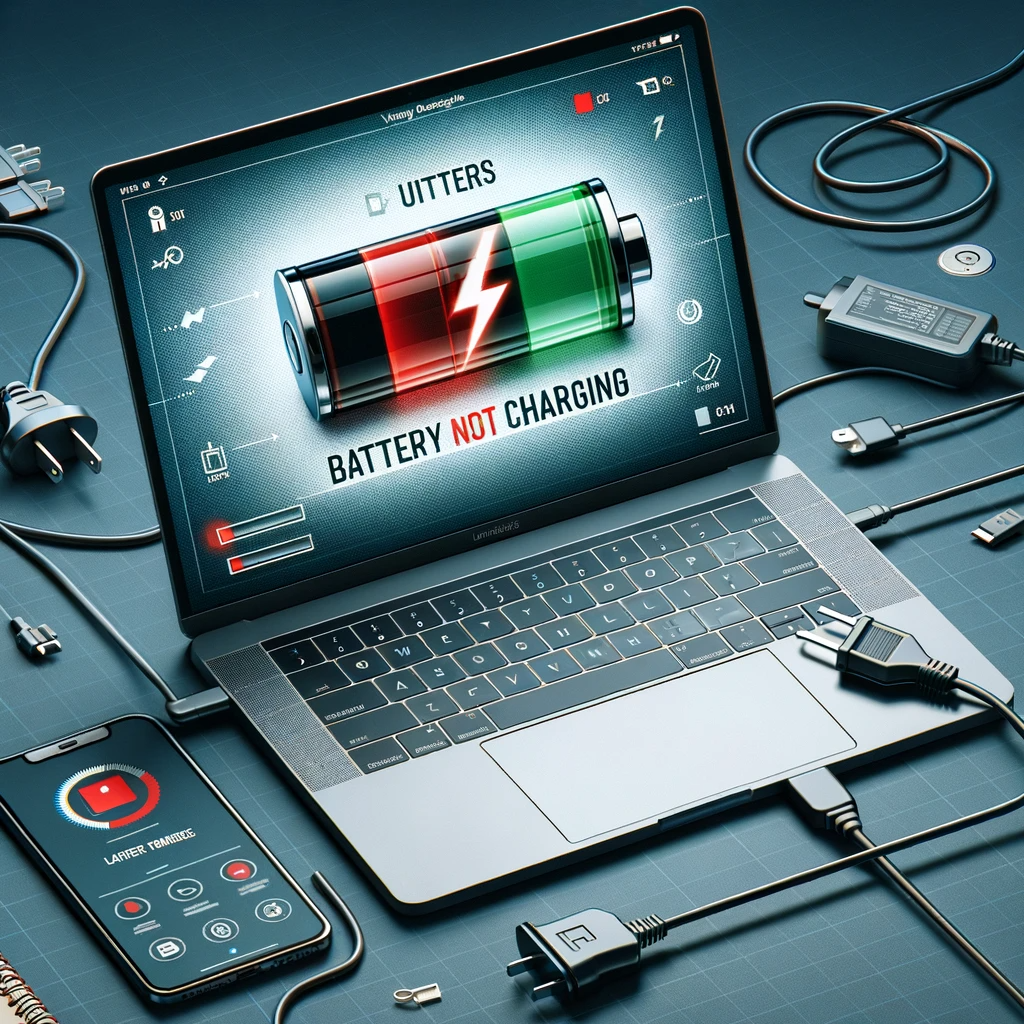
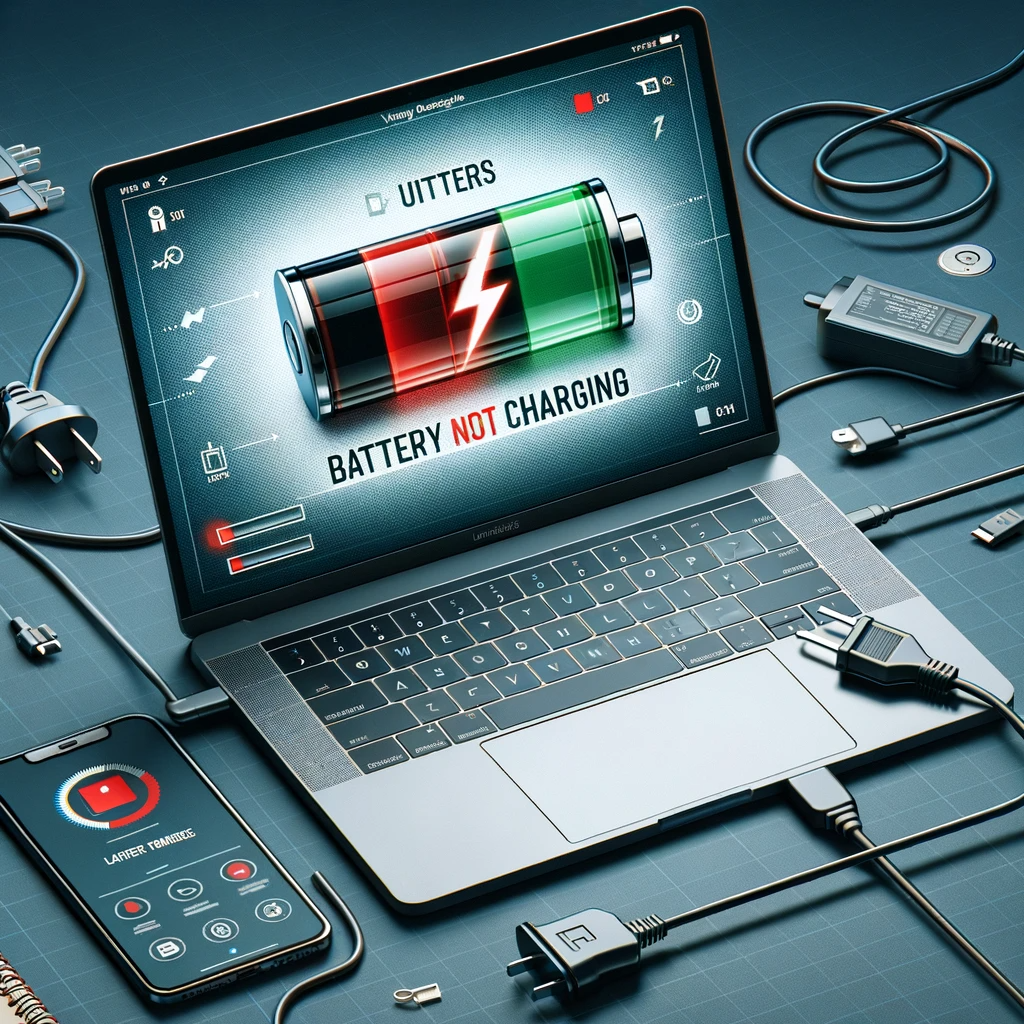
Imagine you’re preparing for an important day of work or study, but notice that your laptop refuses to charge. This common puzzle may be a source of frustration, but fear not! In this comprehensive guide, we will walk you through various solutions to directly deal with the “plugged-in, not charging” issue.
Identifying the Problem
First, let’s recognize the signs. Is your laptop indicating that it is plugged in but no battery percentage is increasing? Does it refuse to accept the power source altogether? Recognizing these symptoms is the first step in troubleshooting.
Checking the Power Source
Make sure your power outlet is working. Try plugging in another device to confirm. It is also wise to check your home for any tripped circuit breakers or blown fuses.
Examining the AC Adapter
Inspect your laptop’s AC adapter. Note any physical damage such as broken wires or loose connections. If possible, test the adapter with another compatible laptop to see if the issue persists.
Inspecting the Laptop Charging Port
Check your laptop’s charging port for debris or damage. Gently cleaning the port with a dry, soft-bristled brush can remove dust that may be obstructing the connection.
Battery Health Check
Assess the health of your laptop’s battery. Many laptops have built-in diagnostics for this. If your battery has passed its lifecycle (usually around 500 full charge cycles), it may be time to replace it.
Updating Software and Drivers
Outdated software and drivers can sometimes cause charging issues. Make sure your laptop’s operating system and BIOS are up to date. Check the company’s website for the latest driver updates.
Resetting the System
Performing a power reset can often resolve charging issues. Turn off your laptop, unplug all peripherals, press and hold the power button for 15-20 seconds, then reconnect and try charging again.
Seeking Professional Help
If the problem remains the same, it’s time to consult a professional. Look for authorized service centers or trusted technicians who specialize in laptop repair.
Debunking Charging Myths
Let’s bust some myths. For example, leaving your laptop plugged in all the time doesn’t harm the battery, thanks to modern battery management systems.
If your laptop is still under warranty, you may be eligible for a free repair or replacement. Contact Customer Support for assistance.
Conclusion
Remember, charging problems are not the end of your laptop. With these tips and solutions, you can effectively troubleshoot the problem and extend the life of your device.