Your Tech Story

Tech News

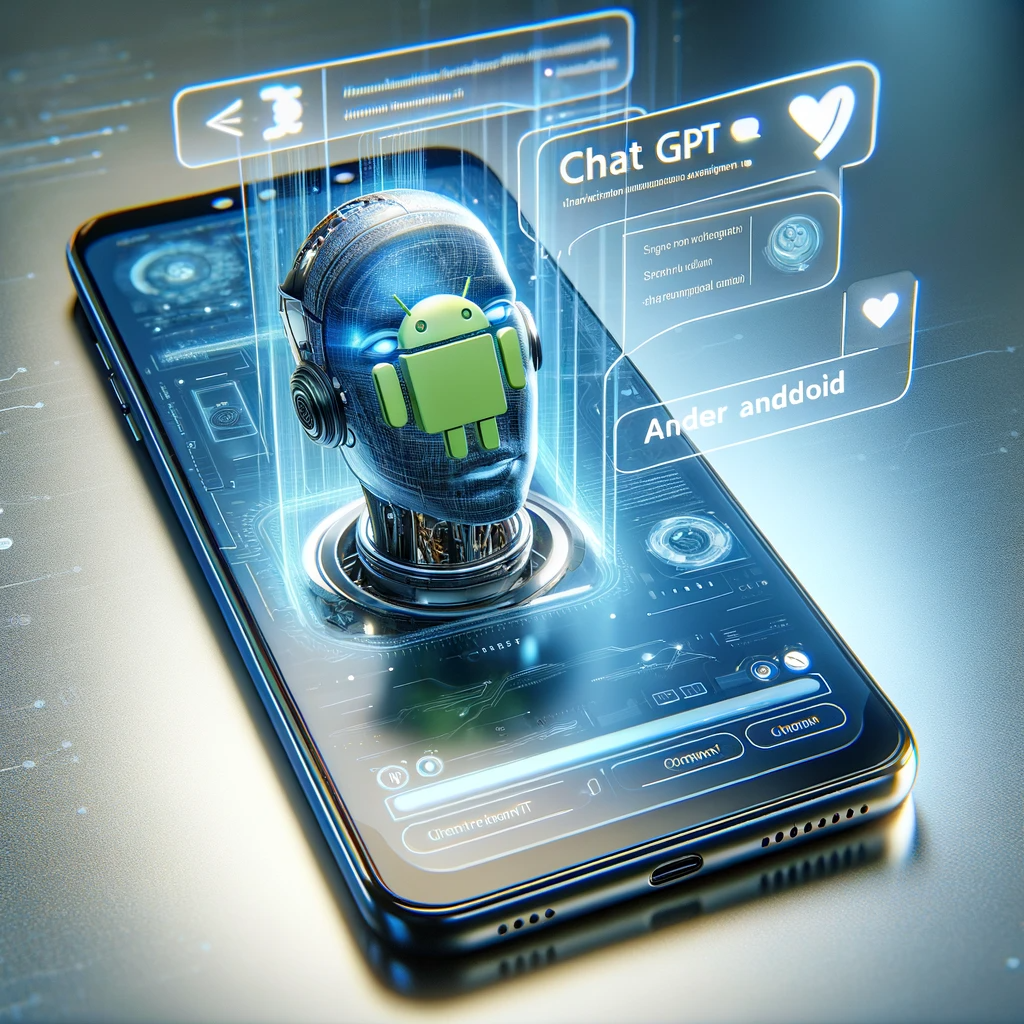
The Rise of ChatGPT on Android: A New Challenger for Google Assistant


The Rise of ChatGPT on Android: A New Challenger for Google Assistant

The rise of artificial intelligence (AI) in mobile technology is nothing short of revolutionary, and the latest buzz in this area is the potential ease of using ChatGPT on Android devices. This development raises the question: could ChatGPT become a viable alternative to the well-established Google Assistant? Let’s look at this interesting possibility.

ChatGPT

The Rise of ChatGPT on Android: A New Challenger for Google Assistant

ChatGPT, developed by OpenAI, is an AI-powered chatbot known for its conversational capabilities. It has evolved rapidly, demonstrating the ability to understand and answer complex questions with remarkable accuracy.

ChatGPT on Android: A New Era

Recent efforts to extend the usability of ChatGPT on Android mark a significant step forward. These improvements aim to make AI more accessible and user-friendly for the vast Android user base.

Google Assistant

The Rise of ChatGPT on Android: A New Challenger for Google Assistant

Google Assistant has been the go-to AI companion for Android users, deeply integrated into the ecosystem. It offers voice commands, smart home control, and personalized assistance.

Comparative Analysis: ChatGPT vs. Google Assistant

When it comes to features, both platforms have their strengths. ChatGPT excels in conversation depth and nuanced responses, while Google Assistant provides seamless integration with Android services.

Voice Assistance and AI Interaction

Voice command proficiency is critical for AI assistants. ChatGPT and Google Assistant both respond well to voice input, but their accuracy and speed can vary depending on the complexity of requests.

Personalization and Learning Curve

Personalization is important in AI technology. ChatGPT and Google Assistant both learn from user interactions, but their approaches are different. ChatGPT can provide a more customized conversation experience, while Google Assistant focuses on personalized service based on user data.

Integrating with the Android Ecosystem

ChatGPT’s compatibility with existing Android apps and services is critical to its success. Google Assistant, already integrated, provides a seamless user experience across various Android devices.

Offline Capabilities

Offline functionality is an important aspect of AI assistants. Currently, Google Assistant has the lead in this area, but ChatGPT’s advancements may close the gap in the future.

Privacy and Security Concerns

Data privacy is a major concern in AI. Both ChatGPT and Google Assistant take measures to protect user data, but their policies and implementation differ.

Potential Future Developments

The AI assistant market is growing rapidly. Predictions for ChatGPT and Google Assistant point to more intuitive, human-like interactions and broader functionalities.

The Impact on Android Users

The integration of ChatGPT into Android has implications for users, ranging from adopting new AI assistants to experiencing enhanced conversational interactions.

Expert Opinions and Analysis

Technical experts and analysts have different opinions on this development. Some see ChatGPT as a strong contender, while others believe that Google Assistant will maintain its dominance due to its deeper integration with Android.

Conclusion

The capabilities of ChatGPT on Android devices are immense, offering a new perspective on AI interactions. It remains to be seen whether it can replace Google Assistant, but the future of AI in mobile technology is undoubtedly exciting.

Google's Search Technology in the Legal Spotlight for Police Use

Google’s Search Technology in the Legal Spotlight for Police Use

In a recent legal filing, the Electronic Frontier Foundation (EFF), the National Association of Criminal Defense Lawyers (NACDL), and its Pennsylvania chapter raised concerns about a new investigative technique employed by the police, involving Google’s search technology. The technique, known as a keyword search warrant, gained attention after its pivotal role in a 2016 case where a Pennsylvania woman was raped.

Following the assault, law enforcement sought information from Google on users who had searched the victim’s name or address in the week leading up to the incident. Google responded by providing the IP address of an individual who had searched the victim’s address shortly before the crime. This breakthrough led to the monitoring and subsequent arrest of a corrections officer, who was convicted based on this evidence.

Privacy vs. Investigation

Google's Search Technology in the Legal Spotlight for Police Use

However, the EFF and NACDL argue that keyword search warrants represent a significant threat to privacy rights. They liken these warrants to digital dragnets that allow the government to extensively delve into private information. Michael Price from the NACDL Fourth Amendment Center emphasized the need for the Pennsylvania Supreme Court to consider the constitutionality of such warrants.

Legal and Societal Ramifications

The debate surrounding these warrants has intensified, especially in the context of the US Supreme Court’s recent decisions. Privacy advocates fear that these broad investigative techniques might not only infringe on privacy but could also be used to prosecute individuals seeking abortions in states where it’s illegal.

While Google ceased its response to geofence warrants in December, EFF’s Andrew Crocker emphasized that this change amplifies the importance of scrutinizing the legality of keyword search warrants. With law enforcement increasingly seeking innovative investigative tools, the potential popularity of these warrants raises concerns regarding citizens’ privacy and constitutional rights.

As legal battles unfold and technology continues to evolve, the balance between effective law enforcement and safeguarding individuals’ privacy remains a key challenge for courts and lawmakers alike.

Laptop Plugged In But Not Charging: Step-by-Step Guide to Troubleshooting and Fixes

Laptop Plugged In But Not Charging: Step-by-Step Guide to Troubleshooting and Fixes

Imagine you’re preparing for an important day of work or study, but notice that your laptop refuses to charge. This common puzzle may be a source of frustration, but fear not! In this comprehensive guide, we will walk you through various solutions to directly deal with the “plugged-in, not charging” issue.

Identifying the Problem

Laptop Plugged In But Not Charging: Step-by-Step Guide to Troubleshooting and Fixes

First, let’s recognize the signs. Is your laptop indicating that it is plugged in but no battery percentage is increasing? Does it refuse to accept the power source altogether? Recognizing these symptoms is the first step in troubleshooting.

Checking the Power Source

Make sure your power outlet is working. Try plugging in another device to confirm. It is also wise to check your home for any tripped circuit breakers or blown fuses.

Examining the AC Adapter

Inspect your laptop’s AC adapter. Note any physical damage such as broken wires or loose connections. If possible, test the adapter with another compatible laptop to see if the issue persists.

Inspecting the Laptop Charging Port

Check your laptop’s charging port for debris or damage. Gently cleaning the port with a dry, soft-bristled brush can remove dust that may be obstructing the connection.

Battery Health Check

Assess the health of your laptop’s battery. Many laptops have built-in diagnostics for this. If your battery has passed its lifecycle (usually around 500 full charge cycles), it may be time to replace it.

Updating Software and Drivers

Outdated software and drivers can sometimes cause charging issues. Make sure your laptop’s operating system and BIOS are up to date. Check the company’s website for the latest driver updates.

Resetting the System

Performing a power reset can often resolve charging issues. Turn off your laptop, unplug all peripherals, press and hold the power button for 15-20 seconds, then reconnect and try charging again.

Seeking Professional Help

If the problem remains the same, it’s time to consult a professional. Look for authorized service centers or trusted technicians who specialize in laptop repair.

Debunking Charging Myths

Let’s bust some myths. For example, leaving your laptop plugged in all the time doesn’t harm the battery, thanks to modern battery management systems.

Laptop Warranty and Support

If your laptop is still under warranty, you may be eligible for a free repair or replacement. Contact Customer Support for assistance.

Conclusion

Remember, charging problems are not the end of your laptop. With these tips and solutions, you can effectively troubleshoot the problem and extend the life of your device.

How to Add Your Videos and Photos to Google Maps Places in 4 Easy Ways

How to Add Your Videos and Photos to Google Maps Places in 4 Easy Ways

With the option to include photos and videos in place of textual recommendations, improving your Google Maps ratings has even more effect. This gives your opinion more prominence and offers helpful visual information about places. These are the best 4 methods for quickly and easily adding images or videos to any Google Maps location.

Through the Android Google Maps app

How to Add Your Videos and Photos to Google Maps Places in 4 Easy Ways
  • Open the Google Maps application on your Android gadget.
  • Look for the place you wish to add media to.
  • Slider will come up once you tap on the location.
  • After that, select “Post a photo update.”
  • Choose the preferred images or videos.
  • In the upper right corner of the screen, select the “Post” option.

Using Google Maps on a computer

  • Launch your browser, then go to https://www.google.com/maps.
  • Look for the place you want to improve.
  • After swiping down, select “Add a photo.”
  • Select an image from Google Photos or send one from your computer.
  • After selecting the desired image, click “Select.”

Using the Android Google Photos App

  • Open the Photos application on your Android mobile device.
  • Open the image you wish to connect to a certain place.
  • Press “Share.”
  • Click on “Add to Maps.”
  • In the upper part of the screen, tap “Select a place”.
  • Select “Somewhere else?” and type the name of the location.

Using the iPhone Google Maps App

  • Launch the iPhone app Google Maps.
  • Look for where you want to go.
  • Open the location’s page when it has been chosen.
  • After swiping down, select “Add a photo update.”
  • Choose a photo from the gallery on your iPhone.
  • In the upper right corner, click the “Post” button.

Conclusion

Recall that all of your contributions—including media and reviews—are linked to your profile and are available to everyone. Viewers of the Google Maps app may access profiles under the ‘Contributor’ section. Make sure your photographs are no more than 5MB, and your films should not exceed 75MB. This allows you to submit HD videos at a quality of 720p.

By using these easy steps, you can improve your ratings and provide useful visual material to Google Maps, which will improve the user experience for people all across the world.

How to Use a Laptop as a Second Monitor?

How to Use a Laptop as a Second Monitor?

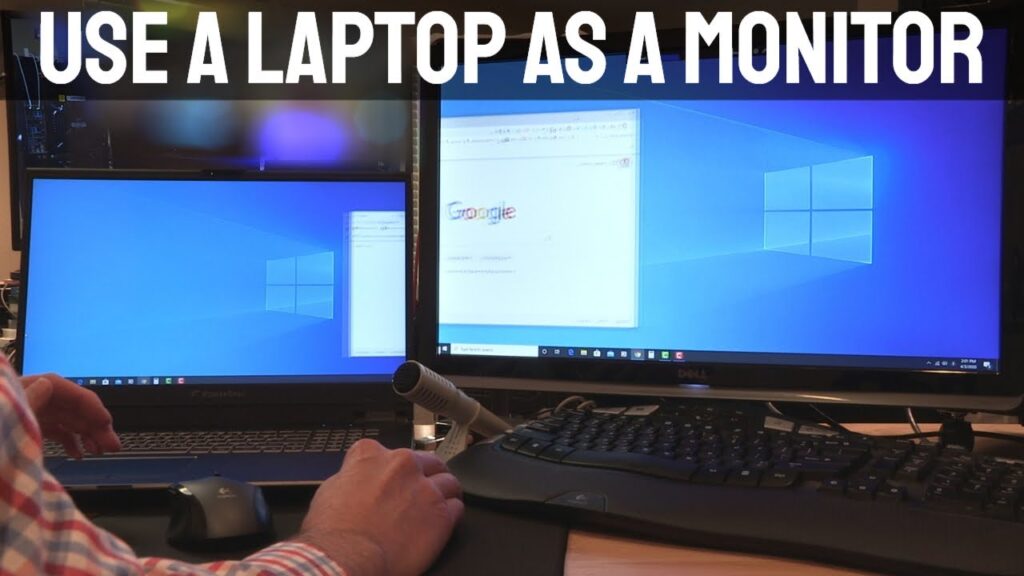
The world of digital workplaces is constantly evolving, and the use of multiple monitors is becoming increasingly common. An innovative way to expand your screen real estate is to use a laptop as a second monitor. This article will guide you through the process, helping you increase your productivity and efficiency.

Before diving into setup, it’s important to understand what a second monitor is and how it can benefit you. A second monitor allows you to extend or duplicate your main screen, allowing more room for multitasking and organization.

Requirements for Setting Up a Laptop as a Second Monitor

How to Use a Laptop as a Second Monitor?

Image Source: youtube.com

To get started, you will need a primary computer (desktop or laptop), a secondary laptop, and appropriate cables or a stable Wi-Fi connection. Software compatibility is also important; Make sure both devices support the software required for dual-screen setup.

Step-by-Step Guide: Windows to Windows Setup

If you’re using two Windows devices, the process is straightforward:

  1. Connect both devices with a same Wi-Fi network.

  2. On your primary Windows device, go to ‘Settings’ > ‘System’ > ‘Projecting to this PC’.

  3. Adjust settings as needed.

  4. On your secondary laptop, use the ‘Connect’ app to link to the primary device.

Connecting a Mac to a Windows Laptop

For cross-platform setup, third-party software like Space Desk can facilitate the connection. Install the software on both devices, making sure they are on the same network, then follow the application’s instructions to establish the connection.

Using a Mac Laptop as a Second Monitor for Another Mac

Mac users can use Apple’s Sidecar feature:

1. Make sure both Mac devices are compatible with Sidecar.

2. Connect them with the same Apple ID.

3. Access the Sidecar settings on your primary Mac to connect to the secondary laptop.

Third-Party Applications to Consider

Applications like Synergy, Space Desk, and Duet Display are excellent for setting up dual monitor systems, providing flexibility and cross-platform compatibility.

Troubleshooting Common Issues

Common problems include connectivity issues, resolution mismatch, and lag. Restarting both devices, checking network stability, and updating drivers and software can often resolve these problems.

The Role of Network Connectivity

A stable and fast Wi-Fi connection is important, especially for a wireless setup. An Ethernet connection can also be used for a more stable link if supported.

Security Considerations

When using dual monitors, especially with third-party software, make sure your network is secure and that you are using trusted applications to prevent unauthorized access.

Conclusion

Using a laptop as a second monitor is a cost-effective and efficient way to expand your digital workspace. Whether you are a professional, student, or just an ordinary user, the benefits of a dual monitor setup are undeniable.

Microsoft’s New Copilot Key is the First Big Change to Windows Keyboards in 30 Years

Microsoft’s New Copilot Key is the First Big Change to Windows Keyboards in 30 Years

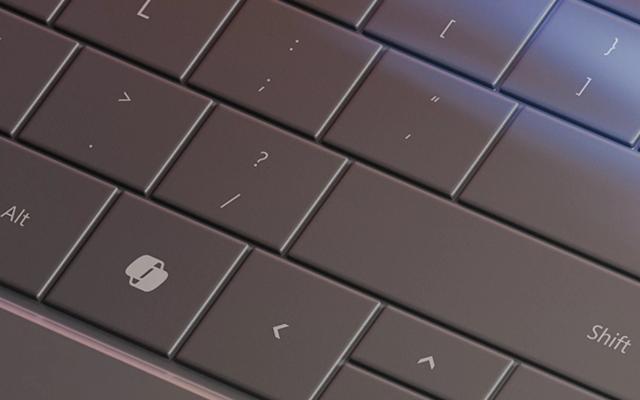
Microsoft has announced a groundbreaking addition to its upcoming Windows PCs: the Copilot key, aimed at facilitating text conversations with the company’s virtual assistant. This innovative inclusion marks one of the most significant changes to Windows keyboards in three decades, following the introduction of the Windows key in 1994, designed for accessing the Start menu.

Empowering Windows Users

Microsoft’s New Copilot Key is the First Big Change to Windows Keyboards in 30 Years

Image Source: ca.finance.yahoo.com

Set to revolutionize user interactions, the Copilot key leverages AI models from OpenAI, supported by Microsoft. This cutting-edge technology enables users to engage in human-like text exchanges with the virtual assistant, similar to the functionality of the popular ChatGPT chatbot. Among its capabilities, Copilot can draft emails, respond to queries, generate images, and even activate various PC features. Businesses subscribing to Copilot for Microsoft 365 will benefit from streamlined assistance in Teams chats, along with aid in crafting Word documents.

Integration and Functionality

Initially introduced in PCs running Windows 10, the world’s predominant operating system, and Windows 11, users could summon Copilot by pressing the Windows key combined with the C key. Now, Microsoft has taken this integration a step further by introducing a dedicated Copilot key on forthcoming Windows keyboards. This move is strategically aimed at driving a potential wave of PC upgrades, vital for Microsoft’s revenue growth, as approximately 10% of the company’s revenue is derived from its operating system.

The Era of AI PCs

As technology giants like Dell and HP aim to offer replacements for devices purchased during the pandemic, the industry is embracing the concept of the AI PC. This concept revolves around embedding specialized chip components within devices to efficiently run demanding computational models. Yusuf Mehdi, Microsoft’s head of Windows and Surface, predicts that 2024 will be the pinnacle year for AI PCs, driven by enhancements to Windows, PCs, and chip-level advancements.

Unveiling at CES and Future Availability

PC manufacturers are gearing up to showcase the Copilot key in the lead-up to the CES conference in Las Vegas. Microsoft Surface PCs will prominently feature this innovation, with device reveals expected before the conference and availability slated to begin later this month. A Microsoft spokesperson revealed that in certain instances, the Copilot key will replace the Menu key or the right Control key, while larger computers might accommodate both keys.

Microsoft’s introduction of the Copilot key signifies a pivotal step in enhancing user experience, driving the evolution of AI-powered PCs, and potentially reshaping the future of human-computer interactions.