Your Tech Story

Tech News

How to Easily Delete an eSIM from Your iPhone and Android Devices

How to Easily Delete an eSIM from Your iPhone and Android Devices

How to Easily Delete an eSIM from Your iPhone and Android Devices

Image Source: futurezoneacademy.com

The functions that are built into our smartphones get more and more varied as technology develops. Embedded SIMs, or eSIMs, are one such innovation that makes it easy to move between cell plans without a physical SIM card. You could eventually need to remove an eSIM from your iPhone or Android smartphone, though. This post will discuss how to remove an eSIM and the ramifications of doing so.

What Takes Place When an eSIM is Deleted:

Eliminating an eSIM has serious repercussions since it stops all cellular service connected to that particular plan. This implies that the eSIM will not be able to make or receive calls, texts, or data access.

Furthermore, every piece of information and configuration on the eSIM—including contacts, messages, and network preferences—will be deleted. It’s important to understand that uninstalling an eSIM does not impact the validity of the eSIM plan you purchased; it merely removes services from your smartphone.

Because this step is irreversible, it is crucial to extract any required data from the eSIM before moving further. You should speak with your network service provider if you have any specific queries or worries.

How to Take Out of Your Phone an eSIM:

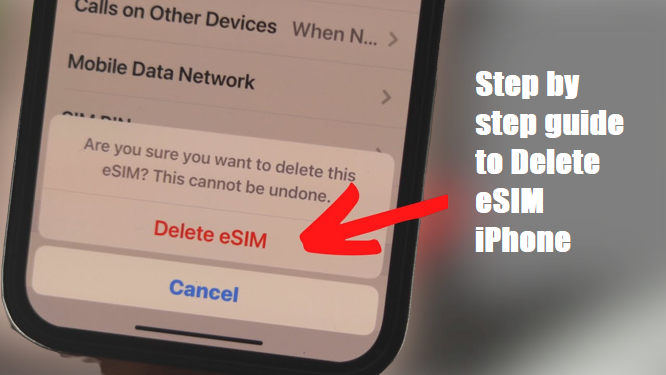
eSIM removal from iPhone:

  • Start the iPhone’s Settings app.
  • Press the “Mobile Service” button.
  • Choose the eSIM that you wish to remove.

It’s simple to remove the eSIM information from your iPhone. If you want to reactivate the service on your iPhone, you must have a physical SIM card with the same number.

Remove eSIM from Android device:

  • Launch the Settings application.
  • Next, select “Network and Internet.”
  • Choose “SIMs.”
  • Select the eSIM that you wish to remove.
  • After swiping down, select “Delete SIM.”
  • To verify your activity, press “Erase.”

The procedures outlined here for taking out an eSIM from an Android smartphone on a Pixel are also applicable to other Android handsets.

How to Turn Off eSIM on Your Smartphone:

Turning off eSIM is a workable alternative if you want to keep the services but disable its functionality. It can be difficult to recover an erased eSIM. Here’s

How to Disable the eSIM on Android and iPhone Devices:

Using an iPhone: Navigate to Mobile Service in Settings. Turn off the toggle after selecting the eSIM.

Open Settings -> Network & Internet -> SIMs on an Android device. To disable and switch off the “Use SIM” toggle, select the eSIM.

Conclusion

It’s critical to comprehend the ramifications of deleting an eSIM in order to properly manage the connectivity of your smartphone. If you want to keep the eSIM services, carefully follow the instructions and constantly think about turning it off instead than deleting it.

Guide to Activating LED Flash Notifications on Your iPhone 15, 14, and 13

Guide to Activating LED Flash Notifications on Your iPhone 15, 14, and 13

In the ever-evolving landscape of mobile technology, Apple’s iPhones have consistently led the way in terms of accessibility features. One such feature available in the iPhone 15, 14 and 13 models is LED flash notification. This tool could be a game-changer for users who need visual cues for incoming notifications.

What Are LED Flash Notifications on iPhone?

Guide to Activating LED Flash Notifications on Your iPhone 15, 14, and 13

Image Source: tomsguide.com

LED flash notifications use the iPhone’s camera flash to provide visual alerts for incoming calls, messages, and notifications. This feature is especially beneficial in noisy environments or for hearing impaired users.

Benefits of Using LED Flash Notifications

The primary benefit of LED flash notifications is that they provide a visual indicator of notifications, which is an excellent option for users who can’t always hear their phone’s ringtone or vibration.

Step-by-Step Guide to Turn On LED Flash Notifications

Turning on LED flash notifications is a simple process that can significantly enhance your experience with your iPhone, whether you have the latest iPhone 15 or older models like the 14 and 13.

  1. Open your phone ‘Settings’

  2. Scroll down and tap on ‘Accessibility.’

  3. Under the ‘Hearing’ section, find and tap on ‘Audio/Visual.’

  4. Toggle on ‘LED Flash for Alerts.’

Personalizing Your Notification Experience

Customization is important to get the most out of LED flash notifications. While the intensity of the LED flash cannot be changed, users can adjust the timing and frequency of the flash through the notification settings.

Understanding the Impact on Battery Life

While convenient, it’s important to note that using the LED flash for notifications can have a minor impact on your iPhone’s battery life.

Advanced Tips for Maximizing the Use of Flash Notifications

Combine flash notifications with other accessibility features like vibration alerts to make sure you never miss important notifications. Combining LED flash notifications with a screen flash or vibration can enhance the notification experience for all users, especially those with specific accessibility needs.

Troubleshooting Common Issues with Flash Notifications

Sometimes, users may face the issue of LED flash notifications not working as expected. Restarting the device or double-checking the settings can often solve these problems.

Integrating LED Flash Notifications into Daily iPhone Use

Incorporating LED flash notifications into your daily routine can ensure you stay connected and informed, no matter your surroundings or personal needs.

How to Easily Record WhatsApp Calls on iOS and Android: A Comprehensive Guide

How to Easily Record WhatsApp Calls on iOS and Android: A Comprehensive Guide

How to Easily Record WhatsApp Calls on iOS and Android: A Comprehensive Guide

WhatsApp has evolved into a versatile platform, not just for messaging, but also for video and voice calls. Despite its extensive features, WhatsApp lacks a built-in option to record voice calls. Fortunately, there are third-party applications that come to the rescue, enabling users to capture those important conversations. In this article, we’ll guide you through the process of recording WhatsApp voice calls on both Android and iOS devices.

Recording WhatsApp Voice Calls on Android

One of the reliable applications for recording WhatsApp voice calls on Android is Cube ACR. Follow these steps to seamlessly capture your conversations:

  1. Open the Google Play Store and search for the Cube Call application or [click here](link to the app).
  2. Install and open the Cube Call application, then switch to WhatsApp.
  3. During a WhatsApp call, you’ll notice the Cube Call widget. If not visible, open Cube Call and choose “Force VoIP call” as a voice call.
  4. The app will now automatically record WhatsApp voice calls, saving the files to your device’s internal memory.

Notably, Cube ACR isn’t limited to WhatsApp; it can also record voice calls from other applications like Slack, Zoom, Telegram, Signal, and more.

Recording WhatsApp Voice Calls on iPhone

Recording WhatsApp calls on an iPhone requires a workaround, utilizing a Mac and the QuickTime application:

  1. Download the QuickTime application on your Mac (available for free).
  2. Connect your iPhone to the Mac and open QuickTime.
  3. Under the “File” option, select “New Audio Recording.”
  4. Choose your iPhone as the audio source and tap the record button in QuickTime.
  5. Make a WhatsApp call using your iPhone and click on the add user icon.
  6. Your voice call will be recorded automatically, and the file will be saved on your Mac.

While the iPhone method involves an additional step with a Mac, it provides a reliable solution for recording WhatsApp voice calls on iOS devices.

In conclusion, third-party applications offer a way to fill the gap in WhatsApp’s functionality, allowing users to record voice calls seamlessly. Whether you’re an Android or iOS user, these methods ensure you can preserve important conversations with ease.

Pro Video Shooting Secrets for iPhone Users

Pro Video Shooting Secrets for iPhone Users

Taking high-quality movies with your iPhone can be a valuable tool in the era of content creation. These six expert suggestions can help you improve your iPhone videography, regardless of whether you’re a vlogger, content producer, or just taking pictures.

Pick Your Shooting Location Carefully:

Pro Video Shooting Secrets for iPhone Users

Image Source: pcmag.com

A well-produced video depends on the setting you choose. To avoid background noise that can be distracting, choose quiet areas. To warn others to stay away during your recording session, think about renting a specific space or posting signs. A smooth video production process starts with a controlled setting.

Make Sure There Is Enough Storage:

Nothing is more annoying than realizing you’re running out of storage in the middle of a recording. Before shooting, remove any unwanted files and programs to avoid interruptions. Invest in iCloud storage if necessary to make sure your iPhone has adequate capacity to record uninterrupted.

Get Stable Shots with a Tripod:

When filming films, especially for brand-related content or anything meant for long-term usage, even the steadiest hands can profit from the use of a tripod. Tripods are quite accessible and offer the stability required for photos that seem clean and professional.

Ideal Lighting for a Cinematic Touch:

The visual attractiveness of your video can be greatly enhanced or diminished by its lighting. Select a room with plenty of sunlight to maximize natural light instead of spending money on costly lighting arrangements. 

Turn off the above lights to prevent strange shadows and improve the ambience.

Improve Audio Quality with a Microphone:

Interesting videos require clear audio. Use an external microphone to enhance your audio; it doesn’t have to be a fancy one. Your speech quality can be greatly improved and irritating background noise can be eliminated with a simple plug-in microphone.

Optimize Your Editing and Framing:

Use the rule of thirds to frame your shots to give your videos more equilibrium and visual interest. For more sophisticated capabilities, you may also edit your videos on a computer with programs like Adobe Premiere Pro or iMovie. This stage guarantees that your finished work is flawless and prepared for publishing.

You can maximize the video capabilities on your iPhone by using these six expert techniques. Whether you’re a novice or a seasoned content maker, implementing these techniques into your daily routine will definitely advance your iPhone videography. Lights, camera, action! Now is the moment to use the device in your pocket to make engaging films.

Meta's Game-Changing AI Drives Ad Campaign Returns Up by 32%

Meta’s Game-Changing AI Drives Ad Campaign Returns Up by 32%

In a groundbreaking revelation, Nicola Mendelsohn, the global business group head at Meta Platforms Inc., has shared insights into the transformative impact of artificial intelligence (AI) on advertising campaigns. According to Mendelsohn, the deployment of AI tools within Meta’s apps has led to a remarkable 32% increase in return on spending for advertisements.

Driving Efficiency: Cost Reduction and Simplified Processes

Not only has AI proven to be a game-changer in elevating returns, but it has also played a crucial role in slashing the cost of acquisition by approximately 17%. Mendelsohn highlighted these significant improvements during an interview with Bloomberg Television at the World Economic Forum in Davos.

One of the most notable advancements lies in the streamlining of the campaign creation process. Traditionally, advertisers navigated through a complex series of 15 to 30 steps to set up a campaign. However, with Meta’s AI integration, this cumbersome process has been condensed into a single-button operation. This not only saves time but also enhances user experience, making it more accessible for businesses to engage in advertising on Meta’s platform.

Meta's Generative AI Tools: A Catalyst for Innovation

Meta's Game-Changing AI Drives Ad Campaign Returns Up by 32%

Image Source: bnnbreaking.com

In a bid to further empower advertisers, Meta introduced new generative AI tools last year. These cutting-edge tools facilitate the rapid creation of images and text, enabling companies to expedite the development of their ad content. Moreover, Meta’s AI goes beyond mere efficiency gains; it can predict the performance of ads, providing advertisers with invaluable insights to refine and optimize their campaigns.

Adapting to Privacy Changes: Meta's Broader Strategy

Meta’s foray into AI-driven advertising is not just a response to market demands but also a strategic move to overcome challenges posed by privacy changes at Apple Inc. With the loss of targeting data, Meta has been proactive in enhancing its performance through innovative AI solutions. These tools not only compensate for the gaps but propel Meta’s advertising capabilities to new heights.

In conclusion, Meta’s embrace of artificial intelligence has revolutionized the advertising landscape. The substantial increase in returns, coupled with cost reduction and simplified processes, underscores the pivotal role AI plays in Meta’s commitment to delivering value to advertisers. As the industry evolves, Meta continues to lead the way, leveraging the power of AI to redefine the future of digital advertising.

Apple Watches Will Hit The Market Without the Oxygen Feature After Legal Setback

Apple Watches Will Hit The Market Without the Oxygen Feature After Legal Setback

Following a recent legal defeat, Apple has strategically stated that it would no longer be offering the blood oxygen monitoring capability on its Apple Watch Series 9 and Ultra 2 models in the United States. The decision is made in the midst of a legal dispute between the tech giant and Masimo, a medical technology startup, over patents pertaining to the technology used in the blood oxygen monitoring feature.

Apple’s shares fell 0.5% to close at $182.68 after the U.S. Court of Appeals for the Federal Circuit decided on Wednesday that the company could no longer sell the disputed models. The U.S. International Trade Commission (ITC) had previously granted Masimo a ruling in December that resulted in a brief suspension of the devices’ imports.

Apple Watches Will Hit The Market Without the Oxygen Feature After Legal Setback

Image Source: gulftime.ae

As the legal dispute plays out, Apple’s decision to deactivate the blood oxygen monitoring feature is perceived as a preventive action to maintain sales of the watches in one of its biggest markets. On Thursday at 6 a.m. Pacific Time, the Series 9 and Ultra 2 devices without this capability will be on sale both in-store and on Apple’s website.


Joe Kiani, the founder and CEO of Masimo, acknowledged the value of upholding intellectual property rights while expressing his happiness with the court’s decision. Apple has been charged by Masimo of recruiting its staff members and stealing pulse oximetry technology to use in Apple Watches.

Apple Voiced disagreement

Apple, on the other hand, maintains that the ITC ruling and any follow-up orders should be overturned and has voiced strong disagreement with them. The manufacturer maintains that the Series 9 and Ultra 2 devices available in the United States will retain the blood oxygen functionality, with a visible app icon. On the other hand, users who tap on these symbols will be notified that the services are not available.

It is speculated by analysts that Apple made a calculated decision to disable the blood oxygen characteristics rather than stop selling the watches in the US. With $39.84 billion of the company’s $383.29 billion in sales for the fiscal year 2023 coming from the wearables category, which includes the Apple Watch, wearable technology plays a major role in the company’s earnings.

Apple has asked that the ITC’s import restriction be put on hold indefinitely while the appeals process is ongoing. The legal battle is anticipated to last for around a year. The business is confident in its appeal, saying that the prohibition, if upheld, would have significant impacts on Apple, its suppliers, and the public.

The smartwatch market will be closely observing Apple’s response to this legal setback and how it plans to maintain its market share and strategic positioning in the wearables business.

"Pending the appeal, Apple is taking steps to comply with the ruling while ensuring customers have access to Apple Watch with limited disruption," Apple said. "These steps include introducing a version of Apple Watch Series 9 and Apple Watch Ultra 2 in the United States without the Blood Oxygen feature. There is no impact to Apple Watch units previously purchased that include the Blood Oxygen feature."

businessinsider.in