Your Tech Story

Tech News

Step-by-Step Guide to Resolve Error Code 0xc0000001 on Windows 10/11

Step-by-Step Guide to Resolve Error Code 0xc0000001 on Windows 10/11

Step-by-Step Guide to Resolve Error Code 0xc0000001 on Windows 10/11

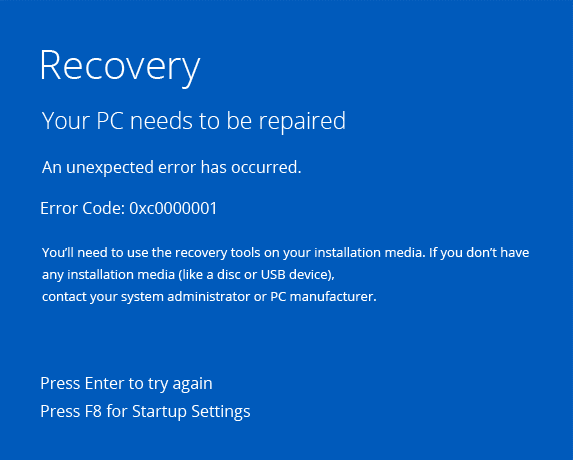
One of the confusing error codes that Windows users may run across is ‘Error Code 0xc0000001,’ which is frequently linked to the Blue Screen of Death (BSOD). Even if these kinds of mistakes might cause delays in work, there are practical solutions to deal with and fix this specific problem on Windows 10 or 11. Several solutions to the ‘Error Code 0xc0000001’ are shown below:

1. Launch the Tool for Startup Repair:

  • Choose the Startup Repair tool when you boot into the Advanced Startup menu.

  • Give the tool permission to examine and fix any possible Windows problems.

  • Restart your computer when it’s finished to see whether the issue is still there.

2. Make use of the Command Prompt:

Click the Advanced options menu to bring up the Command Prompt. One by one, type the following commands, pressing Enter after each one:

  • Copy the Bootrec /fixmbr code.

  • Fixboot / Bootrec

  • Bootrec /rebuildbcd Bootrec /scanos

  • Try a fresh PC reboot to see if anything has improved.

3. Unplug Every External Gadget:

  • Cut off all peripherals and external devices.

  • Reattach them after a brief while.

  • Sometimes problems arise from external devices; try this quick fix to see if it fixes the problem.

4. Enter Safe Mode:

  • Enter Safe Mode, turn off any newly installed third-party programs, and find any problems.

  • Reboot normally after removing the troublesome program in Safe Mode

5. Run a Windows System Restore:

  • This may be used to restore your computer to a time when it was operating properly.

  • Refer to the System Restore handbook for instructions.

6. Conduct a Malware Scan:

  • Use Microsoft Defender or your chosen antivirus program to conduct a malware scan.

  • Several PC problems, including boot failures, can be caused by malware.

7. Use a CHKDSK Scan:

  • To identify and resolve any hard disc problems, use the CHKDSK tool.

  • Run the following command in Command Prompt: chkdsk /f /r.

8. Reset Windows to the Factory Defaults:

  • Consider doing a Windows factory reset as a final option.

  • Before moving on, make sure you have backups of all important data.

  • Resolving ‘Error Code 0xc0000001’ necessitates a methodical approach, experimenting with various fixes until the problem is fixed. 

Users ought to select the approach that most closely matches their technical proficiency and circumstances. Before carrying out any significant operations, such as a factory reset, don’t forget to back up important data. By following these instructions, users should be able to resolve the BSOD issue and get their Windows 10 or 11 PCs back in working order.

Keep in mind that every system is different, therefore these solutions’ efficacy could differ. It could be wise to seek expert help if the issue continues.

Exploring ChatGPT Plus: Subscription Cost, Benefits, and User Guide

Exploring ChatGPT Plus: Subscription Cost, Benefits, and User Guide

In the rapidly evolving landscape of artificial intelligence, ChatGPT Plus has emerged as a subscription-based offering, promising enhanced features and a more seamless user experience. As users weigh the decision to invest in ChatGPT Plus, a careful examination of the costs and benefits becomes esessential.

The Price Point: Balancing Affordability and Value

Exploring ChatGPT Plus: Subscription Cost, Benefits, and User Guide

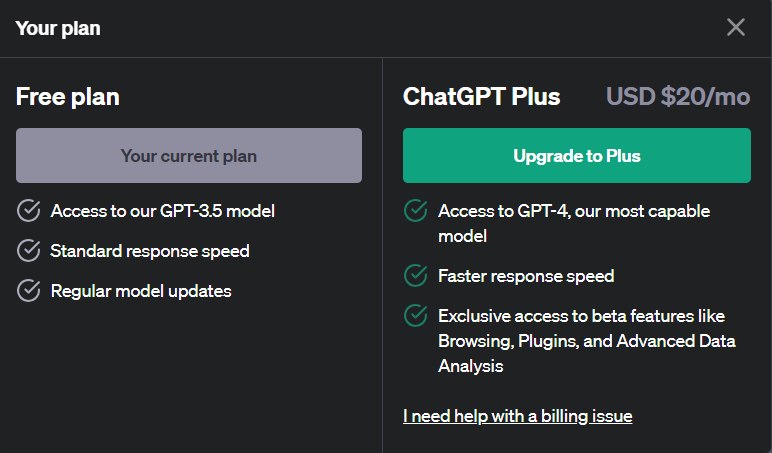
One key aspect to consider is the subscription cost. ChatGPT Plus is priced at $20 per month, a premium compared to the free access. Users must assess whether the additional features justify this expense, especially when evaluating their budget constraints and the value placed on premium AI language capabilities.

Enhanced Performance: A Premium User Experience

ChatGPT Plus subscribers benefit from faster response times and priority access during peak usage periods. This enhancement can be particularly advantageous for users who heavily rely on ChatGPT for time-sensitive tasks or wish to optimize their workflow. The question then arises: does the boost in performance align with your specific needs and usage patterns?

Privacy Considerations: Weighing the Value of Ad-Free Interaction

For privacy-conscious users, the ad-free experience offered by ChatGPT Plus might hold significant value. Without distractions, users can engage more deeply with the AI model, enhancing the overall user experience. However, individuals with less concern about ads may question whether this feature justifies the subscription cost.

Supporting Continued Free Access: A Moral Imperative?

Purchasing ChatGPT Plus not only unlocks premium features but also supports the availability of free access to ChatGPT for users worldwide. For those who value the democratization of AI and wish to contribute to the provision of free services, subscribing to ChatGPT Plus becomes a choice that extends beyond personal benefits.

In conclusion, whether ChatGPT Plus is worth it depends on individual priorities, budget considerations, and the importance placed on the offered features. For some, the enhanced performance and ad-free interaction may justify the subscription cost, while others may find the free access sufficient for their needs. Balancing these factors will enable users to make an informed decision on whether ChatGPT Plus aligns with their expectations and requirements in the evolving landscape of AI accessibility.

How to Start Streaming on Twitch: A Step-by-Step Guide

How to Start Streaming on Twitch: A Step-by-Step Guide

Are you ready to start your streaming journey on Twitch? Whether you’re a gaming enthusiast, a creative artist, or just someone with a story to tell, Twitch offers a platform to share your passions with the world. Let’s dive into how you can start streaming on Twitch with ease.

What is Twitch?

How to Start Streaming on Twitch: A Step-by-Step Guide

Image Source: dacast.com

Twitch is a popular live-streaming platform that has become the central hub of online entertainment, especially for gamers. It allows users to broadcast themselves playing video games, creating art, cooking, or engaging in various other activities while interacting with a live audience via chat. Originally focused on video game live streaming, Twitch has expanded to include streams dedicated to music, talk shows, and even TV series watch-alongs. The platform is known for its community-driven approach, enabling viewers to support their favorite streamers through subscriptions, donations, and interactive chat features. 

Create a Twitch Account

Creating a Twitch account is a straightforward process, allowing you to step into the world of live streaming and community interaction. Here’s how you can get started:

  • Go to Twitch.tv.

  • Click the “Sign Up” button, usually located at the top right corner of the page.

  • Fill in the required fields including username, password, date of birth, and email address.

  • Password: Use a strong password for security.

  • Check your email inbox and click the verification link to activate your account.

Essential Equipment for Streaming

To start streaming on Twitch, it is important to have the right equipment to ensure a smooth and engaging streaming experience. Here is a list of what you will need:

  1. Computer: A reliable and powerful computer is fundamental.

  2. High-Quality Webcam: A good webcam is important for visual interaction. This helps you personalize your stream and connect with your audience.

  3. Microphone: Audio clarity is essential. A high-quality microphone can significantly improve the audience experience.

  4. Headphones: Good headphones are important for monitoring audio and clear communication, especially in multiplayer games.

  5. Lighting: Proper lighting is important for visibility. Ring lights or softbox lights can help eliminate shadows and illuminate your face evenly.

  6. Internet Connection: A stable and fast internet connection is important for streaming. Wired connections (Ethernet) are generally more reliable than wireless connections.

  7. Streaming Software: Broadcasting your gameplay requires software like OBS Studio, Streamlabs OBS, or Xsplit.

  8. Green Screen (optional):Green screen can be used to overlay different backgrounds, making your stream more attractive.

Building Your Twitch Community

Building a Twitch community involves creating a welcoming and engaging environment where regular interactions and high-quality content encourage viewer participation and loyalty. Consistency in streaming, active engagement with the audience, and leveraging social media for promotion are key elements. Collaborating with other streamers and fostering a positive, inclusive environment also plays an important role in developing and maintaining a vibrant community on Twitch.

Monetizing Your Twitch Stream

Monetizing your Twitch stream involves taking advantage of various revenue streams such as viewer subscriptions, advertising, donations, and sponsorships. Twitch affiliates and partners can earn through subscriptions and Bits, while integrating external services like PayPal for direct donations. Engaging content and a dedicated audience base are key to attracting sponsorship and advertising revenue, with monetization becoming a mix of consistent streaming, community building, and strategic marketing.

Conclusion

In Conclusion, streaming on Twitch is an exciting venture that blends creativity, community engagement, and technical know-how. With the right equipment, a consistent streaming schedule, and a focus on creating engaging content, anyone can embark on this rewarding journey. Building a community and potentially monetizing your channel are achievable goals, making Twitch streaming a gratifying experience for both hobbyists and aspiring professionals.

How to Use Apple's Stolen Device Protection on iOS 17.3

How to Use Apple’s Stolen Device Protection on iOS 17.3

In today’s digital age, safeguarding our devices and personal data is paramount. With the advent of iOS 17.3, Apple has introduced a robust feature called Stolen Device Protection, designed to thwart unauthorized access to your iPhone in the unfortunate event of theft. This article will guide you through the process of activating and utilizing this invaluable security measure.

Understanding Stolen Device Protection

How to Use Apple's Stolen Device Protection on iOS 17.3

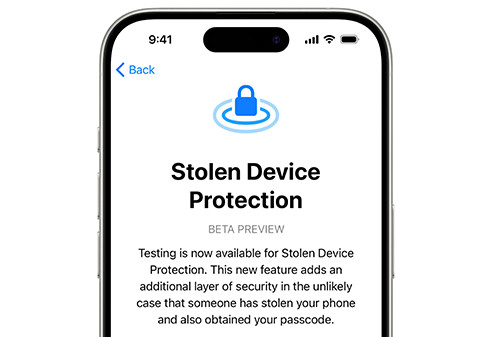
Stolen Device Protection serves as a shield against unauthorized access to your iPhone, particularly when someone has stolen it and possesses knowledge of your passcode. This feature becomes particularly crucial when you find yourself in unfamiliar surroundings, away from the safety of your home or workplace. By implementing Stolen Device Protection, crucial device and Apple ID account operations such as altering your device passcode or Apple ID password become inaccessible to unauthorized individuals without biometric authentication via Face ID or Touch ID, with no passcode fallback option.

Activating Stolen Device Protection

Activating Stolen Device Protection is a straightforward process:

  • Access Settings: Navigate to the Settings app on your iPhone.
  • Set Up Biometric Authentication: Depending on your iPhone model, either tap on “Face ID & Passcode” or “Touch ID & Passcode” and enter your passcode when prompted.
  • Enable Stolen Device Protection: Scroll down to locate the “Stolen Device Protection” section within the settings menu and tap on “Turn On Protection.”

Note: If you don’t immediately see the Stolen Device Protection section, ensure that you’ve set up Face ID or Touch ID on your device beforehand.

Utilizing Stolen Device Protection

Once activated, Stolen Device Protection fortifies your device against unauthorized access. However, it’s crucial to understand how to navigate this feature effectively:

Security Delay: Certain sensitive operations trigger a Security Delay, which requires a successful biometric authentication (Face ID or Touch ID), followed by an hour-long waiting period, and then another successful biometric authentication. This delay mechanism acts as an additional layer of defense, preventing unauthorized individuals from making changes that could compromise your device or Apple ID account. 

Activation of Lost Mode: In the event of theft or loss, Stolen Device Protection provides you with crucial time to activate Lost Mode using the Find My app or Find Devices feature on iCloud.com. This feature helps track and secure your device remotely, mitigating potential data breaches or misuse.

Deactivating Stolen Device Protection

Should the need arise to deactivate Stolen Device Protection, follow these steps:

  • Access Settings: Open the Settings app on your iPhone.
  • Biometric Authentication: Tap on either “Face ID & Passcode” or “Touch ID & Passcode” and enter your passcode as prompted.
  • Disable Stolen Device Protection: Scroll down to the “Stolen Device Protection” section and tap on “Turn Off Protection.”
  • Security Delay: If you’re not in a familiar location, initiating the deactivation process will prompt a Security Delay. Simply tap on “Start Security Delay” and follow the on-screen instructions to proceed.

By adhering to these steps, you can effectively activate, utilize, and deactivate Stolen Device Protection, bolstering the security of your iPhone and safeguarding your sensitive data against unauthorized access.

In conclusion, Stolen Device Protection emerges as a crucial security feature within iOS 17.3, offering users peace of mind and robust protection against the threat of device theft or unauthorized access. By leveraging biometric authentication and implementing Security Delays, Apple empowers users to take proactive measures in safeguarding their digital assets. So, ensure you activate Stolen Device Protection on your iPhone today and stay one step ahead in protecting your personal information.

What is the Rabbit R1 and why is everyone going crazy about it?

What is the Rabbit R1 and why is everyone going crazy about it?

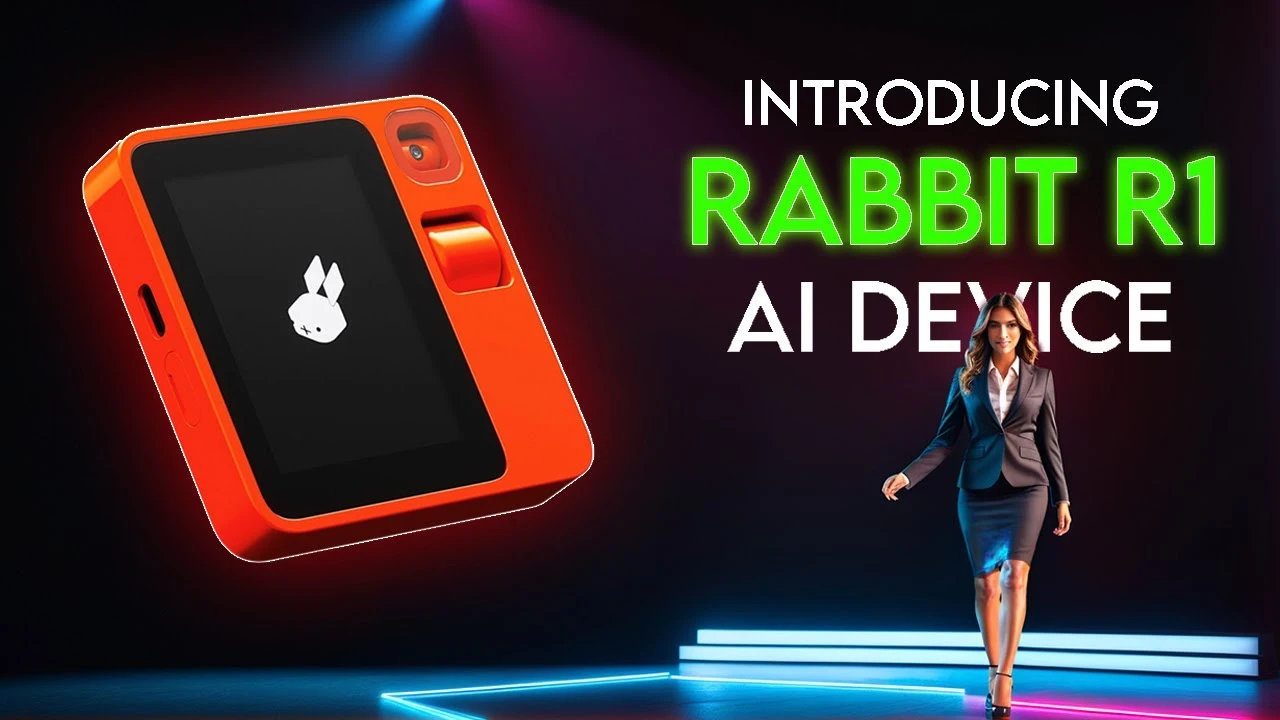
Rabbit r1, a peculiar orange device “powered by AI,” has taken the tech world by storm, surpassing its creators’ expectations in the pre-order phase. Initially projecting sales of 500 units, the Rabbit r1 has already garnered a staggering 30,000 pre-purchases, leaving many intrigued about its allure.

The Pocket-sized Marvel

What is the Rabbit R1 and why is everyone going crazy about it?

Image Source: wireunwired.com

Measuring a mere 78x78x13 millimeters and weighing in at 115 grams, Rabbit r1 packs a punch within its compact frame. Housing a 2.3 GHz MediaTek Helio P35 SoC, 4 GB of RAM, and 128 GB of storage, this device boasts a 2.88-inch touch TFT LCD screen, an 8 MP camera, and two microphones. Notably, it operates independently via 4G LTE, eliminating the need for smartphone connectivity, although Bluetooth 5.0 and WiFi are still on board.

Beyond the Surface: What Rabbit R1 Does

While Rabbit r1’s hardware might seem modest, its functionality extends far beyond expectations. It serves as more than just a chatbot confined to a smartphone, as it actively executes commands. Users can instruct Rabbit r1 to perform various tasks, from booking an Uber or ordering food to searching and streaming music.

This device is a pioneer in applying generative artificial intelligence to digital assistants, elevating it above traditional counterparts like Siri, Assistant, and Alexa. Rabbit r1’s capabilities encompass generating text and photos, acting as a multilingual translator, providing information about framed objects, and even taking voice-dictated notes.

The Smartphone Challenger?

The question arises: Could Rabbit r1 replace the ubiquitous smartphone? Despite its intuitive and user-friendly interface, it currently stands as a product from an AI startup, with its destiny uncertain. While enthusiasts believe in its potential to revolutionize human-AI interaction, skeptics question its long-term viability.

The remarkable pre-sale success hints at a promising future, with speculation that tech giants like Amazon, Microsoft, or Google might acquire Rabbit r1. In the best-case scenario, this could lead to innovations and widespread adoption. However, the worst-case scenario looms—a potential flop, relegating Rabbit r1 to the annals of unsuccessful ventures.

In conclusion, Rabbit r1, with its enigmatic blend of innovation and uncertainty, has captivated the market’s attention. Only time will reveal whether it evolves into a transformative force or fades into the background of fleeting tech trends.

Samsung Galaxy S24 Series to Launch on January 17, 2024

Samsung Galaxy S24 Series Breaks Records with 2.5 Lakh Pre-Orders in India in 3 Days

In just three days after its launch, Samsung India has announced an incredible feat: 2,50,000 pre-orders for its newest flagship Galaxy S24 series smartphones have been placed. This surpasses the pre-booking numbers of the previous Galaxy S23 series, which hit 2,50,000 within a three-week period last year, and creates a new milestone for the Galaxy S series. The resounding response highlights how well-liked and in high demand the Galaxy S24 series is in India.

Samsung has officially declared that the Galaxy S24 series will be produced in India in line with the ‘Make in India’ campaign of the government. In addition to demonstrating Samsung’s dedication to the Indian market, the action supports the nation’s indigenous manufacturing sector.

Samsung Galaxy S24 Series to Launch on January 17, 2024

The starting price of the Galaxy S24 series is Rs 79,999. The Galaxy S24 is available for Rs 79,999 for the 256GB model and Rs 89,999 for the 512GB variant. The price of the Galaxy S24 Plus is Rs 1,09,999 for the 512GB model and Rs 99,999 for the 256GB version. Three versions of the flagship Galaxy S24 Ultra are available: the 256GB model costs Rs 1,29,999, the 512GB variation is priced at Rs 1,39,999, and the 1TB option is priced at Rs 1,59,999.

In order to entice early adopters, Samsung is providing alluring perks. perks worth Rs 22,000 are available to those who pre-book the Galaxy S24 Ultra and Galaxy S24 Plus; perks worth Rs 15,000 are available to those who choose the Galaxy S24. On January 31st, the Samsung Galaxy S24 Series will go on formal sale in India.

Samsung integrates Galaxy AI functionalities including Live Translate, Interpreter, Chat Assist, Note Assist, and Transcript Assist to showcase the sophisticated features of the Galaxy S24 series. The Samsung Keyboard can now translate text in 13 languages, including Hindi, in real time. Android Auto will intelligently summarize incoming messages in the context of a car and recommend pertinent responses and actions.

The Galaxy S24 series features AMOLED displays that have a maximum brightness of 2600 nits. Seven years of Android and security upgrades are planned for all models, guaranteeing a durable and current user experience. 

Samsung’s dominance and ubiquity among smartphone fans are highlighted by the remarkable pre-order statistics for the Galaxy S24 series, which point to a solid start in the Indian market as excitement grows.