Your Tech Story

Tech News

Broadcom's CEO More Than Double Pay Rise to $161.8 Million in 2023

Broadcom’s CEO More Than Double Pay Rise to $161.8 Million in 2023


Chipmaker Broadcom’s CEO, Hock Tan, saw a staggering surge in his annual compensation, which more than doubled to a whopping $161.8 million in 2023. This significant increase in Tan’s pay was revealed in a filing with the Securities and Exchange Commission (SEC) on Monday, shedding light on executive compensation practices within the tech industry.

Stock Awards Drive Compensation Surge

Broadcom's CEO More Than Double Pay Rise to $161.8 Million in 2023

Image Source: sandiegouniontribune.com

The bulk of Tan’s 2023 compensation, totaling $160.5 million, stemmed from stock awards, illustrating the significant reliance on equity-based incentives in executive remuneration packages. Compared to his 2022 pay of $60.6 million, with $53.9 million attributed to stock awards, this marks a remarkable escalation in executive compensation within Broadcom.

This surge in compensation not only reflects Broadcom’s confidence in Tan’s leadership but also underscores the company’s performance and strategic direction under his guidance.

Widening Disparity in Pay Ratio

Tan’s eye-catching compensation figure highlights the widening gap between executive pay and the median salary of employees within the chip firm. With Tan’s pay being 510 times the median salary, it underscores the ongoing debate surrounding income inequality and executive compensation practices. Such disparities often invite scrutiny from various stakeholders, including investors, employees, and policymakers, prompting discussions on fair and equitable compensation structures.

Contextualizing Broadcom's Performance

Broadcom’s robust financial performance and strategic maneuvers provide context to Tan’s substantial compensation increase. The chipmaker’s successful closure of the $69 billion acquisition of cloud-computing firm VMware in the previous year, following regulatory approvals, underscores its strategic expansion efforts and market positioning. The resolution of regulatory hurdles, particularly in crucial markets like China, signifies Broadcom’s adeptness in navigating complex regulatory landscapes.

Furthermore, Broadcom’s strong financial performance, evidenced by its 2023 revenue of $35.82 billion, further justifies the substantial compensation awarded to Tan. The company’s stock trajectory, which has risen approximately 17% in 2024 after nearly doubling the previous year, reflects investor confidence in Broadcom’s business strategies and growth prospects.

In conclusion, Hock Tan’s astronomical compensation of $161.8 million in 2023 underscores the intricate dynamics of executive pay within the technology sector. While such figures may raise eyebrows regarding income inequality and fairness, Broadcom’s performance metrics and strategic achievements provide a nuanced understanding of the rationale behind Tan’s remuneration. As debates surrounding executive compensation persist, stakeholders continue to scrutinize corporate governance practices, aiming for a balance between rewarding executive leadership and ensuring equitable outcomes for all stakeholders.

The Ultimate Guide to Connecting Your MacBook to Your TV Wired and Wirelessly

The Ultimate Guide to Connecting Your MacBook to Your TV Wired and Wirelessly

The Ultimate Guide to Connecting Your MacBook to Your TV Wired and Wirelessly

Image Source: digit.in

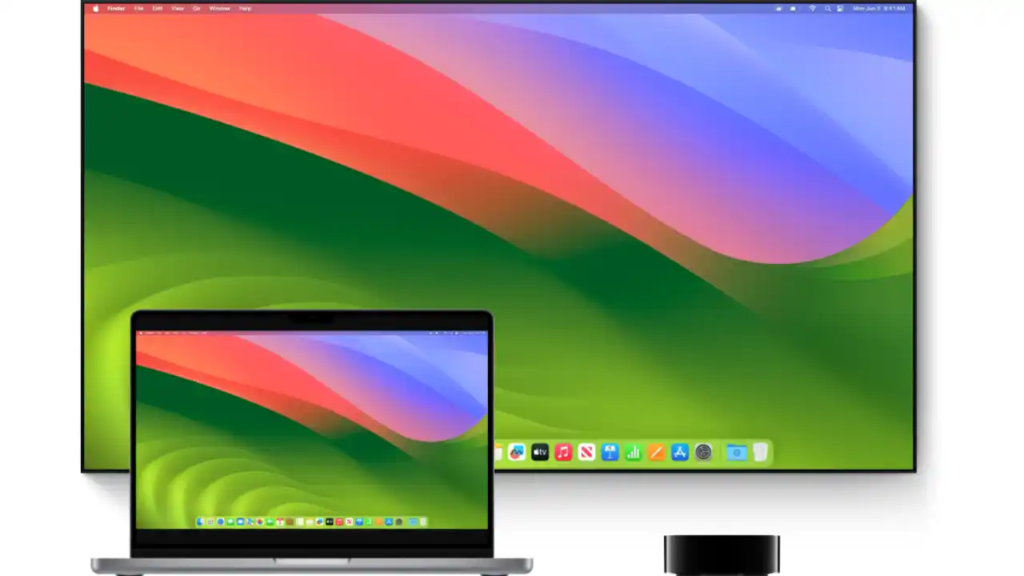
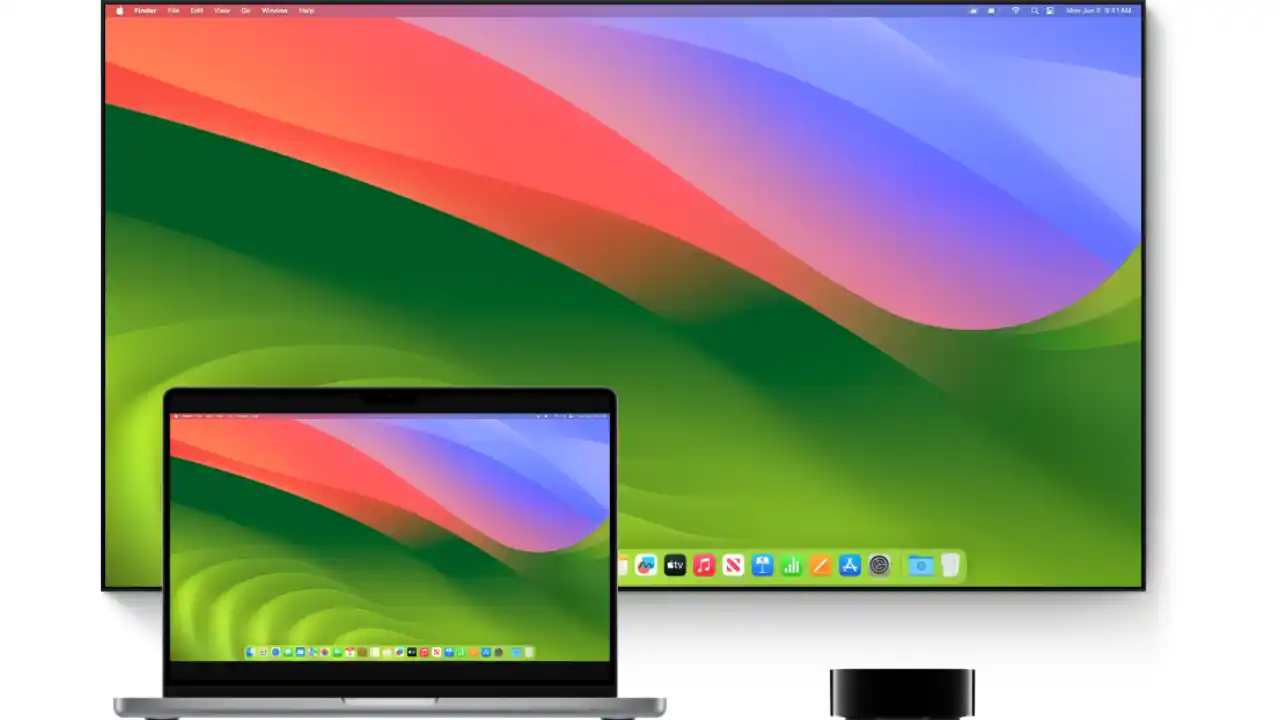
Connecting a MacBook to a TV can improve your viewing experience, whether streaming a favorite movie, sharing photos with friends, or presenting a project. With the development of technology, there are many ways to establish this connection, wired and wirelessly. This article will guide you through different ways to connect your MacBook to a TV, ensuring that you can easily enjoy your content on the big screen.

Wired Connection: HDMI and Adapters

HDMI Connection

The most straightforward method is using an HDMI cable, which provides a high-quality audio and video signal.

  1. Check your MacBook and TV for HDMI ports. If your MacBook doesn’t have an HDMI port, you’ll need a USB-C to HDMI or a Thunderbolt to HDMI adapter.

  2. Connect the HDMI cable to both your MacBook and TV.

  3. Switch to the correct HDMI input on your TV, and your MacBook’s screen should appear on the TV.

Thunderbolt or USB-C to HDMI

For newer MacBooks with Thunderbolt 3 or USB-C ports:

  1. Acquire a compatible adapter if your MacBook doesn’t have an HDMI port.

  2. Connect the adapter to your MacBook, and then connect the HDMI cable from the adapter to your TV.

  3. Select the correct HDMI source on your TV to view your MacBook’s display.

Wireless Connection: Apple TV and AirPlay

Using Apple TV and AirPlay

AirPlay provides a seamless way to connect your MacBook to your TV wirelessly, provided you have an Apple TV.

  1. Ensure your MacBook and Apple TV are on the same Wi-Fi network.

  2. Click the AirPlay icon in the menu bar on your MacBook

  3. Select your Apple TV from the list, and your screen will mirror to the TV.

Third-Party Software Solutions

If you don’t have an Apple TV, several third-party software solutions can mirror your MacBook to your TV over Wi-Fi.

  • Download a reputable mirroring software on your MacBook, such as AirParrot or Reflector.

  • Follow the software instructions to connect to your TV.

Troubleshooting Common Connection Issues

Ensure all cables and adapters are securely connected if there’s no signal.

Check Wi-Fi connectivity for wireless connections.

Adjust the TV’s input source if your MacBook’s screen doesn’t immediately appear.

Conclusion

Connecting your MacBook to your TV, whether through a wired or wireless setup, can greatly enhance your viewing experience. By following the steps outlined in this guide, you can easily share your MacBook’s screen with your TV, bringing your favorite content to life on the big screen.

FAQs

Can I connect my MacBook to any TV?  Yes, as long as the TV has an HDMI port or supports wireless connections like AirPlay.

Do I need an Apple TV for a wireless connection?  While Apple TV is the most seamless way to connect wirelessly, third-party software can also mirror your MacBook to your TV without it.

Why isn’t my MacBook screen appearing on the TV?  Check your HDMI or adapter connections, ensure you’re on the correct TV input source, or verify Wi-Fi connectivity for wireless methods.

Can I extend my MacBook display instead of mirroring it?  Yes, both wired and wireless methods allow you to extend your desktop for more workspace.

Is there a difference in video quality between wired and wireless connections?  Wired connections generally offer more stable and higher-quality video playback, while wireless connections offer flexibility and convenience.

LEVR.AI Closes $1M Seed Round to Advance AI-Driven Lending for Small Businesses

LEVR.AI Closes $1M Seed Round to Advance AI-Driven Lending for Small Businesses

The $1 million initial round of investment for Levr Technologies Inc., also referred to as Levr.ai, has been successfully closed to support the company’s AI-powered small business lending platform. Weave VC and Sprout Fund II have contributed follow-on capital to this round of financing, which also includes contributions from several new investors. With this critical fundraising round, Levr.ai can now provide small company owners with creative ways to raise loan capital, access necessary financial tools, and increase financial management.

Quick Development and Growth

LEVR.AI Closes $1M Seed Round to Advance AI-Driven Lending for Small Businesses

Image Source: privatecapitaljournal.com

With its main office in Vancouver, British Columbia, Levr.ai has seen rapid expansion, and its total investment has already surpassed $2.5 million. More than 2,000 small companies in Canada and the US have found success with the platform, and plans are to expand into the US market. Remarkably, thirty percent of Levr.ai’s traffic comes from the United States, suggesting that demand for its services is rising. By providing access to financing choices from more than 40 strategic partners, the platform promotes openness and aids in well-informed decision-making for company owners.

Using AI to Grow Your Business

Advanced machine learning (ML) and artificial intelligence (AI) algorithms form the basis of Levr.ai’s product. The platform’s in-house recommendation engine, which is powered by these technologies, simplifies and expedites the loan process while increasing its accessibility, speed, and transparency. Levr.ai uses artificial intelligence (AI) and data analytics to provide entrepreneurs with customised finance options promoting company expansion. This solves the long-standing issue of small enterprises’ restricted access to cash.

Addressing an Important Need

There have been notable changes in the small company financing environment, with an increasing proportion of loans being made through non-traditional banking channels. The Bank Policy Institute (BPI) reports that more than 80% of loans are now made possible by other channels. Kaylan Pepin, co-founder and CEO of Levr.ai, highlights the platform’s ability to support companies that traditional banks and tech firms miss. Levr.ai seeks to stimulate innovation and growth in small firms by democratising access to financing and utilising AI-driven insights.

Motivating enhancement

Levr.ai, which just secured a $1 million investment, is well-positioned to broaden its scope and influence, presenting itself as a driving force behind improvements to the small business loan market. The platform is still dedicated to providing easily accessible finance options for business owners and encouraging long-term company expansion in the face of a more difficult economic climate.

In Conclusion, Levr.ai’s successful seed round demonstrates investor faith in the company’s goals and emphasises how AI can completely change the funding landscape for small businesses. Levr.ai is positioned to transform small company financing in the future and promote resilience and prosperity throughout entrepreneurial ecosystems as it develops and broadens its product offerings.

How to Set ChatGPT as Your Android's Voice Assistant

How to Set ChatGPT as Your Android’s Voice Assistant

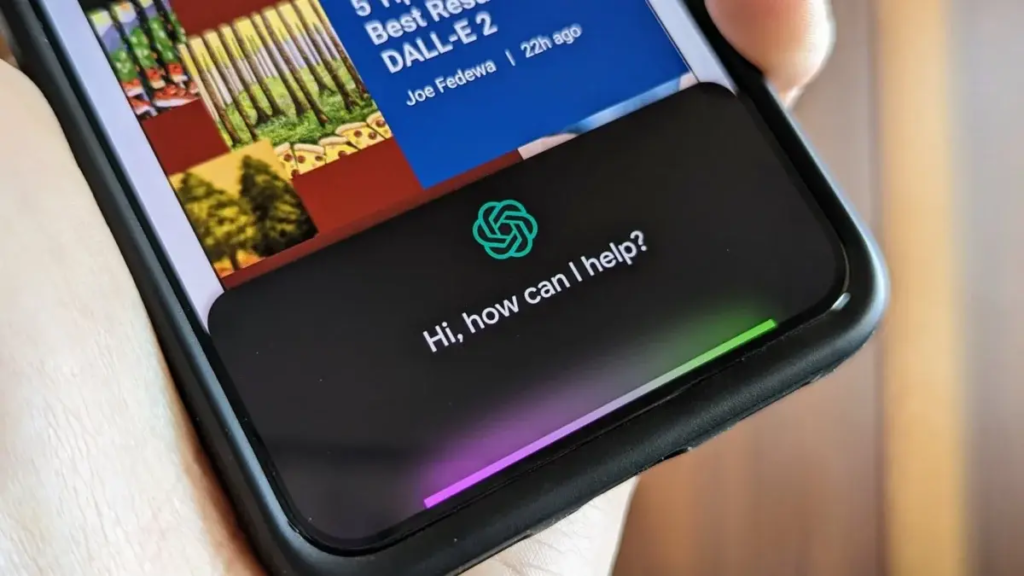
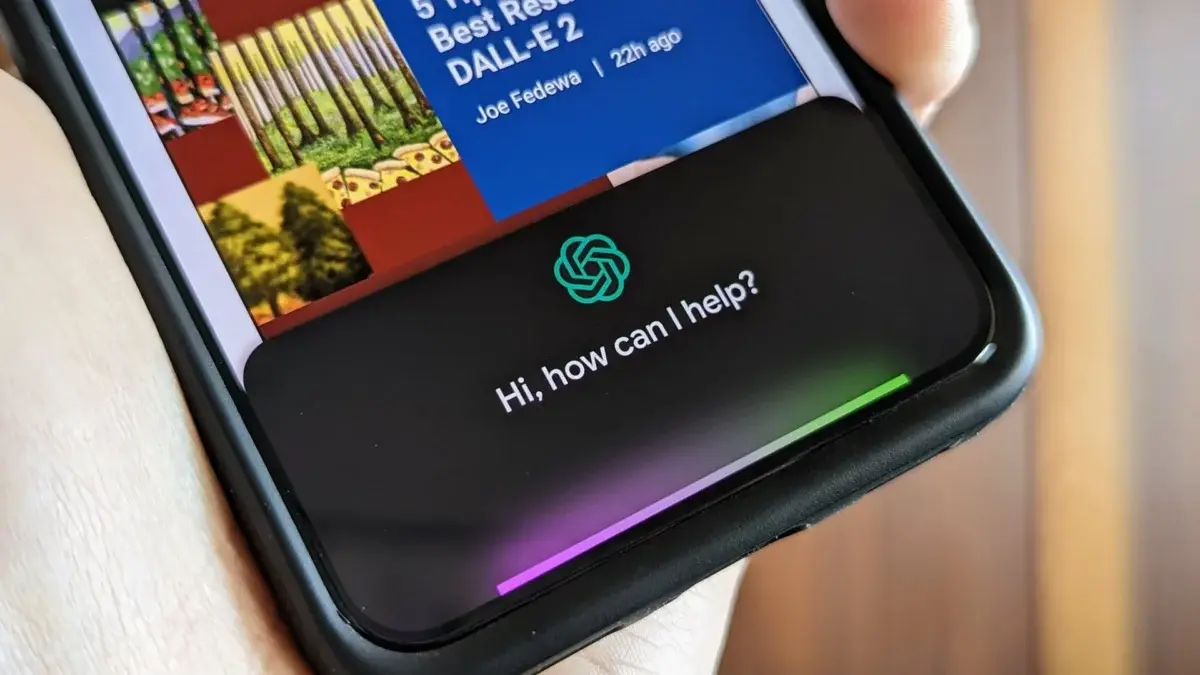
In the era of virtual assistants, having the flexibility to choose your preferred option is crucial. While many default voice assistants come pre-installed on Android devices, you can now opt for ChatGPT as your primary voice assistant. With its advanced language capabilities and personalized interactions, ChatGPT offers a unique experience tailored to your needs. Follow these simple steps to set up ChatGPT as your default voice assistant on Android.

Before diving into the setup process, let’s briefly explore what ChatGPT offers. Developed by OpenAI, ChatGPT is an artificial intelligence model trained to generate human-like text based on the input it receives. It excels in understanding context, maintaining conversations, and providing relevant responses across various topics. By integrating ChatGPT as your default voice assistant, you can leverage its natural language processing abilities for tasks ranging from answering queries to scheduling reminders.

Enabling ChatGPT Accessibility

How to Set ChatGPT as Your Android's Voice Assistant

Image Source: gizchina.com

To begin, ensure that you have the ChatGPT app installed on your Android device. If you haven’t already done so, download it from the Google Play Store and complete the setup process. Once installed, navigate to your device’s settings and select the “Accessibility” option. Here, you’ll find a list of installed accessibility services. Locate ChatGPT and toggle the switch to enable it. This grants ChatGPT the necessary permissions to function as your default voice assistant.

Setting ChatGPT as Default

After enabling ChatGPT accessibility, return to the main settings menu and select “Apps & notifications.” From the list of installed apps, choose your current default voice assistant (e.g., Google Assistant). Within the app settings, look for the “Open by default” option and tap on it. Here, you’ll see a prompt asking if you want to clear the default settings for the selected app. Confirm this action to reset the default voice assistant.

Configuring ChatGPT Preferences

With the default settings cleared, trigger ChatGPT by pressing the designated voice assistant button or using the voice command, “Hey ChatGPT.” ChatGPT will prompt you to set it as your default voice assistant. Follow the on-screen instructions to grant ChatGPT the necessary permissions and customize its preferences according to your preferences. You can specify language preferences, personalize wake words, and configure other settings to enhance your ChatGPT experience.

Testing ChatGPT Integration

Once configured, it’s time to put ChatGPT to the test. Activate ChatGPT using the designated trigger phrase and interact with it as you would with any other voice assistant. Ask questions, request assistance with tasks, or engage in casual conversation to experience ChatGPT’s capabilities firsthand. As you continue to use ChatGPT, it will adapt to your preferences and provide more personalized responses over time.

By setting ChatGPT as your default voice assistant on Android, you gain access to a powerful AI-driven companion capable of understanding and responding to your needs with human-like accuracy. Whether you’re seeking information, managing tasks, or simply engaging in conversation, ChatGPT offers a seamless and intuitive experience tailored to you. Follow the steps outlined above to integrate ChatGPT into your Android device and elevate your virtual assistant experience.

How to Easily Disable AdBlock in Safari on iPhone, iPad, and Mac

How to Easily Disable AdBlock in Safari on iPhone, iPad, and Mac

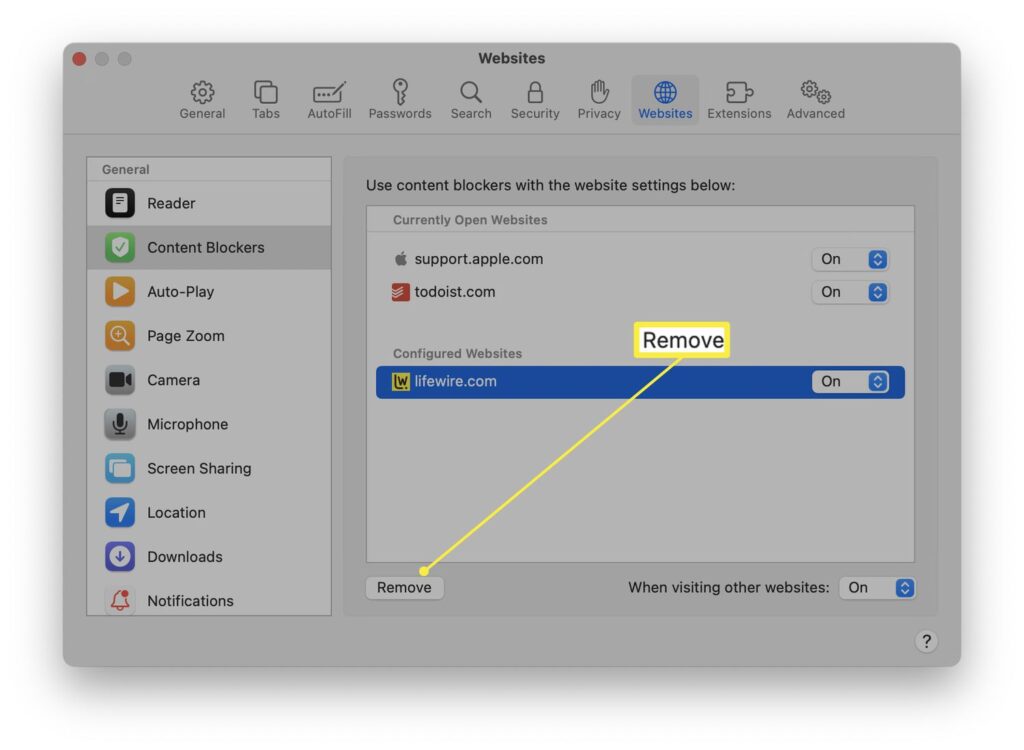
In today’s digital age, ad blockers like Adblock have become essential tools to enhance our browsing experience, offering us with a way to navigate the web without intrusive advertisements. However, there are instances where you may need to disable Adblock in Safari, whether to support a favorite website through ad revenue or to ensure full functionality on sites hindered by ad blocking. This guide provides a comprehensive walkthrough on how to turn off AdBlock on Safari on iPhone, iPad, and Mac devices.

Understanding AdBlock

How to Easily Disable AdBlock in Safari on iPhone, iPad, and Mac

Image Source: lifewire.com

Adblock is a popular extension for web browsers that filters content and blocks advertisements on web pages. Although it provides a cleaner and faster browsing experience, temporarily disabling it can help support websites that rely on advertising revenue or when its filtering interferes with the site’s functionality.

Disabling AdBlock on iPhone and iPad

To disable AdBlock on your iPhone or iPad, follow these steps:

  1. Open Settings: Open the “Settings” app on your Apple Device.

  2. Scroll to Safari: Navigate through the menu options until you find “Safari” and tap on it.

  3. Tap on Content Blockers: Look for the “Content Blockers” option within Safari Settings and select it.

  4. Toggle Off AdBlock: Find Adblock in the list of content blockers and toggle the switch to the Off position to disable it.

  5. Exit Settings: After disabling Adblock, you can exit the Settings app. Changes will take effect immediately in Safari.

Remember, these steps may differ slightly depending on the version of iOS or iPadOS you’re using and whether you installed AdBlock as an app or a Safari extension.

Disabling AdBlock on Mac

Disabling AdBlock on a Mac can be done directly within Safari or through System Preferences. Here’s how:

  1. Open Safari: Launching the Safari browser on your Mac.

  2. Access Preferences: Click on “Safari” in the menu bar, then select “Preferences” from the dropdown menu.

  3. Go to Extensions: In the Preferences window, click on the “Extensions” tab to view all installed extensions.

  4. Find AdBlock: Look through the list of extensions until you find AdBlock.

  5. Disable AdBlock: Uncheck the box next to AdBlock to disable it. If you wish to remove it completely, select AdBlock and click the “Uninstall” button.

  6. Close Preferences: Once you’ve disabled or uninstalled AdBlock, you can close the Preferences window. Refresh any open web pages to see if the changes take effect.

Conclusion

Disabling AdBlock in Safari on your iPhone, iPad, or Mac is a straightforward process that can be easily reversed. Whether you’re doing it to support a website or troubleshoot problems, knowing how to manage your ad-blocking preferences helps maintain a balance between a seamless browsing experience and supporting online content creators.

Top 5 Generative AI Video Tools Revolutionizing Content Creation

Top 5 Generative AI Video Tools Revolutionizing Content Creation

Top 5 Generative AI Video Tools Revolutionizing Content Creation

With their creative solutions for producing high-quality visual content with little effort, generative AI video technologies are transforming the way content producers create videos. These technologies are increasingly indispensable for both pros and amateurs in the video production industry since they improve processes and enable the creation of breathtaking visual effects. These are five generative AI video resources that ought to be familiar to all:

Runway ML

With the help of the robust platform Runway ML, users can develop, test, and implement generative AI models for a range of creative uses, such as video creation. Runway ML’s wide collection of pre-trained models and user-friendly interface enables users to automate tedious operations, create dynamic visual effects, and modify video footage. If you work as a graphic artist, animator, or filmmaker, Runway ML has a lot of features that can help you improve your creative process.

DeepArt.io

A well-known online platform called DeepArt.io uses deep learning algorithms to create beautiful artworks out of movies. Through the use of creative styles applied to video frames, users may create captivating animations and visual effects using DeepArt.io. DeepArt.io has a user-friendly interface and a broad variety of artistic styles, making it ideal for experimenting with abstract art or adding a surrealistic touch to your movies.

Artbreeder

Using the cutting-edge platform Artbreeder, people may work with AI to create original visual material, including films. With Artbreeder, users can combine and manipulate photos using AI algorithms to generate unique visual effects, animations, and video assets. Artbreeder is a creative playground for designers, filmmakers, and digital artists to explore new concepts and push the limits of visual narrative.

DAIN App

DAIN-App is a ground-breaking application that turns regular film into realistic and fluid slow-motion movies using deep learning. DAIN-App efficiently raises the frame rate of movies, producing smooth and realistic action by creating intermediate frames between already-existing frames. DAIN-App is an easy-to-use yet effective way to achieve amazing slow-motion effects in your films, whether you want to improve action scenes or give them a more theatrical feel.

Runway ML Video Style Transfer

With the state-of-the-art programme Runway ML Video Style Transfer, users may instantly add creative styles to videos. Runway ML Video Style Transfer allows users to effortlessly combine video footage with a variety of visual styles, such as paintings, sketches, and photos, by utilising neural style transfer algorithms. Runway ML Video Style Transfer gives you limitless creative options, whether your goal is to create a distinctive visual aesthetic or imitate the appearance of a well-known artist.

To sum up, generative AI video technologies are revolutionising the way content producers create videos by providing creative ways to quickly and easily create amazing visual material. For those seeking to push the limits of visual storytelling, these five generative AI video tools are indispensable, whether you’re hoping to improve your productivity in video creation or try out new creative approaches.