Your Tech Story

Suhani Jain

I am a student pursuing my bachelor's in information technology. I have a interest in writing so, I am working a freelance content writer because I enjoy writing. I also write poetries. I believe in the quote by anne frank "paper has more patience than person

Baidu’s Live-Streaming Hopes Hit by Lapse of $3.6 Billion Deal to Buy JOYY's

Baidu’s Live-Streaming Hopes Hit by Lapse of $3.6 Billion Deal to Buy JOYY’s

The $3.6 billion agreement to purchase Joyy Inc.’s live-streaming company, YY Live, has expired, which is a major blow to Baidu Inc.’s ambitious entry into the live-streaming market. The agreement, which was announced in November 2020 to expand Baidu’s content offerings and diversify revenue sources, has expired due to difficulties in gaining regulatory permits.

The deal’s collapse was verified in a filing on Monday, which blamed the termination on the inability to get the required regulatory clearances by December 31. The agreement, which was started three years ago, was supposed to be completed in the first half of 2021. Due to unfulfilled terms, Baidu’s affiliate Moon SPV legally cancelled the share purchase agreement. This is a serious blow to Baidu’s aspirations to compete with emerging players in the online entertainment market, such as ByteDance Ltd.

Baidu’s Live-Streaming Hopes Hit by Lapse of $3.6 Billion Deal to Buy JOYY's

Image Source: news.yahoo.com

The purpose of Baidu’s calculated acquisition of Joyy’s live-streaming company was to improve its content portfolio. But because generative artificial intelligence has taken centre stage in the quickly changing tech world, Baidu’s foray into the live-streaming market will undoubtedly be difficult.

Visionary Leadership and Strategic Collaboration

A further layer of uncertainty was introduced when Joyy said in a separate announcement that it intended to consult with legal counsel and look at alternatives for concluding its agreement with Baidu.

Joyy, a leader in Chinese live-streaming, has a sizable user base, 1.61 million paying customers worldwide are drawn to its networks for sharing films and live-streaming games. China’s regulatory landscape has become more stringent, meanwhile, with officials closely examining multibillion-dollar transactions due to worries about the fast rise of the private sector and power consolidation.

Under the direction of President Xi Jinping, the Chinese government has been tackling problems associated with gaming addiction, enforcing regulations for minors in online entertainment, and halting the clearance process for new game titles. In light of this, regulators probably exercised caution while authorising Baidu’s agreement with Joyy.

Although Beijing appears to be loosening its restrictions on the internet sector in an effort to boost economic growth, Baidu’s recent failure highlights the difficulties encountered by digital behemoths looking to thrive in an environment where regulations are still stringent and discriminating.

With this development, Baidu has more obstacles to overcome in its quest for supremacy in the fast-paced and fiercely competitive online entertainment market.

What Is iCloud+? Apple's Cloud-Based Storage Service Explained

What Is iCloud+? Apple’s Cloud-Based Storage Service Explained

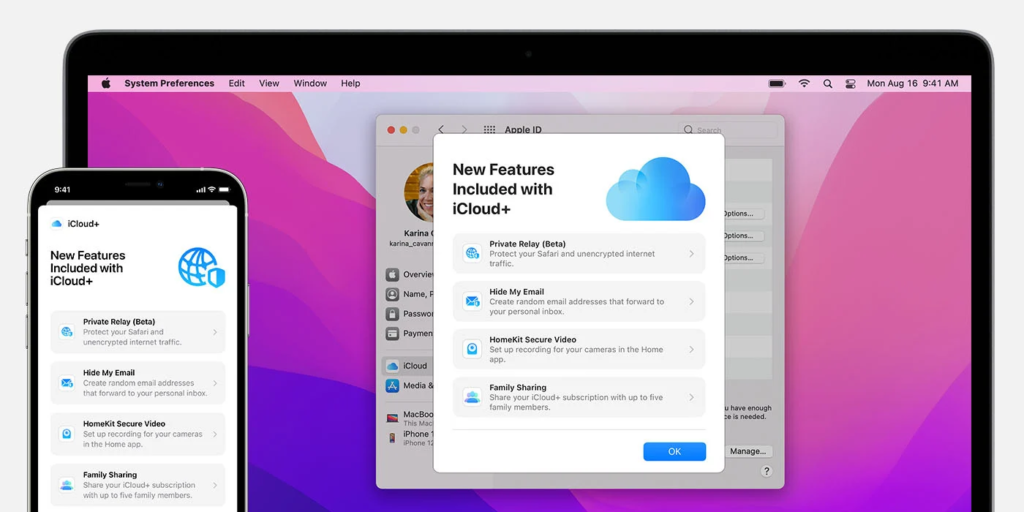
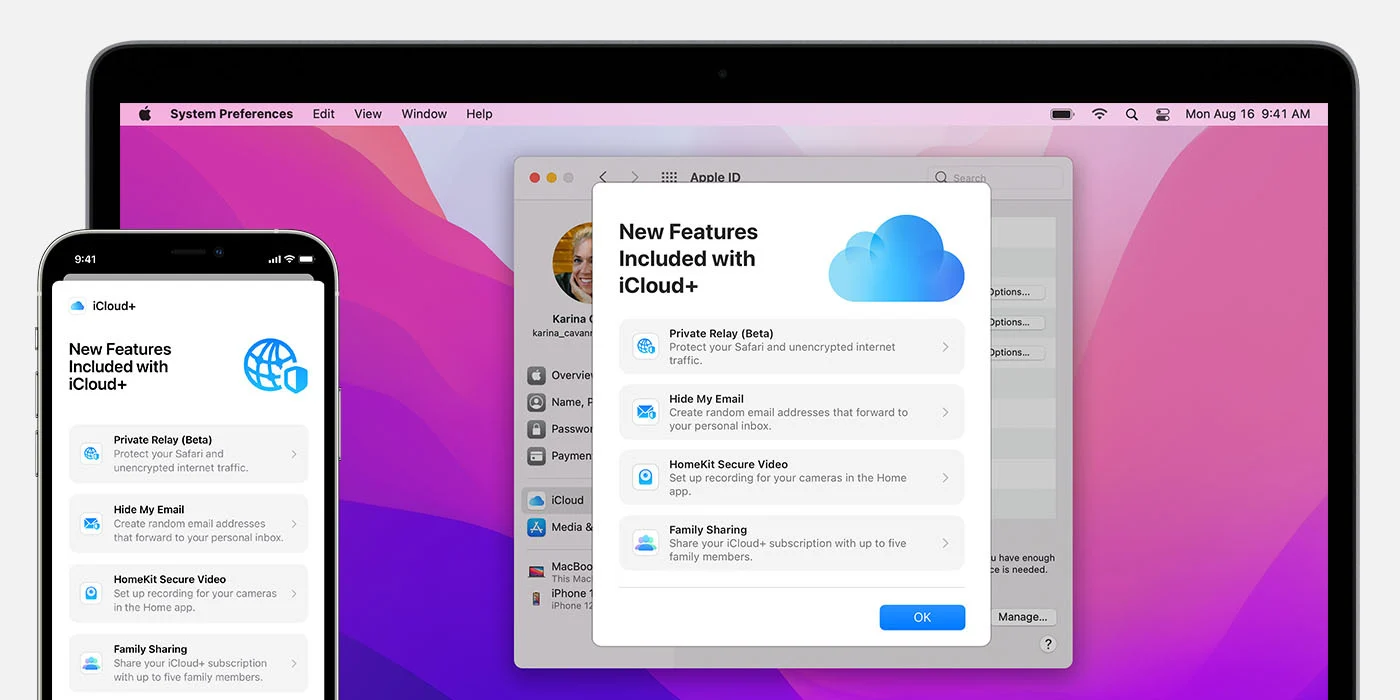
iCloud has been the foundation of Apple’s ecosystem for years, allowing for easy file sharing, synchronisation, and backup. But with the release of iOS/iPadOS 15, Apple introduced iCloud+, a cloud service that is now even better than before. With its special features like Private Relay, Hide My Email, Custom Email Domain, and enhanced HomeKit Secure Video capabilities, this premium membership is intended to improve security and privacy. Here is a summary of the features that iCloud+ offers.

Comprehending the iCloud Landscape:

What Is iCloud+? Apple's Cloud-Based Storage Service Explained

Image Source: pcmag.com

  • iCloud: Photo, email, contacts, calendars, and more are all covered by Apple’s basic file backup and synchronisation service. 5GB of internet storage is offered by the free version.
  • iCloud+: iOS 15 and iPadOS 15 users can subscribe to the premium plan, which offers 50GB, 200GB, and 2TB of storage. It comes with upgraded features that go beyond what the free plan offers.

Key features of iCloud+:

  • Private Relay: Apple’s creative VPN solution that protects your online activity while using Safari. It sends your traffic across two different relays for increased anonymity, substituting an anonymous IP address based on your area for your original one.
  • Hide My Email: An improved version of Apple Sign-in that minimises spam and maintains anonymity by enabling the use of a random email address for any website or online form.
  • Custom Email Domain: This feature allows you to send and receive iCloud Mail using your domain rather than an icloud.com address. It is designed for users who have their domain names. Up to five personal domains with three email addresses are supported.
  • HomeKit Secure Video Enhancements: Depending on your membership, iCloud+ provides a range of storage choices, including 50GB for one camera, 200GB for up to five cameras, and 2TB for an infinite number of cameras.

How to Use iCloud Services:

iCloud Drive: The location of your synced and backed-up files. Direct file uploading, downloading, and sharing are supported.

iCloud+ is available as a comprehensive bundle for all Apple products, including the iPhone, iPad, Apple Watch, Mac, and Apple TV. It also allows up to five family members to participate in family sharing.

Basically, iCloud+ is a whole digital experience improvement rather than just an upgrade in storage. With features like Custom Email Domain and Private Relay, Apple’s iCloud+ is a comprehensive suite that adapts to its users’ changing demands. It also offers personalised email solutions.

Recover Your Old Hotmail Account: Top 3 Methods

Recover Your Old Hotmail Account: Top 3 Methods

If you’re a sentimentalist who used to subscribe to Hotmail in the early 2000s, going back to your old mailbox may help you remember the good old days. Even though Hotmail as a stand-alone service was discontinued in 2013 and replaced with Outlook, it may still be feasible to retrieve your old emails. These are the best three methods for getting back into and using your former Hotmail account.

What Happened to Hotmail?

Recover Your Old Hotmail Account: Top 3 Methods

Image Source: guidingtech.com

In 2013, Hotmail changed its name and became Outlook. While email addresses of current users were kept private, new registrations on the hotmail.com domain were not permitted. Since then, Outlook—now equipped with many more features—has become Microsoft’s main email client.

Using Microsoft’s recovery form, integrating with Outlook, or importing to Gmail are some of the ways to save a bit of online history while taking you back to your old Hotmail communications.

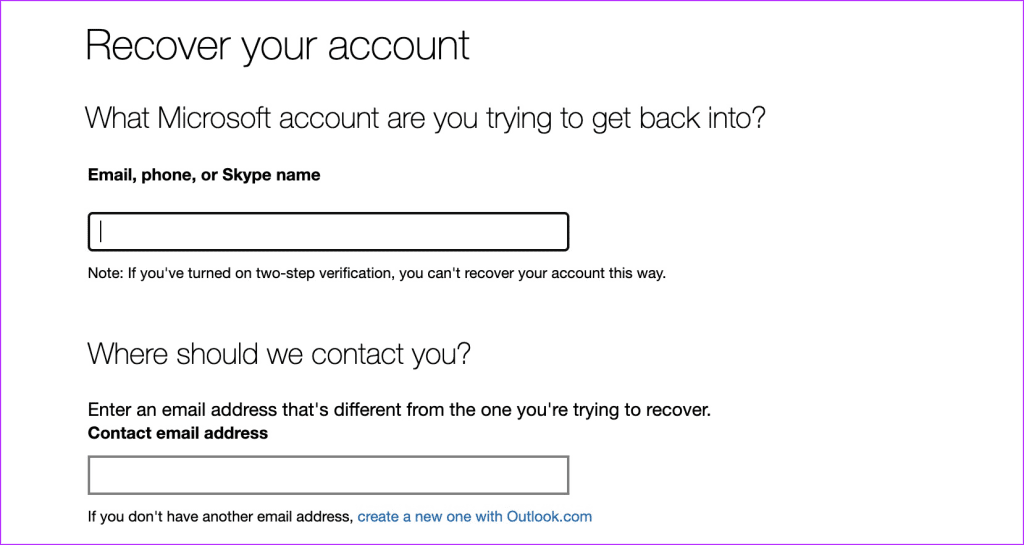
Microsoft's Account Recovery Form:

Make sure your account is enabled for two-step authentication before using this approach.

  • Step 1: Go to the Microsoft Account Recovery Form by opening your web browser.
  • Step 2: Type your present email address in the second field and your Hotmail email in the first.
  • Step 3: Hit Next after entering the CAPTCHA.

Once submitted, Microsoft will guide you through the recovery process within the next 24 hours.

Use Outlook to Log into Your Hotmail Account:

It’s simple to connect your previous Hotmail account to Outlook.

  • Step 1: turn on Microsoft Outlook on your computer.
  • Step 2: Under Account Information, go to File and choose Add Account.
  • Step 3: Type your password and email address into Hotmail.

Outlook will automatically link with your Hotmail account, which you may access from the sidebar.

Log into Your Hotmail Account Using Gmail:

You may combine your Hotmail accounts into Gmail if that’s how you choose to communicate.

  • Step 1: Use your computer to log into your Gmail account.
  • Step 2: Choose See all settings by clicking the gear icon in the upper right corner.
  • Step 3: Select the Import tab under Accounts.
  • Steo 4: Select Import from another address.
  • Step 5: To import your emails, sign in to your Hotmail account and follow the on-screen directions.
  • All of your Hotmail emails will take some time to load, but once they do, you can easily access them from Gmail’s sidebar.
How to Keep Your Kids off Wi-Fi and Take Control of Your Internet

How to Keep Your Kids off Wi-Fi and Take Control of Your Internet

How to Keep Your Kids off Wi-Fi and Take Control of Your Internet

Image Source: pcmag.com

As our kids become more and more engrossed in the digital world, worries about improper content exposure, cyberbullying, and online threats have intensified. Only 23% of parents, nonetheless, proactively keep an eye on their kids’ internet use. This may be addressed by following this brief advice, which explains how to take charge of your home internet and give your children a safer online experience.

Router for Parental Control

Put web filters on every device: Invest in a parental control router to act as your house internet’s choke point and impose online filters on all of your children’s gadgets.

Control via your router: To reduce tampering, deactivate wireless remote administration, put the router away from children, and enable site prohibitions.

Plan Outtime for Internet Blackouts:

Encourage balance by establishing clear guidelines and planning regular internet blackout times to promote family time and offline activities.

Personalise downtime: Choose the best times to limit internet usage to improve family time and sleeping patterns.

Ban Unsecured Wi-Fi Networks:

Perform a Wi-Fi search to find and ban networks that might be dangerous for your kids.

Engage in conversation with your neighbours: Bring up the significance of internet safety and ask them to protect their Wi-Fi networks.

Parental Controls for Mobile Devices:

Aura is a family safety software that lets you set time restrictions, monitor and block particular websites and applications, and get notifications concerning cyberbullying.

iOS devices: To manage access and schedule downtime, use Apple’s Screen Time settings.

Android devices: Use Google Family Link to monitor and manage use online.

Game Console Parental Controls:

Set deadlines: Establish time limits for gaming under the American Academy of Paediatrics’ recommendations.

Make use of safe gaming resources: Turn on parental controls on game consoles to keep an eye out for offensive and cyberbullying content.

Don't Leave Devices in Common Areas:

Establish ground rules for the home: No electronics in the bedrooms during certain hours, unless used for homework.

Shared workspace: To provide a regulated atmosphere, set up a shared study room for family activities and gadget charging.

Promote Social Media Conduct That Is Responsible:

Determine maturity: Before giving your child access to social media, determine whether they are ready.

Privacy awareness: To reduce hazards, teach kids how to share personal information online responsibly.

To combat cyberbullying: teach kids the consequences of their actions online, encourage compassion, and provide them with the resources they need to file reports.

While parental controls are useful tools, developing an open line of communication with your children on safe internet usage is just as important if you want to earn their trust. Parents may actively participate in creating a safe and responsible internet environment for their children by putting these strategies into practice.

Apps Not Downloading on Smart TV? Here are 10 Quick Solutions

Apps Not Downloading on Smart TV? Here are 10 Quick Solutions

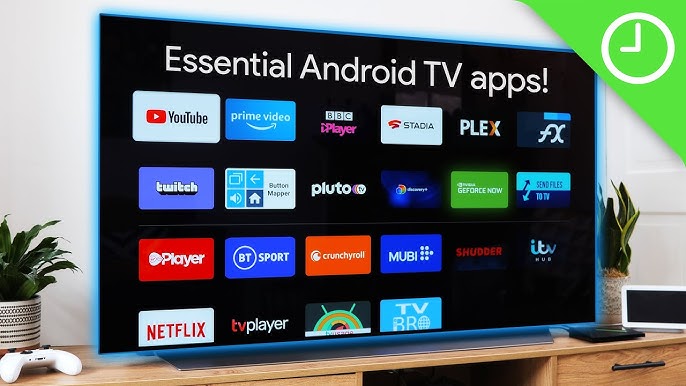
With their plethora of applications, smart TVs offer an entry point to an endless supply of entertainment. However, running across problems like not being able to download new applications can be a frustrating obstacle. Don’t worry; we’ve got a thorough tutorial with 10 easy solutions to help you get your Smart TV to start downloading apps again.

Determine the Problem

Determining the underlying reason is essential. Is the issue with your TV’s operating system, your WiFi, or the Play Store app? then dive into the solutions.

Check Your WiFi Connection

Make sure your home WiFi is working before tinkering with TV settings. Restarting your WiFi network briefly might solve any issues with your Smart TV’s video streaming.

Restart Your TV

Downloads may be hampered by an unusual background issue. Frequently, these problems may be resolved with a straightforward restart using the power outlet or the remote.

Update the Operating System on Your TV

Apps Not Downloading on Smart TV? Here are 10 Quick Solutions

Though it might not be evident, faults might be caused by out-of-date firmware or an operating system. To keep the operating system on your TV up to date, go to Settings > Support > Software Update.

Inspect the Storage on Your TV

When storage runs low, app downloads may be hampered. To see the breakdown, navigate to Settings > Device Preferences > Storage. Apps may be deleted to make space available.

Install Apps Utilising Your Android Phone

Use your Android phone to install apps if the Play Store on your Smart TV isn’t working properly. Install applications from your phone and make sure both devices are logged in with the same Google account.

Delete the cache from the Google Play Store

Go to TV Settings > Apps > Google Play Store and delete the cache. This frequently fixes problems with temporarily stored data.

Turn the Google Play Store on and off

Try turning off the Play Store and then turning it back on. Go to TV Settings > Apps > Google Play Store, turn it off, give it a minute, and then turn it back on.

Remove Google Play Store Upgrades

There’s a chance that the recent upgrades are to blame. To test whether it fixes the problem, go to TV Settings > Apps > Google Play Store and delete any recent upgrades.

Sideload Apps on Your TV

As a last resort, you could choose to sideload apps. Install the app APK from a reliable third-party source on your smartphone, move it to your TV, and then enable unknown sources for app installation in Settings.

Factory Reset Your TV

This can be your final option if the other solutions don’t work. To reset your TV, go to TV Settings > General > Reset, but note that doing so will remove all data and applications.

To sum up, these ten simple solutions address a variety of possible problems with downloading Smart TV apps. Whether the issue is related to storage capacity, connection, or a bug in the Play Store app, you may use the tools in this tutorial to troubleshoot and have a flawless Smart TV experience.

X Suffers Biggest Outage Since Musk’s Takeover

X Suffers Biggest Outage Since Musk’s Takeover

Since the billionaire acquired the social media site previously referred to as Twitter, Elon Musk’s X has experienced its largest outage. This was a brief but broad disturbance that seemed to be ending.

Downdetector, which is  responsible for monitoring website as well as service disruptions, states that as of 1:41 p.m. Hong Kong time on Thursday, over 94,000 users of X encountered problems with the website. An hour later, there were only roughly 7,000 difficulties reported by users.

Since Musk purchased the San Francisco-based site for a total of $44 billion at the end of 2022, there have been several disruptions, but none as significant as the one that occurred in July of that year, which impacted about 50,000 users, till this week.

X Suffers Biggest Outage Since Musk’s Takeover

Image Source: deadline.com

The most recent incident’s cause is unknown. Approximately seventy percent of the reports mentioned problems with X’s app, and twenty percent mentioned problems with its website.

Regarding the disturbance, X’s official account remained silent. “Busy now, please check back later” was an automated reply sent in an email to the organization’s press center.

Since Musk bought X in 2022 for the price of $44 billion, the firm has been beset with problems. Subsequently, there have been several job cuts, particularly of engineers and other essential personnel in charge of platform maintenance, customer care, and averting service disruptions.

Rumors have Surfaced After Musk’s Takeover

Since Musk’s takeover, there have additionally been an abundance of rumors and reports regarding X.

Significant adjustments have been made to the verification procedure, API availability, cancellations of bans for individuals deemed problematic, and a major rebranding from “Twitter” to “X.”

Now that he’s changed the platform, Musk has made it clear that he wants to prioritize free expression for all. Additionally, the businessman became the executive chair as well as the chief technology officer of the company, replacing his previous position as CEO of Twitter/X.

Even after X was made available to customers globally again, thousands of individuals are still reporting problems with the app. Thousands of people commented on a PopCrave tweet that said that Twitter/X is now back up despite an hour-long downtime, discussing the outage and its effects on different users.

“One person wrote, "We're back but this app is still broken." Another user commented, "As a professional X content creator this outage has been devastating for me, anyone else feel the same?" A third person said, "I was really crying & throwing up because I thought my Twitter was gone."

"The app is still kinda broken, sometimes it says to try again when posting even tho it's already posted, it also doesn't show the views.." a fourth wrote.

yahoo.com