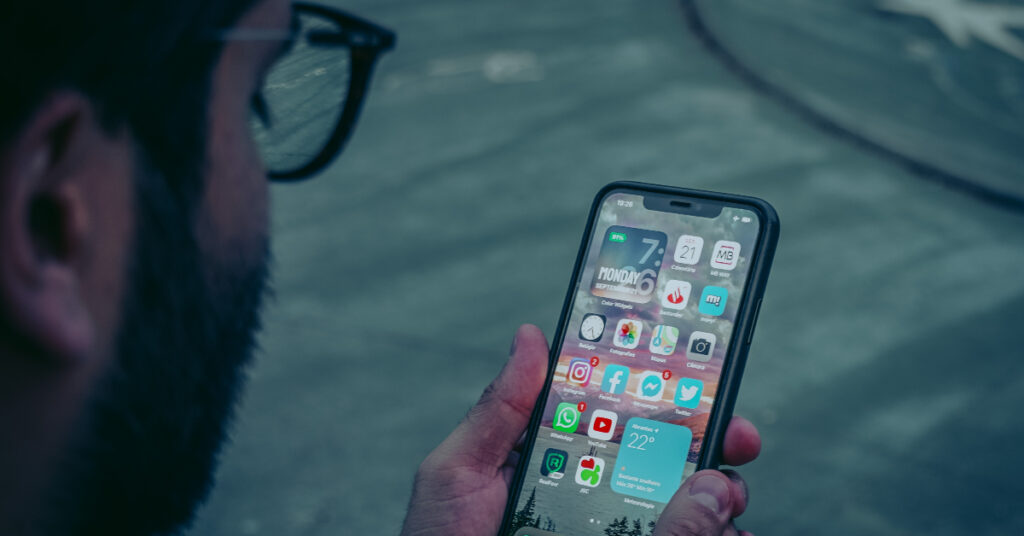
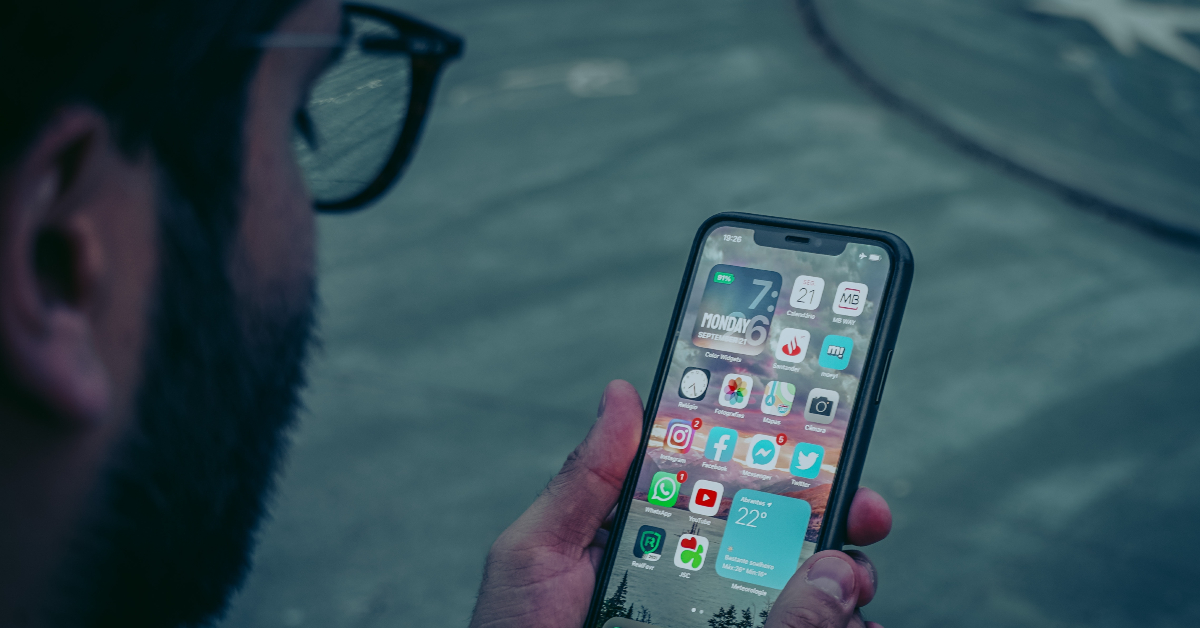
Have you ever felt bad that someone was snooping into your digital life without your permission? It’s like someone is looking over your shoulder, except it’s through your iPhone. Scary, right? Well, let’s not just wallow in paranoia; I’m here to help you find out if someone has gained remote access to your iPhone and what you can do about it. So, let’s dive in!
Signs of Unauthorized Remote Access
Unusual Battery Drain
This could be a clear sign that someone is accessing your device remotely. Remote access apps can be power-hungry creatures, eating up your battery life like there’s no tomorrow.
Strange Phone Call Behavior
If your call has more echoes than a mountain yodel or more noise than a static-filled radio, pay attention. These may be signs that your calls are being intercepted or monitored. It’s as if someone else is joining your call, but they’re definitely not invited.
Unexpected Data Usage Spikes
Image Source: gadgetbridge.com
When your data usage exceeds your daily usage, it’s time to check. This could mean that your iPhone is secretly sending data to an uninvited guest.
Unfamiliar Apps or Profiles
Did you suddenly find an app that you don’t remember downloading? These apps could be the tools that someone is using to gain remote access to your iPhone.
How to Check for Remote Access
Analyzing System Services
Search your iPhone’s Settings like you’re on a treasure hunt. Look for any system services you don’t recognize. If you feel something is wrong, it’s time to take action.
Reviewing Installed Apps
Check your apps one by one. If you see something unfamiliar, uninstall it immediately.
Checking Network Activity
Monitor your network activity. If a lot of data is being used in the background, this is also a sign of remote use of the iPhone.
Verifying Configuration Profiles
Configuration profiles are like your phone’s house rules. If you find new or unfamiliar passwords, it is as if someone changed the passwords without telling you.
Preventative Measures
Updating iOS Regularly
Keep your iOS updated. This is one of the best ways to keep your iPhone’s security tight.
Using Strong Passwords
Your passwords should be like a good plot twist – unexpected and surprising. The stronger they are, the more secure your iPhone will be.
Enabling Two-Factor Authentication
Two-factor authentication is like a bouncer for your iPhone. This adds an extra layer of security, making sure it’s you who is trying to get in.
Being Cautious of Public Wi-Fi
Public Wi-Fi is risky. Avoid this when possible, or use a VPN to keep your data secure.
What to Do If You Suspect Remote Access
Changing Your Apple ID Password
If you think someone has remote access, change your Apple ID password faster than a chameleon changes colors. This is the first step towards locking them down.
Updating or Restoring iOS
Sometimes, the best way to clean your iPhone is to start fresh. Updating or restoring your iOS may remove any unwanted guests.
Contacting Apple Support
If you’re feeling overwhelmed, contact Apple Support.
In the digital world, your iPhone is like your digital home. You don’t want strangers snooping around your house, and the same applies to your phone. Stay alert, stay informed, and keep your iPhone locked down more tightly than Fort Knox.
FAQs
How can I tell if my iPhone’s battery is drained due to remote access or just a bad battery? If your battery health is good, but drains rapidly and unexpectedly, it may be worth checking remote access.
Can updating iOS remove malware or unwanted remote access apps? Yes, updating iOS can often remove malicious software and patch security flaws.
What’s the first thing I should do if I suspect remote access to my iPhone? Change your Apple ID password immediately and check for any unfamiliar apps or profiles.
Is it safe to use public Wi-Fi if I have a VPN? A VPN can provide a secure connection over public Wi-Fi, but it’s still best to be careful with sensitive transactions.
How often should I update my iOS? Whenever a new update becomes available, the update often includes important security patches.
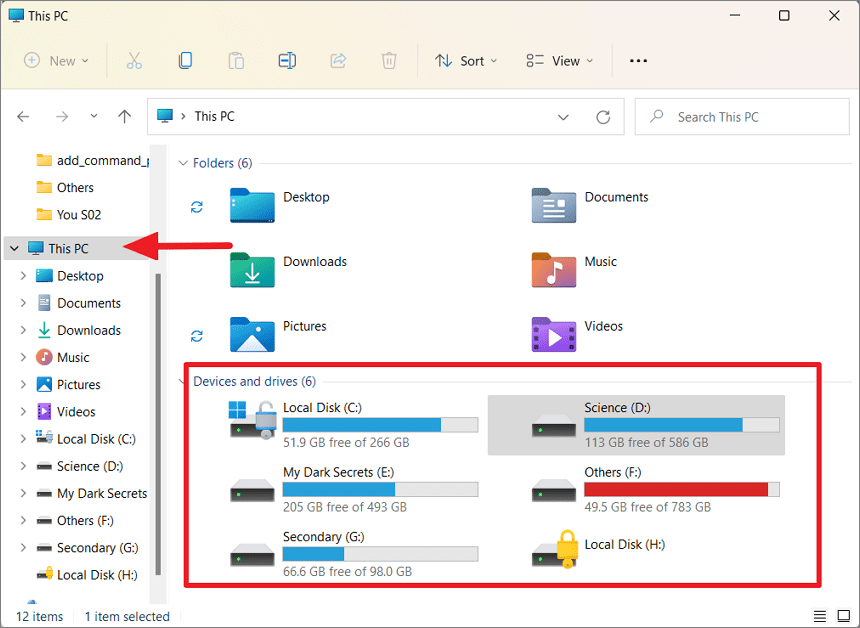
Are you constantly playing the “What Can I Delete Today” game from your PC or Laptop? Well, now is the time to break free from the shackles of storage and give your device the breathing space it deserves. Let’s look at five great solutions to expand your digital horizons and get more storage on your PC or laptop.
The External Hard Drive
Think of an external hard drive as a backpack for your digital life. It’s portable, comes in a variety of sizes, and can store everything from your vacation photos to that indie game collection you’ve been amassing. Simply plug it into your USB port and expand storage instantly!
Cloud Storage
It’s like an invisible storage locker that follows you everywhere. Services like Google Drive, Dropbox, and OneDrive offer a chunk of free storage, with the option to upgrade if your digital collection is more than a library can accommodate. Bonus? You can access your data from any device with the internet.
Internal Hard Drive or SSD Upgrade
Image Source: allthings.how
Upgrading your internal hard drive or switching to a solid-state drive (SSD) is like giving your device a heart transplant. It’s a little more complicated than plugging in an external drive, but the performance boost and extra space is like a double shot of espresso for your PC or laptop.
Network-Attached Storage (NAS)
Imagine having your own mini-cloud at home. A NAS device is just like that. It’s a storage hub that connects to your home network, allowing multiple devices to access and store files. It’s like having a digital library at home, without the late fees.
USB Flash Drives
USB flash drives are the key to the digital world. They’re small, portable, and perfect for transferring files or giving your device a little storage pick-me-up. They may not hold your entire movie collection, but they’re perfect for the essential files you need on the go.
Conclusion
Gone are the days of playing digital Tetris with your files. With these five solutions, you can expand your storage and breathe easy, knowing there’s enough room for all your digital treasures. So go ahead, embrace the space, and never let “low storage” warnings hinder your digital style.
FAQs
Will using an external hard drive slow down my computer? No way! It’s like having a second closet for your stuff. It does not affect the speed of your main server (your computer).
Is cloud storage safe? Safe like a locked treasure chest! Reputable cloud services use encryption and security measures to keep your digital treasures safe.
SSD or HDD: Which is better for internal storage? SSDs are like sports cars: fast and smooth. HDDs are like minivans: more space, but not as zippy. If you want speed, get an SSD. If you want more space for your money, HDD is best.
Can USB flash drives be used for long-term storage? They can, but they’re best for transferring files or short-term storage.
How much storage can a USB drive hold? USB drives come in various storage capacities, ranging from as little as 2GB to as much as 2TB. The most common sizes are 16GB, 32GB, 64GB, 128GB, and 256GB.
Can I run programs from a USB drive? Yes, some programs can be run directly from a USB drive without installation on the host computer. These are often known to as “portable” applications.
Drivers are essential software components that allow your operating system (like Windows) to communicate with hardware devices. Whether it’s your printer, graphics card, or keyboard, they all need drivers to function correctly.
Checking Your Drivers:
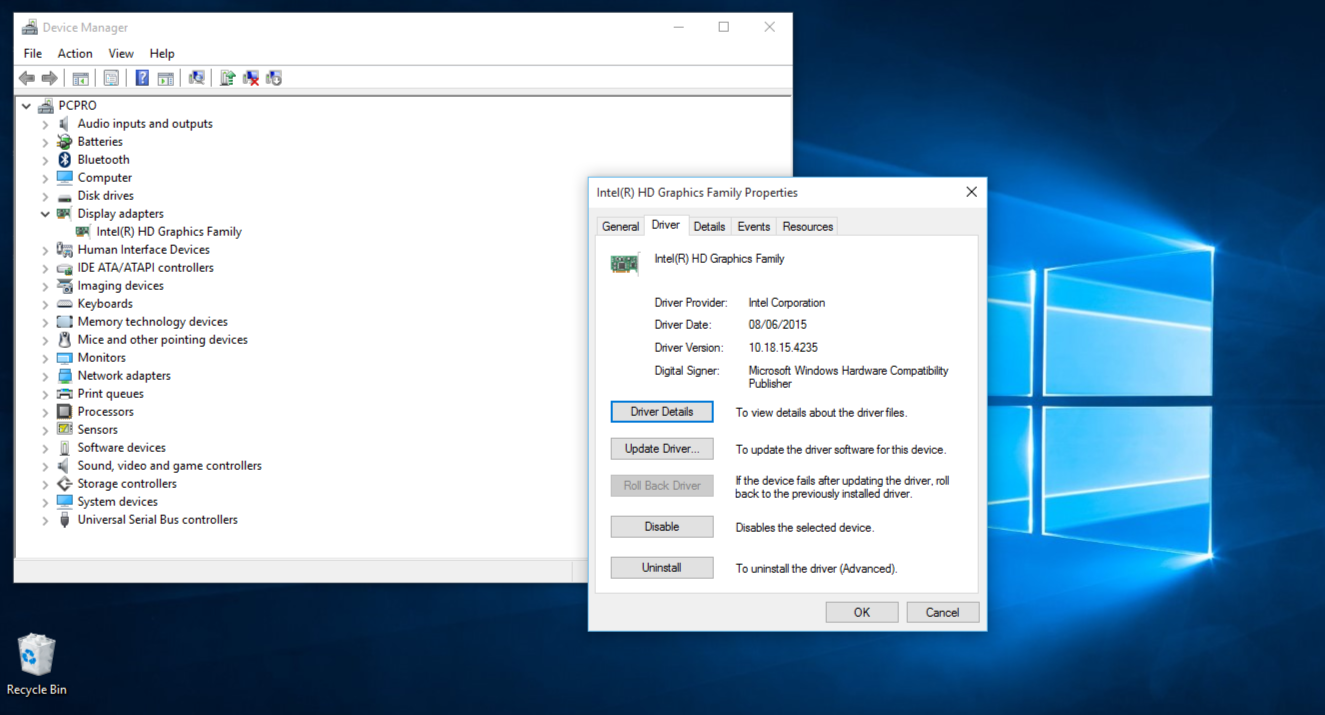
Image Source: alphr.com
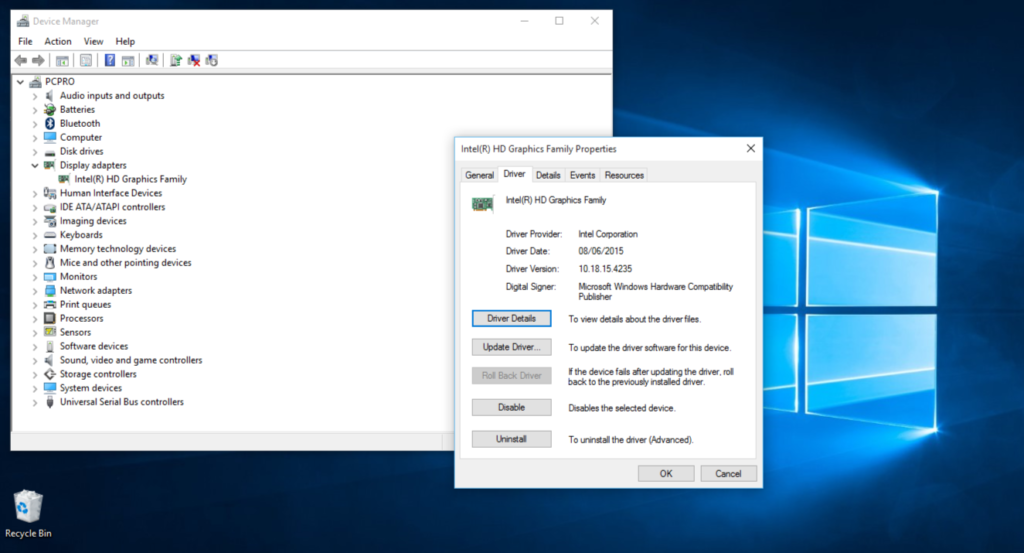
First things first, let’s play detective and check the status of your drivers. You don’t need a magnifying glass for this; just follow these steps:
Press the Windows key + X and click on ‘Device Manager’.
In Device Manager, you will see a list of devices. Click on any to view driver details.
If you see a yellow exclamation mark, Houston, we have a problem. That driver said, “Help, I’m not functioning properly!”
Installing Drivers:
So, you’ve got some new hardware, and it’s time to roll out the drivers. Here’s how to install them:
Again, open Device Manager.
Right-click on the device that requires a driver and select ‘Update Driver’.
Select ‘Search automatically for updated driver software’ and let Windows work its magic.
Updating Drivers:
Just like updating your favorite apps, it’s important to keep your drivers up to date. Here’s information about updating them:
Again, open Device Manager.
Click on the device and select ‘Update Driver’.
This time, select ‘Browse my computer for driver software’ if you downloaded the latest driver manually.
Follow the prompts, and you are up to date!
Uninstalling Drivers:
Sometimes, things don’t work out and you have to say goodbye to the driver. Here’s the uninstalling process:
Open Device Manager (feeling like a pro yet?).
Click on the device and select ‘Update Driver’.
Confirm your decision, and it’s done. Don’t worry; It’s not you, it’s them.
Sometimes drivers are unable to function properly. If you’re experiencing issues, try these quick solutions:
Revert to a previous driver version if a new update is causing the trouble.
Boot into Safe Mode to troubleshoot without any interference.
Use System Restore to go back to that happy time when everything was working.
Conclusion:
And there you have it folks! You are now a Driver Wizard, ready to check, install, update, and uninstall drivers like a professional. Remember, keeping your drivers under control is like giving your PC regular health checks – it keeps things running smoothly and prevents future headaches.
FAQs
1. What’s a driver, and why is it so important? A driver is like a translator that helps your operating system and hardware communicate effectively. Without it, they’re speaking different languages!
2. How often should I update my Windows drivers? Generally, if it doesn’t work properly, don’t fix it. But for security and performance, it’s good to check for updates every few months.
3. Can outdated drivers cause problems? Absolutely! They can cause hardware malfunction, security vulnerabilities, and overall system instability.
4. Should I use driver update software? This isn’t necessary, but it can save you time and hassle, especially if you’re not comfortable going into Device Manager.
In a world where the hustle and bustle of daily life can be overwhelming, noise-cancelling earbuds have become a sanctuary for music lovers and busy professionals alike. But with a plethora of options available, how do you select a pair that offers the best bang for your buck? This comprehensive guide will walk you through the nuances of noise-cancelling technology and what to look for when choosing your perfect pair.
Understanding Noise Cancellation Technology
Before diving into the selection process, it’s crucial to understand the technology behind noise cancellation.
Active vs. Passive Noise Cancellation
Noise-cancelling earbuds come in two Flavors: active and passive. Active noise cancellation (ANC) uses microphones and speakers to create sound waves that counteract ambient noise. Passive noise cancellation, on the other hand, relies on the physical design of the earbuds to block out sound.
How Noise Cancellation Works
ANC earbuds pick up external sounds with built-in microphones. They then produce sound waves that are the exact opposite (anti-phase) of the unwanted noise, effectively cancelling it out. This technology is particularly effective against consistent, low-frequency sounds like the hum of an airplane or the rumble of a train.
Factors to Consider When Choosing Earbuds
With a basic understanding of noise cancellation, let’s delve into the factors that make a pair of earbuds truly value for money.
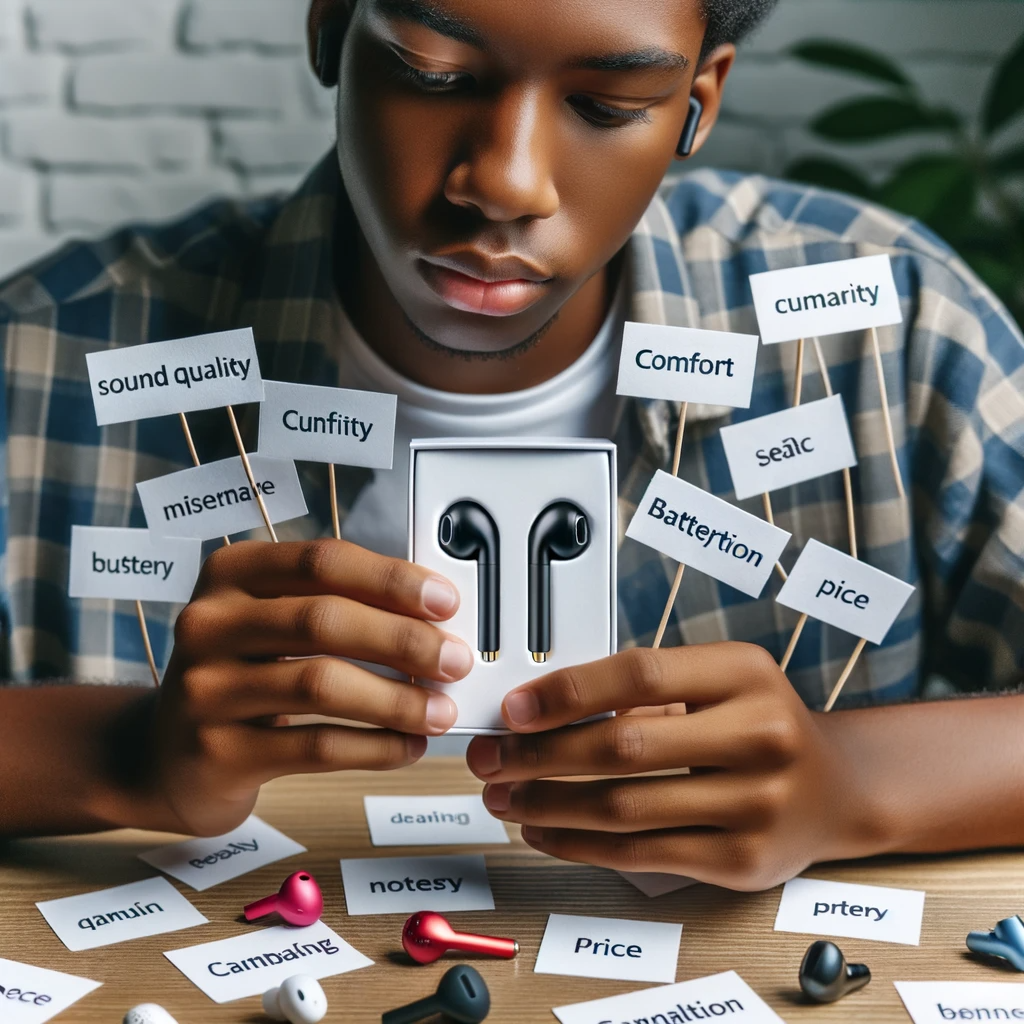
Sound Quality The primary purpose of earbuds is to deliver sound, so quality is paramount. Look for earbuds with clear highs, rich mids, and deep bass. Reading reviews and testing them out (if possible) can give you a good idea of their audio fidelity.
Battery Life ANC technology requires power, so battery life is a significant consideration. Ensure that the earbuds you choose can last through your daily activities without frequent recharging.
Comfort and Fit Comfort is subjective, but it’s essential for long listening sessions. Look for earbuds with multiple ear tip sizes or those made from soft, flexible materials.
Build Quality and Durability Your earbuds should withstand the rigors of daily use. Durable materials and solid construction are indicators of a pair that will last.
Additional Features
Modern earbuds come with a suite of additional features like touch controls, voice assistants, and customizable sound profiles. While not essential, these can enhance your listening experience.
Top Picks for Value-for-Money Noise-Cancelling Earbuds
Let’s explore some options across different price ranges.
Budget-Friendly Options
You don’t have to break the bank to get decent noise-cancelling earbuds. Brands like Anker and Taotronics offer affordable options that don’t skimp on quality.
Mid-Range Contenders
For those willing to spend a bit more, brands like One Plus, Jabra and Sony provide a balance between cost and advanced features.
Premium Choices
If you’re looking for the crème de la crème, brands like Apple, Bose and Sennheiser offer top-tier noise cancellation and sound quality, albeit at a higher price point.
Where to Buy Your Earbuds
Once you’ve made your choice, it’s time to purchase. Consider buying from reputable retailers or directly from the manufacturer to ensure authenticity and warranty coverage.
Caring for Your Noise-Cancelling Earbuds
To get the most out of your investment, proper care is essential. Store them in a case when not in use, keep them clean, and avoid exposing them to extreme temperatures.
Conclusion
Selecting the right noise-cancelling earbuds doesn’t have to be daunting. By understanding the technology and considering the factors outlined in this guide, you can find a pair that offers excellent value for money and enhances your audio experience.
FAQs
Can noise-cancelling earbuds completely eliminate all sounds? No, while they significantly reduce ambient noise, they can’t block out everything, especially sudden, high-frequency sounds.
Do noise-cancelling earbuds pose any health risks? There’s no evidence to suggest that noise-cancelling earbuds pose health risks. However, listening at high volumes for extended periods can damage hearing.
How long do noise-cancelling earbuds typically last? With proper care, quality noise-cancelling earbuds can last several years.
Can I use noise-cancelling earbuds without music? Yes, you can use them to reduce ambient noise even when you’re not listening to audio.
Are there noise-cancelling earbuds suitable for exercise? Yes, many brands offer sweat-resistant earbuds designed for physical activity.
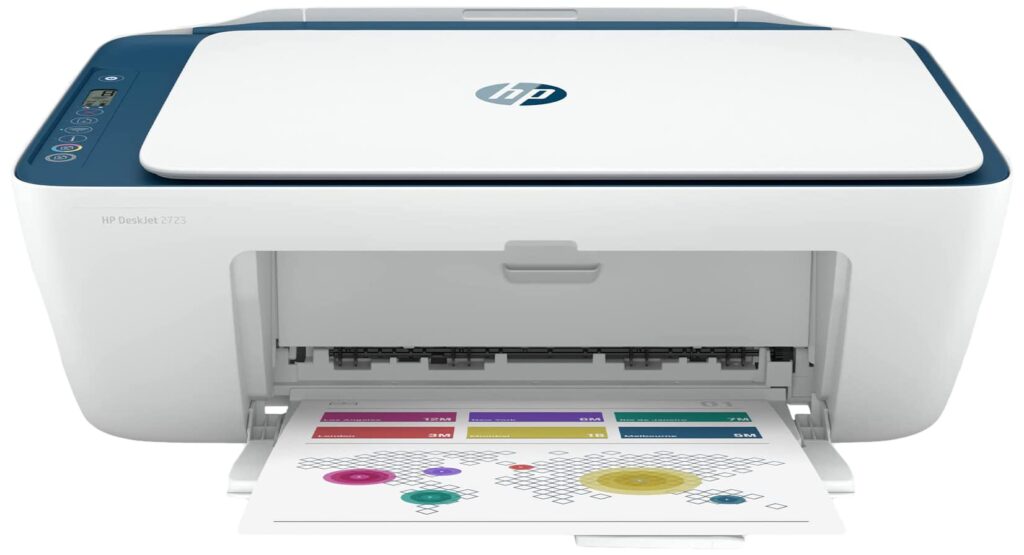
Setting up an HP printer with Wi-Fi usually involves a few steps. These instructions will guide you through the process for most HP printers, although some specific models may have slight variations.
Prerequisites:
Image Source: amazon.in
An HP printer that supports Wi-Fi connectivity.
A computer or mobile device with Wi-Fi capability.
An active Wi-Fi network.
Steps to set up an HP printer with Wi-Fi:
1. Prepare the Printer:
Turn on the HP printer.
Ensure it has paper and the ink or toner cartridges are installed.
2. On the Printer’s Control Panel:
Navigate to the ‘Setup’ or ‘Network’ menu.
Choose ‘Wireless’ or ‘Wi-Fi Setup Wizard.’ This might be under ‘Wireless Settings’ or a similar menu.
The printer will start searching for available networks.
From the list of networks, select your Wi-Fi network.
If prompted, enter the Wi-Fi password using the printer’s control panel.
3. Software Installation (if not already installed):
Insert the CD that came with the printer into your computer and follow the on-screen instructions. If you don’t have a CD:
Go to the HP website.
Navigate to ‘Support’ and then ‘Software and Drivers’.
Enter your printer model and download the appropriate driver/software package.
Install the downloaded software on your computer and follow the on-screen instructions.
4. Connect the Printer to the Computer:
During software installation, you will be asked to select a connection type. Select ‘Wireless’.
The software will search for the printer on the network.
Once found, follow the on-screen instructions to complete the connection.
5. Print a Test Page:
Once setup is complete, try printing a test page to make sure the connection is successful.
6. Mobile Devices (optional):
If you want to print from a mobile device:
Download the HP Smart app from your device’s app store.
Open the app and follow the instructions to connect the printer.
Now you can print directly to your HP printer from your mobile device.
If your printer does not detect the Wi-Fi network, make sure the printer is within range of the router.
Make sure the Wi-Fi network is active and working for other devices.
Restart both the printer and the router if you encounter connection issues.
If using a dual-band router (2.4GHz and 5GHz), make sure your printer is connecting to a 2.4GHz network, as many printers may not support the 5GHz band.
Always make sure you have installed the latest printer drivers from the HP website.
Following these steps will help you set up your HP printer with Wi-Fi. If you encounter any problems, refer to the specific user manual for your printer model or visit the HP Support website for more assistance.
As the pre-winter leaves turn orange and the evenings grow longer, comes the opportunity to embrace the unsettling spirit of Halloween. Whatever the case, in this advanced age, it’s not just about pumpkins and costumes. With a mix of novelty, the current year’s celebrations can be more grand and spectacular than any time in recent memory. Following are 5 unique Halloween tech tricks and treats to redesign your spooky fun.
Augmented Reality (AR) Phantom Chase
While old-fashioned ghost stories around open-air fires retain their appeal, the 21st century offers a technological twist: AR ghost hauntings. Some applications allow you to place virtual ghosts, devils, and other terrifying animals in your real environment. Welcome mates and challenge them to a ghost chase on your lawn or front room. As they investigate with their cell phones, they will encounter tormenting spirits that appear to be very real.
Shrewd Lighting for Haunted Feelings
Image Source: digitalbodies.net
Gone are the days of relying exclusively on candles for that funky glow. Amazing bulbs can transform your home at the push of a button. Use them to create a ghostly vibe by programming the lights to brighten, turn a deep red, or even sync with a hair-raising soundtrack. Their fantastical examples may antagonize and shock uninformed visitors, generally speaking, instilling fear in them.
3D Printed Custom Ensembles
Stand out from the group with a custom Halloween frill made from a 3D printer. From extraordinary covers to esoteric gems, the potential results are overwhelming. Plan your own pieces or download formats from online networks. You can create pieces that perfectly complement your Halloween troupe, guaranteeing your participation at any party or gathering.
Virtual Reality (VR) Tormented Experiences
For those looking for intense terror, computer-generated reality takes care of you. Plunge into shocking situations, from scary places to dystopian scenes full of corpses, without leaving your home. Do a VR headset and immerse yourself in these cool worlds, making it a Halloween experience you’ll probably remember forever.
Intelligent Dessert Container with simulated intelligence
Rethink trick-or-treat insights with a human-made intelligence-fueled sweets dispenser. Instead of a traditional bowl of sweets, this tech-infused treat machine can prompt youngsters to take action, answer a puzzle, or even identify their group type before giving them candy. It adds a touch of spontaneous fun to the process of sorting sweets, which has a lasting impact on the stunt.
Overall, as innovation is progressing and permeating every part of our lives, why not integrate it into our festivals too? These Halloween tech tricks and treats offer a blend of the traditional Halloween spirit with a cutting-edge twist, promising a supreme and novel experience for all. So this year, move beyond the norm and allow novelty to intensify the creepy silliness!