Your Tech Story

Tech News

How to Use iPhone as Webcam in 2024 on Mac or Windows PC

How to Use iPhone as Webcam in 2024 on Mac or Windows PC

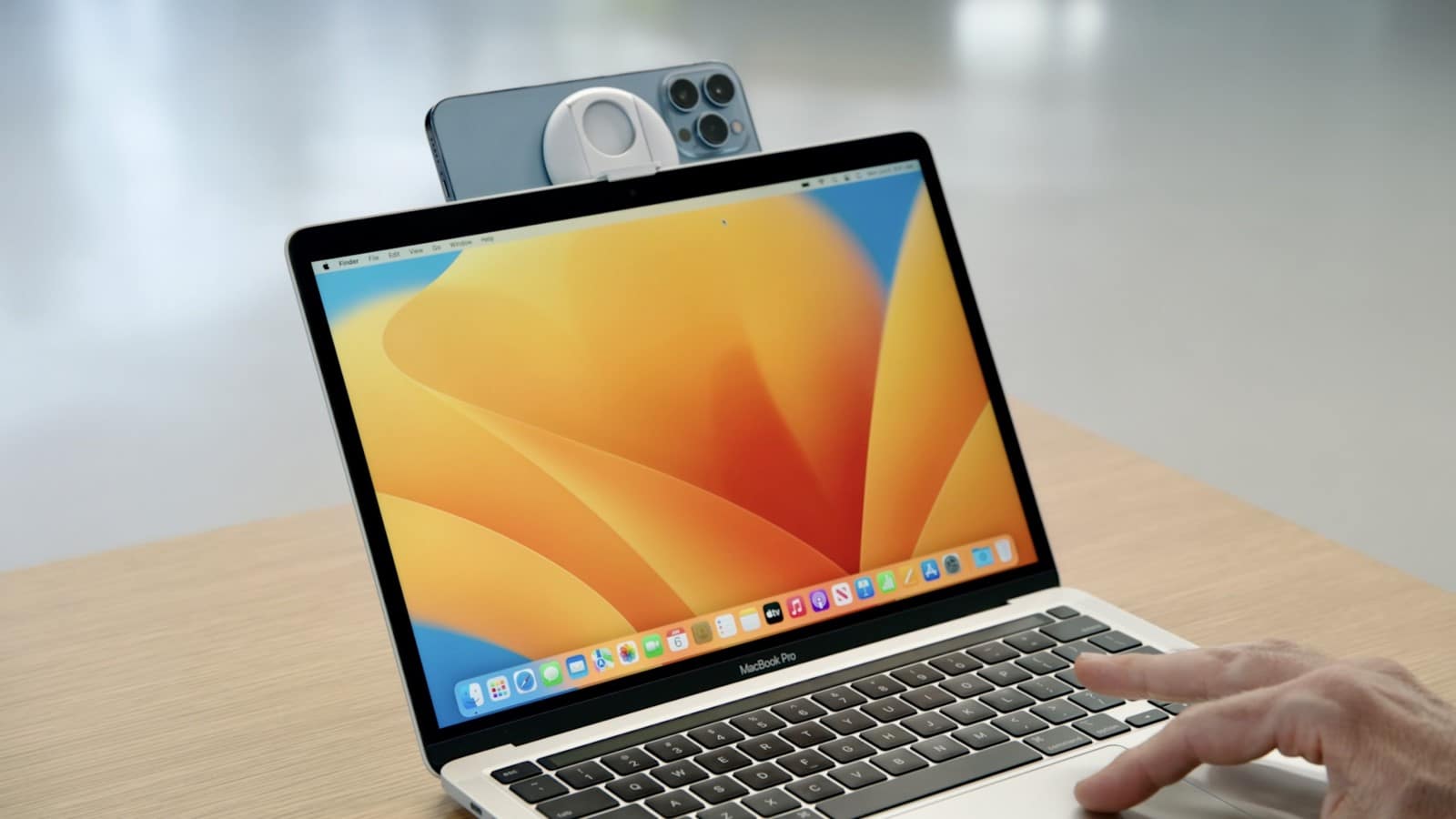
If you’re reading this, chances are you own an iPhone and are looking to maximize its utility. With the latest macOS Ventura and iOS 16, Apple has introduced a native solution called Continuity Camera, allowing seamless integration between your iPhone and Mac. Here’s a guide on using your iPhone as a webcam on both Mac and Windows PCs.

Continuity Camera on Mac: A Native Solution

How to Use iPhone as Webcam in 2024 on Mac or Windows PC

Image Source: knowtechie.com

Continuity Camera eliminates the need for third-party apps. With your iPhone and Mac connected to the same Wi-Fi network, you can effortlessly turn your iPhone into a webcam. This feature, integrated into macOS Ventura, ensures a straightforward setup without any additional app installations.

EpocCam: A Versatile Option for Mac and Windows

For those seeking more features, EpocCam is a robust choice. Supporting both video and audio, it is compatible with various video players like Skype and YouTube. The free version offers 640×480 video resolution with a watermark, while the paid version removes these limitations. To get started, download the EpocCam app on your iPhone, install the drivers on your computer, and connect both devices to the same Wi-Fi network.

Top iOS Apps for Webcam Use

iVCam Webcam

Delivering high-definition videos with low latency, iVCam supports various video sizes, including 1080p and 720p. With options to configure video/audio quality and frame rates, it provides flexibility for different needs, supporting face beautify, video flip/mirror, and more.

FineCam for iOS

Offering up to 4K resolution with HDR color support, FineCam enables you to use your iPhone as a webcam on the same Wi-Fi network. Simple setup involves downloading and installing the FineCam app on both your iPhone and Mac or PC.

iCam

Webcam Video Streaming: For those interested in streaming multiple live videos instantly, iCam is the go-to app. Supporting motion event recording and playback, it provides notifications for detected events. To use, download iCamSource software or buy its mobile app.

WebCamera

A top-rated and powerful iPhone webcam app, WebCamera by Shape stands out for its professional approach. Supporting multiple resolutions, it is compatible with various messaging apps and video production software, making it worth the investment.

Choosing the right app depends on your specific needs, whether it’s high-quality videos, multiple live streams, or professional-level features. Transforming your iPhone into a webcam has never been more accessible with these diverse options.

Artifact News App by Instagram Founder Shuts Down Within a Year of Launch

Artifact News App by Instagram Founder Shuts Down Within a Year of Launch

In a surprising turn of events, Artifact, the news app launched by the founders of Instagram, has announced its closure just a year after its much-anticipated debut. This article traces the artifact’s journey, examining the reasons behind its short lifespan.

Launch of Artifact

Artifact News App by Instagram Founder Shuts Down Within a Year of Launch

Image Source: pc-tablet.com

Artifact, a promising news app, was launched with a vision to revolutionize the way people consume news. It promised a personalized, AI-powered news experience leveraging the expertise of Instagram’s founding team.

User Response and Engagement

The app generated a lot of buzz at the time of its launch, with expectations sky-high due to the founders’ Instagram success story. However, the response from users was mixed, and Artifact struggled to maintain consistent engagement, a major factor in its ultimate decline.

Key Features of Artifact

Artifact was designed to present a tailored news feed based on user preferences using advanced AI algorithms. The app’s technology aimed to differentiate it from competitors, but it faced challenges in execution and user acceptance.

Competition in the News App Market

Artifact entered a crowded market, competing with established players who already captured significant user bases. Despite its innovative approach, Artifact found it challenging to differentiate itself and gain a foothold in the competitive landscape.

Decision to Shut Down

Artifact was forced to shut down due to a combination of lower-than-expected user engagement and strategic business decisions. The founders provided insight into their decision, emphasizing the difficulties faced in growing the app in a sustainable way.

Impact on the Tech Industry

Artifact’s shutdown offers valuable lessons about market research, user engagement, and the challenges of introducing new technology products. The tech industry has reacted with a mixture of surprise and understanding, acknowledging the difficulties of innovating in the digital news sector.

Role of Social Media in News Consumption

The rise of social media has dramatically changed the way news is consumed, driving a shift toward more personalized and on-demand content. Users are increasingly preferring news sources that offer customization and interactivity, a trend that Artifact sought to take advantage of.

User Reactions and Feedback

The shutdown received a range of reactions from users ranging from disappointment to understanding, reflecting the mixed reception the app has received.

Conclusion

Artifact’s closure within a year of launch is a reminder of the unpredictable nature of the tech industry. This underlines the importance of user interaction and adaptability in the competitive digital news market. Although the artifact’s journey was brief, it leaves valuable insights for future digital news efforts.

OpenAI Lifts Ban on the Use of ChatGPT For "Military and Warfare"

OpenAI Lifts Ban on the Use of ChatGPT For “Military and Warfare”

In a landmark decision, OpenAI has recently lifted the ban on the use of ChatGPT for military and warfare purposes. This groundbreaking shift marks a new era in the application of AI technology, opening up many possibilities but also raising important ethical questions.

OpenAI's Policy Shift: An Overview

OpenAI Lifts Ban on the Use of ChatGPT For "Military and Warfare"

Image Source: commondreams.org

OpenAI’s decision to allow the use of ChatGPT in military and warfare contexts has attracted worldwide attention. This marks a significant change in the company’s policy, which previously focused on limiting AI applications to prevent potential abuse.

Implications of Using ChatGPT in Military and Warfare

ChatGPT can provide immense strategic benefits to military operations, including real-time data analysis, language translation, and decision-making support. The use of AI in warfare raises serious ethical considerations, from the potential loss of human control in decision-making to the consequences of automated warfare.

Global Reactions to the Policy Change

Various governments have responded differently, with some embracing the technology for defense, while others expressing concern over an AI arms race. Public reaction has been mixed, reflecting both excitement over technological advances and apprehension about the ethical implications of AI in warfare.

ChatGPT's Capabilities in a Military Context

ChatGPT’s advanced language processing capabilities make it a valuable tool for intelligence gathering and analysis. Its ability to quickly process large amounts of data can provide significant assistance in strategic decision-making and planning.

The Ethical Debate: AI in Warfare

The ethical debate centers around the ethical responsibilities of the use of AI in life-or-death situations and the potential dehumanization of war. Questions also arise about how international law views AI in warfare and the need for new rules and frameworks.

Security Measures and Safeguards

OpenAI emphasizes the importance of responsible AI use in military applications, advocating strict guidelines and ethical considerations. The company assures continuous monitoring and evaluation of the use of AI in warfare to prevent misuse and unintended consequences.

Potential Risks and Challenges

There is a significant risk of misuse of AI technology for harmful purposes, which requires strong control mechanisms. The integration of AI into military systems also raises cybersecurity concerns, highlighting the need for advanced security protocols to protect sensitive data and systems.

Future Scenarios: AI and Warfare

Looking ahead, the integration of AI like ChatGPT in military contexts could lead to significant changes in warfare, including autonomous systems and AI-powered strategy formulation.

Conclusion

OpenAI’s decision to lift the ban on ChatGPT for military use marks a turning point in AI development. This brings immense possibilities but also deep ethical and security challenges. As AI continues to develop, it is important that its application in sensitive areas such as military and warfare is guided by a strong ethical framework, international cooperation, and a commitment to global security and peace.

How To Downgrade ICloud+ Storage Plan on iPhone, iPad, Mac, PC

How To Downgrade ICloud+ Storage Plan on iPhone, iPad, Mac, PC

How To Downgrade ICloud+ Storage Plan on iPhone, iPad, Mac, PC

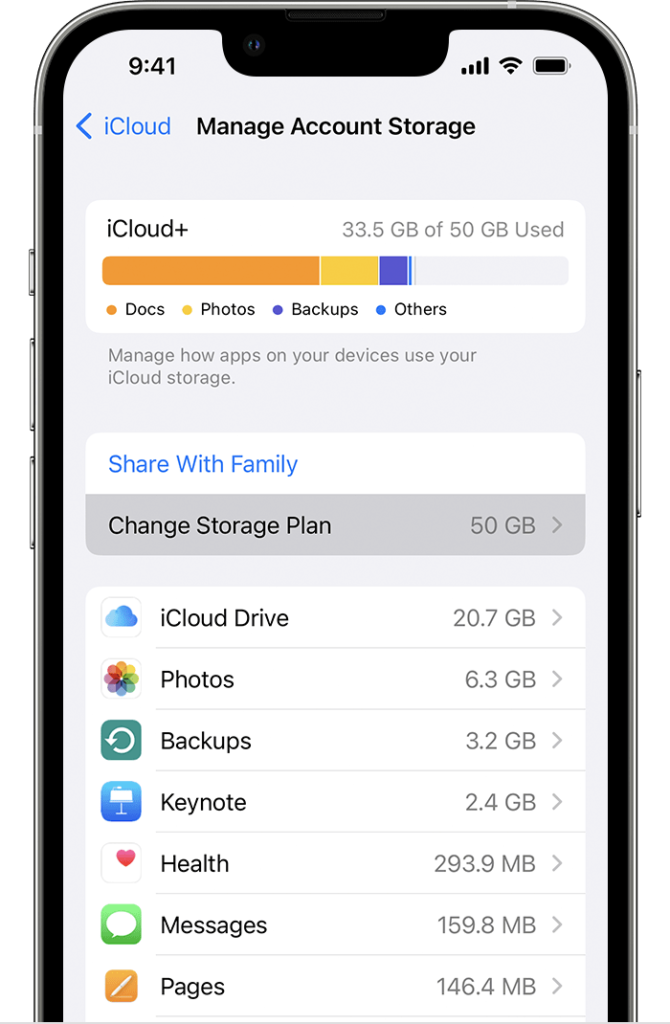
A key component of Apple’s ecosystem, iCloud+ offers consumers seamless cloud storage across all of their devices. But there can be times when you want to change or end your iCloud+ storage subscription. Here’s a detailed explanation explaining how to reduce your iCloud+ storage plan and what happens following, whether you’re using an iPhone, iPad, Mac, or PC.

How to Downgrade Your Storage Plan on iCloud+

Mac

  • Launch the Apple menu.
  • Click on Apple ID under System Preferences (if you’re on macOS Mojave or older, skip this step).
  • After selecting iCloud, choose Manage.
  • To modify your storage plan, click.
  • Launch the menu for Downgrade Options.
  • Enter the password for your Apple ID.
  • Choose the Free Plan.
  • Press “Done.”

Using a Windows computer

  • Launch the iCloud for Windows software.
  • Press the “Storage” button.
  • Click on Modify Storage Plan.
  • Launch the menu for Downgrade Options.
  • Enter the password for your Apple ID.
  • Choose the Free Plan.
  • Press “Done.”

Using the iPhone

  • Get the Settings menu open.
  • Press your moniker.
  • Tap Manage Storage or iCloud Storage after selecting iCloud.
  • Select Modify Storage Plan.
  • Launch the menu for Downgrade Options.
  • Enter the password for your Apple ID.
  • Choose the Free Plan.
  • Click “Done.”

On the iPad

  • Get the Settings menu open.
  • Press your moniker.
  • Tap Manage Storage or iCloud Storage after selecting iCloud.
  • Select Modify Storage Plan.
  • Launch the menu for Downgrade Options.
  • Enter the password for your Apple ID.
  • Choose the Free Plan.
  • Click “Done.”

Without a Windows computer or Apple device

  • Click on iCloud on Windows.
  • Press the “Storage” button.
  • Click on Modify Storage Plan.
  • Launch the menu for Downgrade Options.
  • Enter the password for your Apple ID.
  • Choose the Free Plan.
  • Press “Done.”

What Follows a Downgrade

When the data in your iCloud app reaches the limit of the reduced plan, it will stop syncing or updating.

Upgrade your storage or make space by removing superfluous files in order to start syncing again.

You will not be able to use several iCloud+ services, such as Private Relay and Hide My Email if you downgrade to the Free Plan.

Extra Details

For possible reimbursements, get in touch with Apple Support within 14 days if there have been any recent downgrades.

Before you begin the downgrade, make a backup copy of your iCloud data.

How to Setup Find My on iPhone, iPad, and Mac

How to Setup Find My on iPhone, iPad, and Mac

How to Setup Find My on iPhone, iPad, and Mac

When it comes to tracing lost or stolen devices and guaranteeing the protection of your priceless Apple items, Apple’s Find My function is a lifesaver. For location monitoring, remote data deletion, and device security, Find My provides a uniform solution, independent of the device—an iPhone, iPad, Mac, AirPods, or even third-party accessories. Here’s a step-by-step tutorial for configuring Find My on your Mac, iPhone, and iPad.

Open the Find My App:

Make sure the Find My app is installed on your smartphone before starting the setup procedure. Download it from the App Store if not.

  • Turn on Find My on your iPad and iPhone.
  • Launch the iPhone’s Settings app.
  • Click or tap your Apple ID name, then choose “Find My.”
  • If you want your friends and family to be aware of where you are, enable “Find My [Device]” and “Share My Location”.
  • Turn on “Find My Network” to locate a dead iPhone and turn on “Send Last Location” in cases when the battery is running low.
  • Retain Location Services turned on under the Privacy & Security menu.

Include Accessories to Locate My Device:

The setup process is simple for Beats, Apple Watch, and AirPods products:

Both AirPods and AirPods Pro

  • Open Settings, select Bluetooth
  • Then press the Info button next to the AirPods that are connected.
  • Choose “Show in Find My Network.”

Apple Watch

  • Navigate to Settings on your Apple Watch
  • Touch your name
  • Choose the name of your watch
  • Then pick “Find My Watch.”
  • Verify that “Find My Network” is turned on.

Find My on a Mac:

While Mac Find My works similarly, make sure location services are turned on:

  • On your Mac, open the Settings app.
  • To activate Location Services
  • Choose Security & Privacy
  • Then select the Privacy tab.

You have now successfully set up Find My on your iPhone, iPad, and Mac by following these thorough instructions. This strong feature guarantees that even third-party accessories are trackable, giving users piece of mind about device security. Find My now provides assistance for lost iPhones and disconnected AirPods.

Utilise Apple’s Find My to simplify the tracking of your Apple gadgets and devices and to protect your digital surroundings.

How to Track Family and Friends' Live Location on Your iPhone?

How to Track Family and Friends’ Live Location on Your iPhone?

In an age where staying connected is more crucial than ever, tracking the live location of your loved ones has become a valuable feature on smartphones. If you’re an iPhone user, Apple provides a seamless and secure way to keep tabs on your family and friends in real-time. Here’s a comprehensive guide on how to make the most of this capability.

Utilizing Find My iPhone

How to Track Family and Friends' Live Location on Your iPhone?

One of the standout features of the iPhone is the built-in app called “Find My.” This app not only helps locate your lost or stolen device but also allows you to share your location with others. To start tracking someone’s live location, open the Find My app, tap on “Share My Location,” and select the contact you want to share your whereabouts with. This ensures that you can keep a watchful eye on each other’s movements.

Sharing Location via Messages

For a more temporary tracking solution, the Messages app on your iPhone also offers location-sharing capabilities. In a conversation, tap the person’s name at the top, select “info,” and then choose “Share My Location.” You can share your live location for a specific duration or indefinitely, providing flexibility based on your needs.

Creating a Location Sharing Circle

To streamline the process of tracking multiple family members or friends, consider setting up a Family Sharing group. This allows you to create a dedicated circle for location sharing, making it easier to monitor everyone in one place. To do this, navigate to Settings, tap on your name, select “Family Sharing,” and then choose “Share My Location.”

Location-Based Reminders

If you want to receive notifications when someone arrives or leaves a specific location, the Reminders app can be your ally. Create a reminder, tap “Add Location,” and set the desired location. When the intended person enters or exits that area, you’ll receive a notification, adding an extra layer of awareness to your tracking capabilities.

Privacy and Security Considerations

While tracking your family and friends can be immensely beneficial, respecting privacy is paramount. Ensure that everyone involved is comfortable with the idea of location sharing, and always communicate openly about its usage. Additionally, regularly review and manage location-sharing settings to maintain a balance between staying connected and respecting personal boundaries.

In conclusion, the iPhone provides a range of options for tracking the live location of your family and friends. Whether through the Find My app, Messages, or creating dedicated circles, these features enhance the connectivity experience while maintaining the privacy and security of everyone involved. Experiment with these tools, find what works best for your needs, and enjoy the peace of mind that comes with knowing the whereabouts of your loved ones in real-time.